
A WordPress update takes a minute when all goes well. When it fails, it can take the site offline. Preparation makes all the difference.
Here is the procedure I follow, with what the official documentation says about each step.
What should you do before updating?
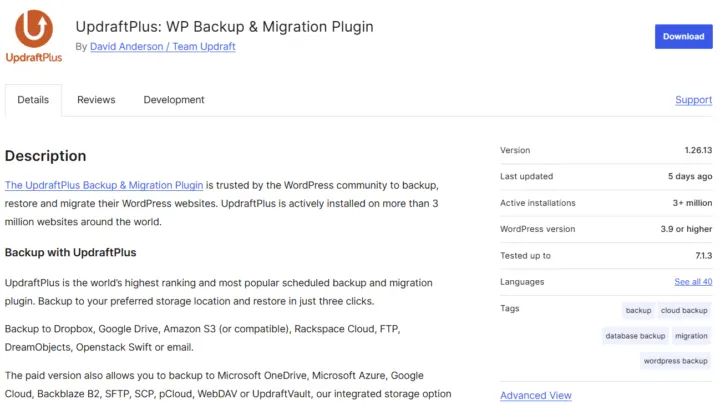
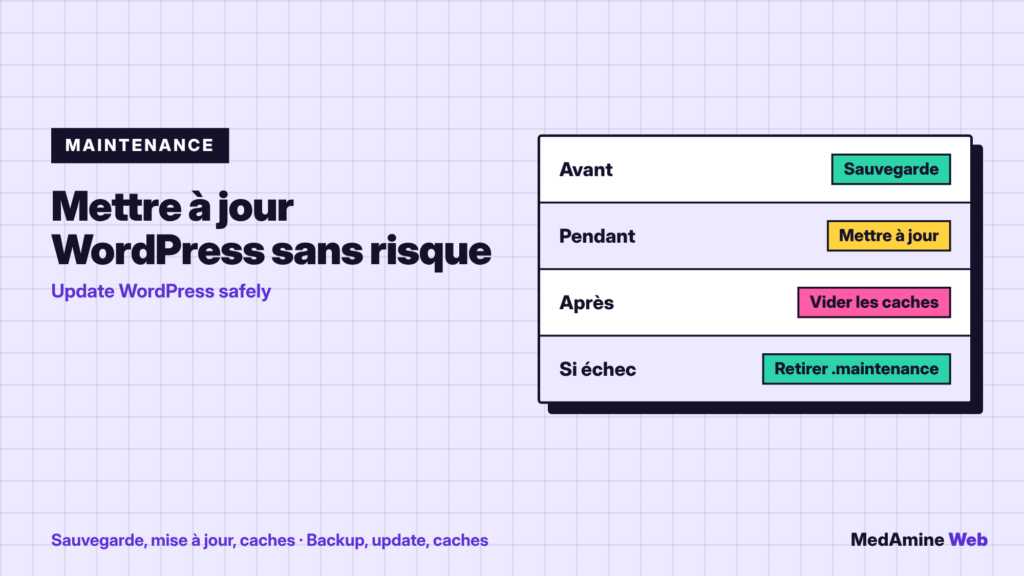
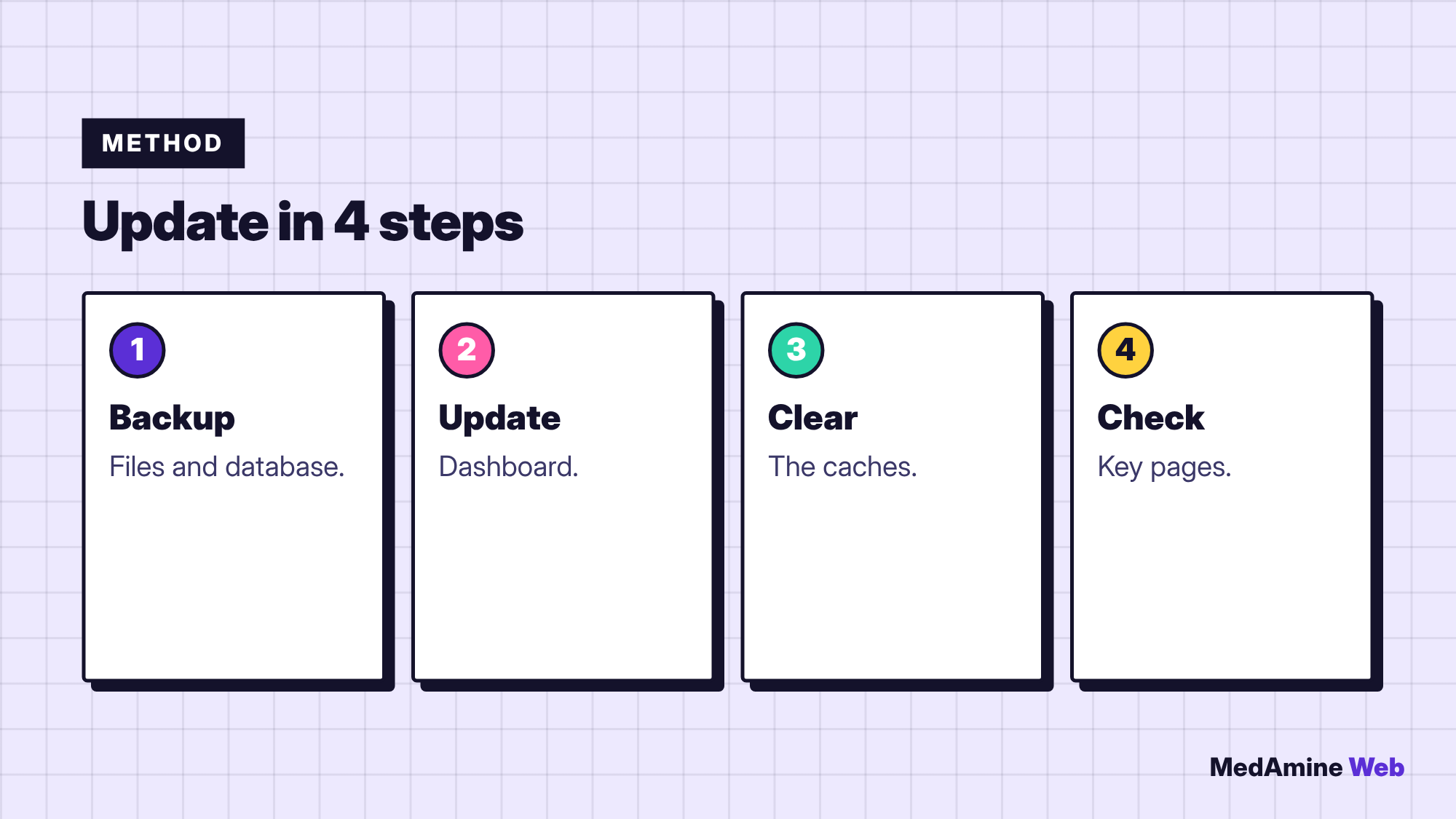
Back up the site so you can restore it if something goes wrong. The documentation puts it first. The update also overwrites core files: any change you made to them will be lost.
For a complete method, read how to back up a WordPress site.
How do you update in one click?
- Open the Dashboard, then Updates.
- Click Update Now.
- Wait for the operation to finish, which it does on its own.
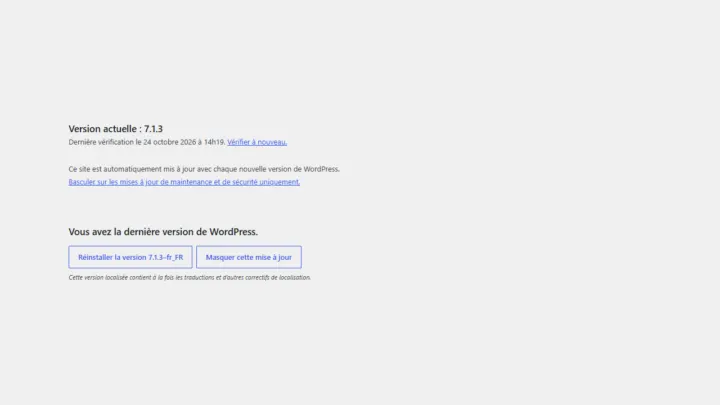
- Check the version displayed.
Problems most often come from file permissions. If WordPress cannot write, it asks for FTP credentials.
What are automatic updates?
Since WordPress 3.7, minor and security updates apply in the background when the site allows it. Major versions still require you to click Update Now.
How do you update manually?
The documentation describes three steps: replace the files, update the database, then clear caches. Deactivate plugins, replace the wp-includes and wp-admin folders, copy the contents of wp-content without deleting the existing one, then visit the admin for the database update.
What should you do after the update?
- Clear caches so visitors see the new version.
- Test the home page, a post, the form and the shop.
- Reactivate the plugins you deactivated.
- Note the version and date in your maintenance log.
What if the update fails?
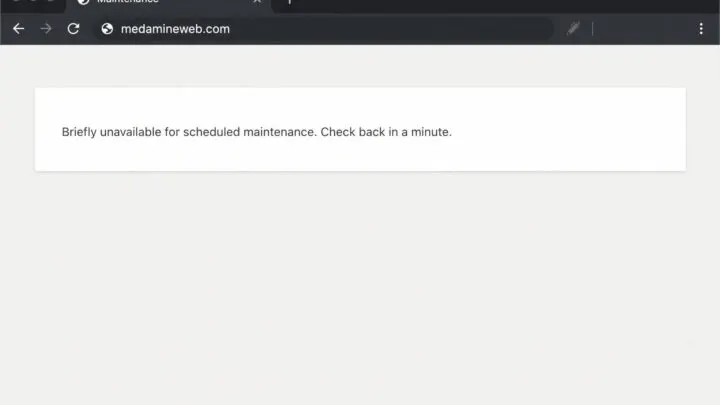
If a failed update notice appears, delete the .maintenance file at the root over FTP. If the one-click update fails, try the manual update. Otherwise, restore the backup. The blocking case is detailed in stuck maintenance mode.
If a plugin prevents access to the admin, see disable a plugin without admin access.
Who should take care of it?
You, if you have the time and a reliable backup. Otherwise, a maintenance plan covers tested updates, a backup before each operation and restoration if something goes wrong.
Should you update right away?
For security fixes, yes, without waiting too long. For a major version, let a few days pass, read the release notes and test on a copy first if your site is critical.
Update in the right order: first WordPress core, then plugins, then the theme, testing the site between each step. If a problem appears, you will know which update caused it.
Choose a quiet moment, never right before an important event such as a campaign or a promotion. An up-to-date site is safer, but a badly timed update can cost sales.
Keep a short log of each update: date, version, what you tested and the result. It turns a stressful routine into a repeatable procedure.
Finally, check that your hosting meets the requirements of the new version before you update. An outdated PHP version is a frequent cause of failed updates, and your host can usually change it in a few clicks.
What now?
What you can do today:
- Check the WordPress version under Dashboard, Updates
- Take a backup before the next update
- Note how to reach your site over FTP in case of a blockage
Dig deeper: WordPress Maintenance