
A backup is useless until the day you need it, which is exactly why people put it off. Yet a failed update, a hack or a wrong click is enough to lose everything.
Here is what to copy, three free ways to do it and how to check that your backup works.
What should you back up on a WordPress site?
Two things: the database and the files. The official WordPress documentation says you need both to restore a complete site.
The database holds your posts, pages, settings and comments. The files include the WordPress core, themes, plugins, your images and the wp-config.php file.
What are the free ways to back up WordPress?
The official documentation lists your host’s software, backup plugins and manual copies with an FTP client and phpMyAdmin. The three work well together.
| Method | Automatic | Effort | Watch out for |
|---|---|---|---|
| Host backup | Often yes | Low | Depends on the plan, and the copy stays with the host |
| Free plugin | Yes, on the schedule you choose | Medium | Some options are paid |
| Manual copy | No | High | Files over SFTP, database through phpMyAdmin |
For a business website, the host’s backup plus a plugin already gives you a good base. A manual copy is mostly useful before a major piece of work.
Is the WordPress Export tool a backup?
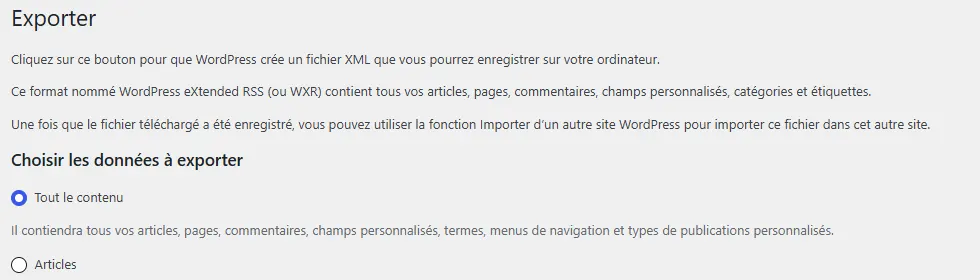
No. Tools > Export creates an XML file with your posts, pages, comments, custom fields, categories and tags. It doesn’t contain your theme files or plugins.
It’s for moving content from one WordPress site to another. It isn’t enough to restore a whole site after an incident.
How do you back up WordPress with UpdraftPlus?
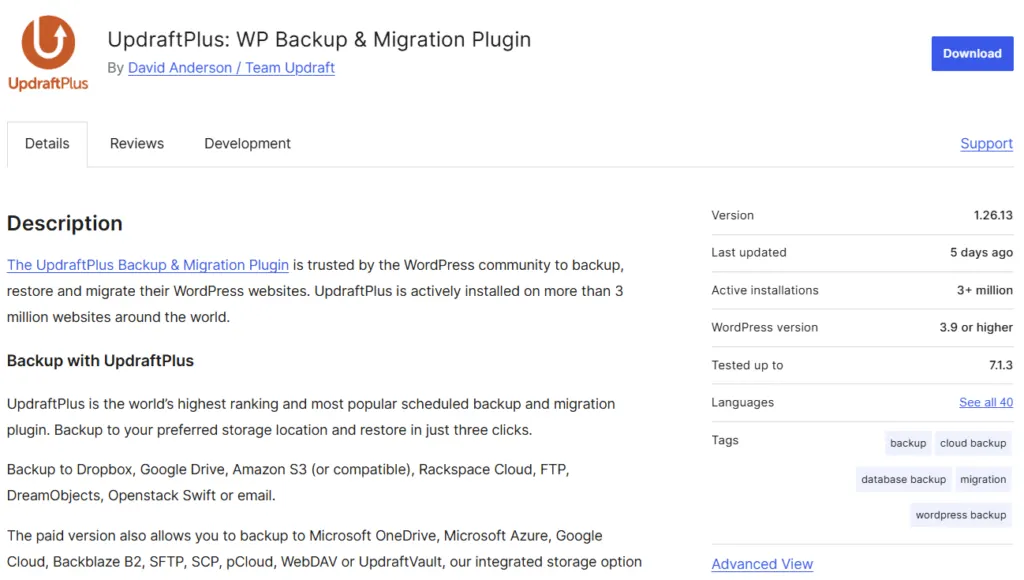
UpdraftPlus is one of the most widely used backup plugins, with more than 3 million active installs in the official directory. The free version schedules backups and sends them to remote storage.
- Install the plugin from Plugins > Add New, then activate it.
- Open its settings and choose how often the files and database are backed up.
- Choose remote storage: Dropbox, Google Drive, Amazon S3, FTP and email are among the free options.
- Run a first backup by hand and check that it lands in your storage.
- Set the number of copies to keep, so you can go back several days.
The schedule ranges from one backup every 2 hours to one a month, with daily, weekly and fortnightly options in between.
How often should you back up?
The official documentation suggests about once a week for a small site and every day for a very active one. Either way, also back up right before every update.
The right rhythm depends on how much you can afford to lose. A store taking orders all day can’t make do with a weekly copy.
Where should you store your backups?
Never rely on a single place. The official documentation advises keeping three to five recent copies in different locations:
- Your host’s server, for a quick restore.
- Online storage, such as Google Drive or Dropbox.
- Your own computer, with a copy downloaded now and then.
How do you restore a backup?
With UpdraftPlus, you choose what to restore: plugins, themes, the database or everything. Restore to a copy of the site first if you can, rather than straight onto the live site.
After a restore, open the key pages, test a form and check you can log in to the admin. If the site was hacked, read Hacked WordPress site: what to do in the first hour first, because restoring an infected copy fixes nothing.
How do you know a backup is reliable?
Only by restoring it. The official documentation also recommends running a manual backup from time to time to make sure the automatic one works.
- The date of the last backup matches your schedule.
- The archive contains both the files and the database.
- A test restore on a copy of the site finishes without errors.
- You know where your remote storage logins are.
When should you call in a professional?
You can handle backups for a simple site yourself with one of the methods above. Get help for an online store, a site that changes all day long or a restore after a hack.
I set up tested off-site backups as part of WordPress maintenance. What a plan should include is covered in WordPress maintenance plans: what they include and cost.
What now?
What you can do today:
- Write down the date of your last backup and where it’s stored.
- Ask your host whether they back up your site and how many copies they keep.
- Test a restore on a copy of the site before you need it.
Dig deeper: WordPress Maintenance