
A plugin crashes, the admin shows an error and you can no longer disable it from the interface. It is a classic case, and it is fixed in minutes with the right method.
Here is how to disable a plugin without the admin, then find the one that causes the problem.
Why can you no longer reach the admin?
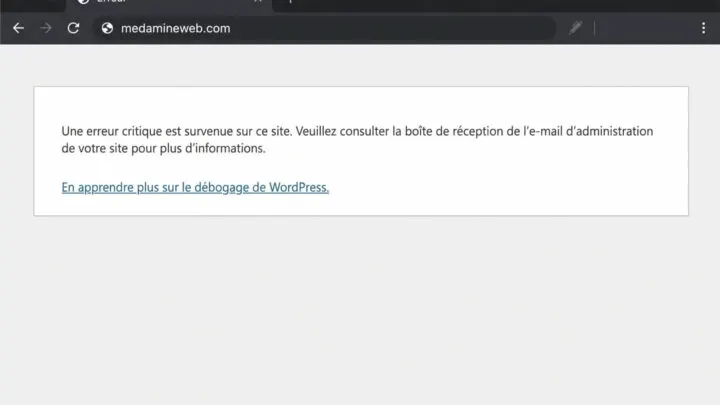
A conflicting plugin can cause a critical error or a white screen, which also blocks the admin. You can then no longer disable it from the dashboard.
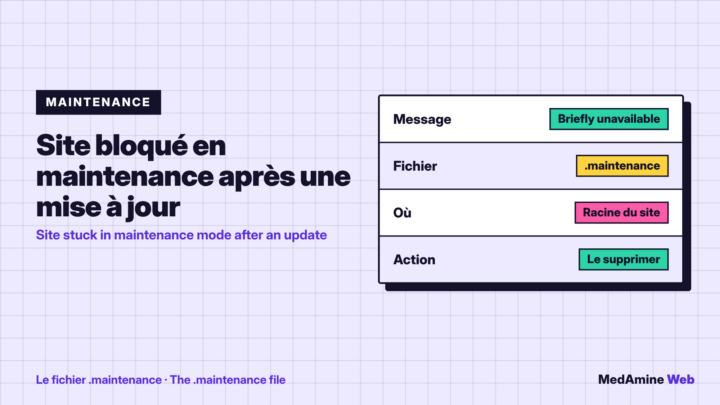
The same principle applies when an update gets stuck, as in stuck maintenance mode.
What should you do before touching files?
Copy the files and the database if the host allows it. Also note the plugin installed or updated just before the failure: it is the first suspect.
How do you disable a plugin over FTP?
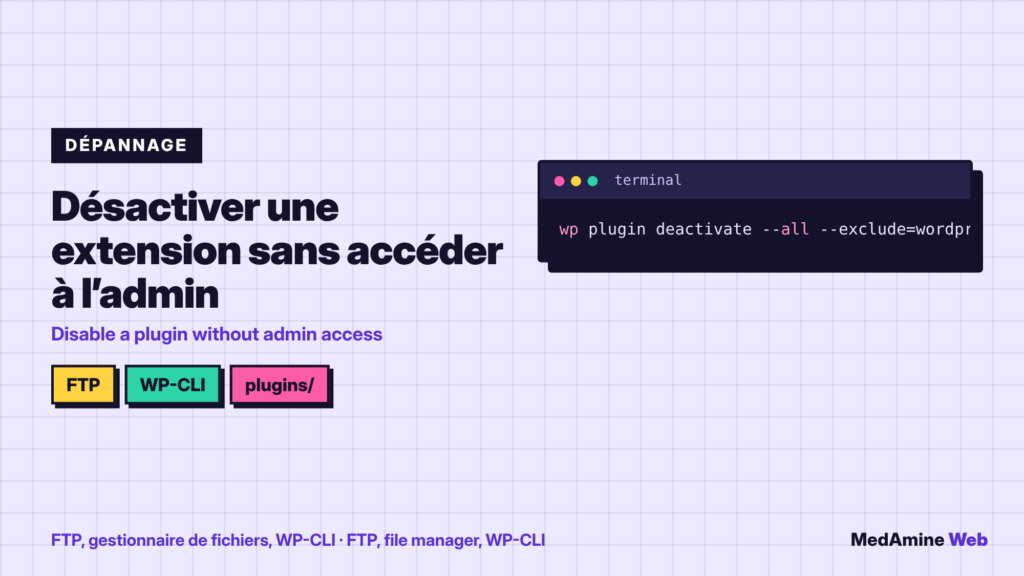
- Connect over FTP or open the host’s file manager.
- Open the
wp-content/pluginsfolder. - Rename the plugin’s folder, for example by adding
-off. - Reload the site and the admin.
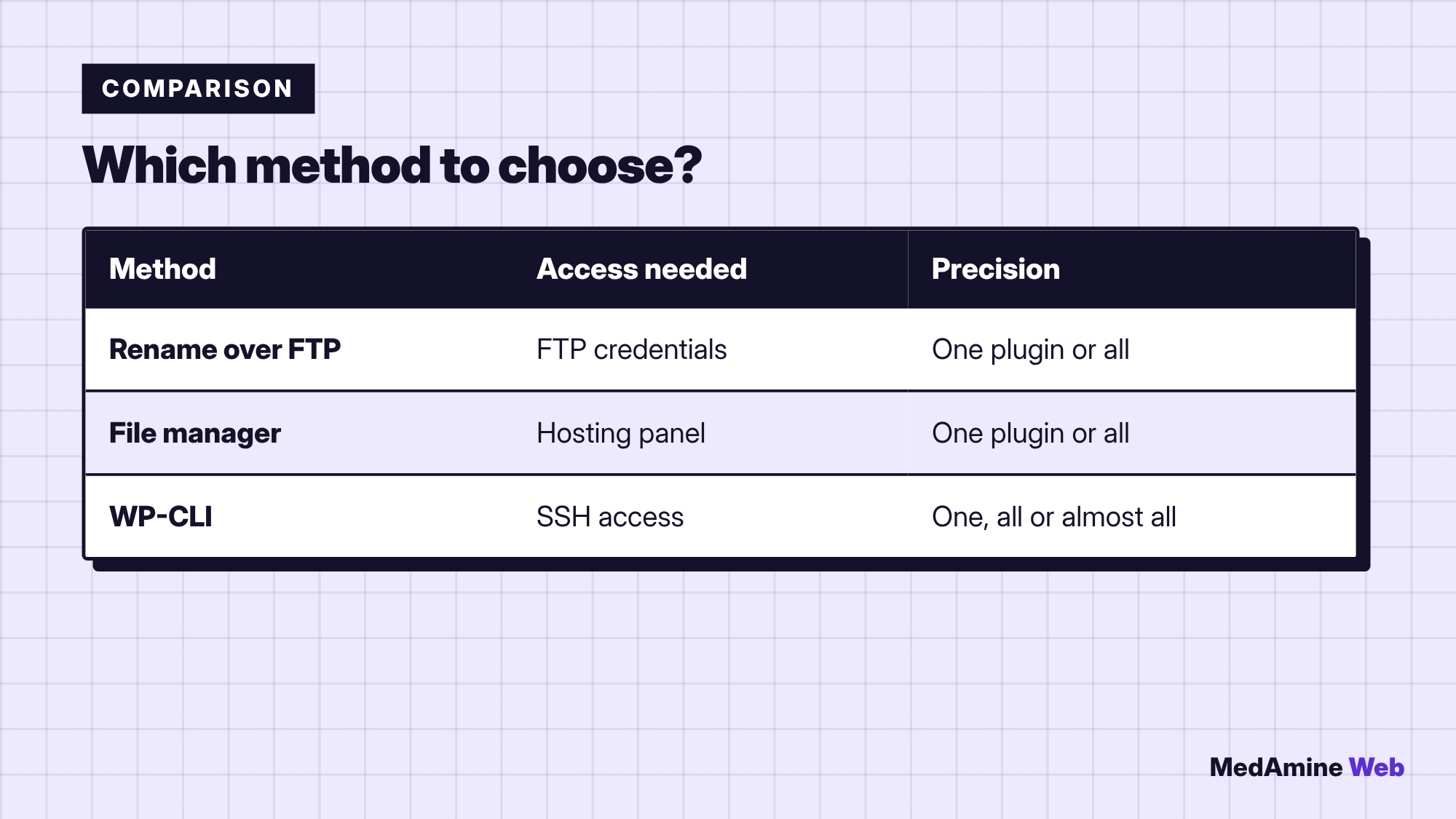
How do you disable all plugins at once?
Rename the plugins folder itself, for example to plugins-off. The plugins are then disabled, and you often regain access to the admin.
Then restore the original name and reactivate the plugins one by one to find the one that blocks.
How do you do it with WP-CLI?
If your host gives command-line access, the wp plugin deactivate command disables one or more plugins. According to the handbook, the --all option disables everything, and --exclude keeps some plugins active.
How do you find the faulty plugin?
- Reactivate them one by one, testing the site after each.
- Start with the plugins updated recently.
- Note the plugin that brings the error back.
- Look for an update, an alternative or the vendor’s support.
What if the problem persists?
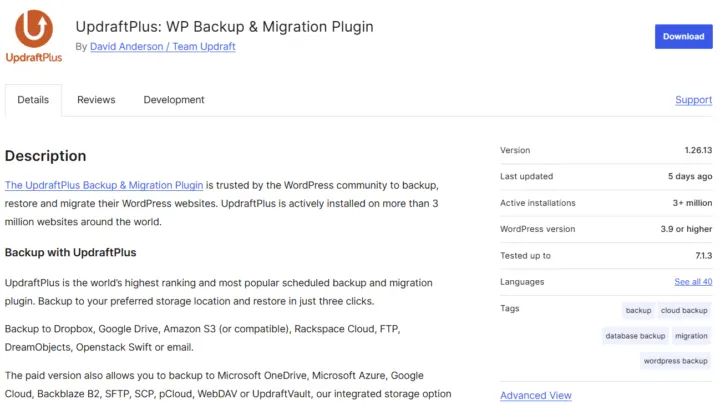
If the site stays in error with no plugin at all, test a default theme, then read the WordPress critical error. A recent backup remains the safest way out: see how to back up a WordPress site.
When should you ask for help?
If you have no access to FTP or to the hosting, or if the site handles orders in progress, get help. A quick fix costs less than a day of lost sales.
Once the cause is found, do not leave the site running with the plugin disabled without thinking: it may have been doing something important, such as a form or security. Replace it or fix it quickly.
Finally, record the incident: the plugin, the version, the time and the fix. This small history speeds up diagnosis next time.
If you manage several sites, add this procedure to your maintenance notes so anyone on the team can follow it under pressure.
Think about security too: FTP and SSH access is sensitive. Use encrypted connections, change shared passwords after the work and do not keep access you no longer need.
Keep a short list of your essential plugins and what each one does. When something breaks at night, that list tells you in seconds which plugin you can safely switch off.
What now?
What you can do today:
- Check that you have FTP or file manager access to your hosting
- Note the last plugin installed or updated on your site
- Take a recent backup before any manipulation
Dig deeper: WordPress Repair