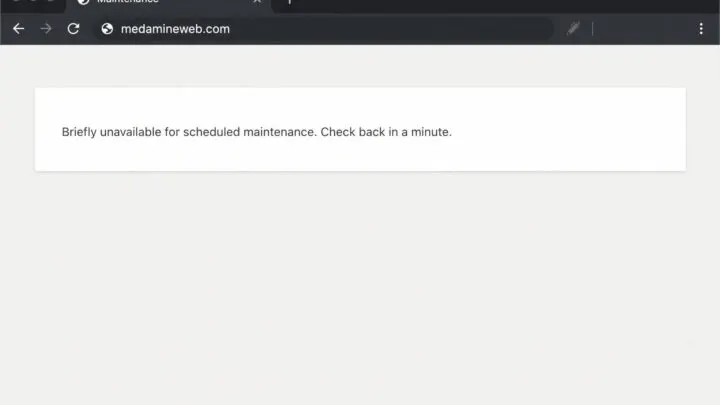

You start an update, the tab closes or the connection drops, and the site shows “Briefly unavailable for scheduled maintenance” for hours.
Here is why it happens, how to unblock the site and how to stop it from happening again.
Why does this message appear?
WordPress shows it while it updates the core, a plugin or a theme. Normally it lasts only a few seconds.
If the update does not finish cleanly, the message can stay on screen.
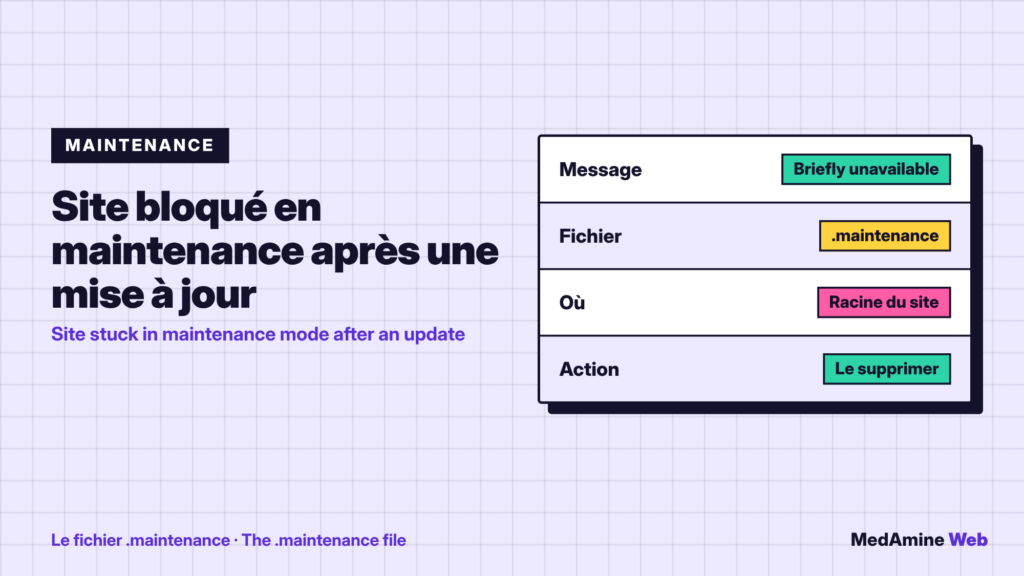
Where is the .maintenance file?
WordPress creates a hidden file named .maintenance at the site root when an update starts. Depending on the host, the root is often called public_html, www or public.
How do you delete the file?
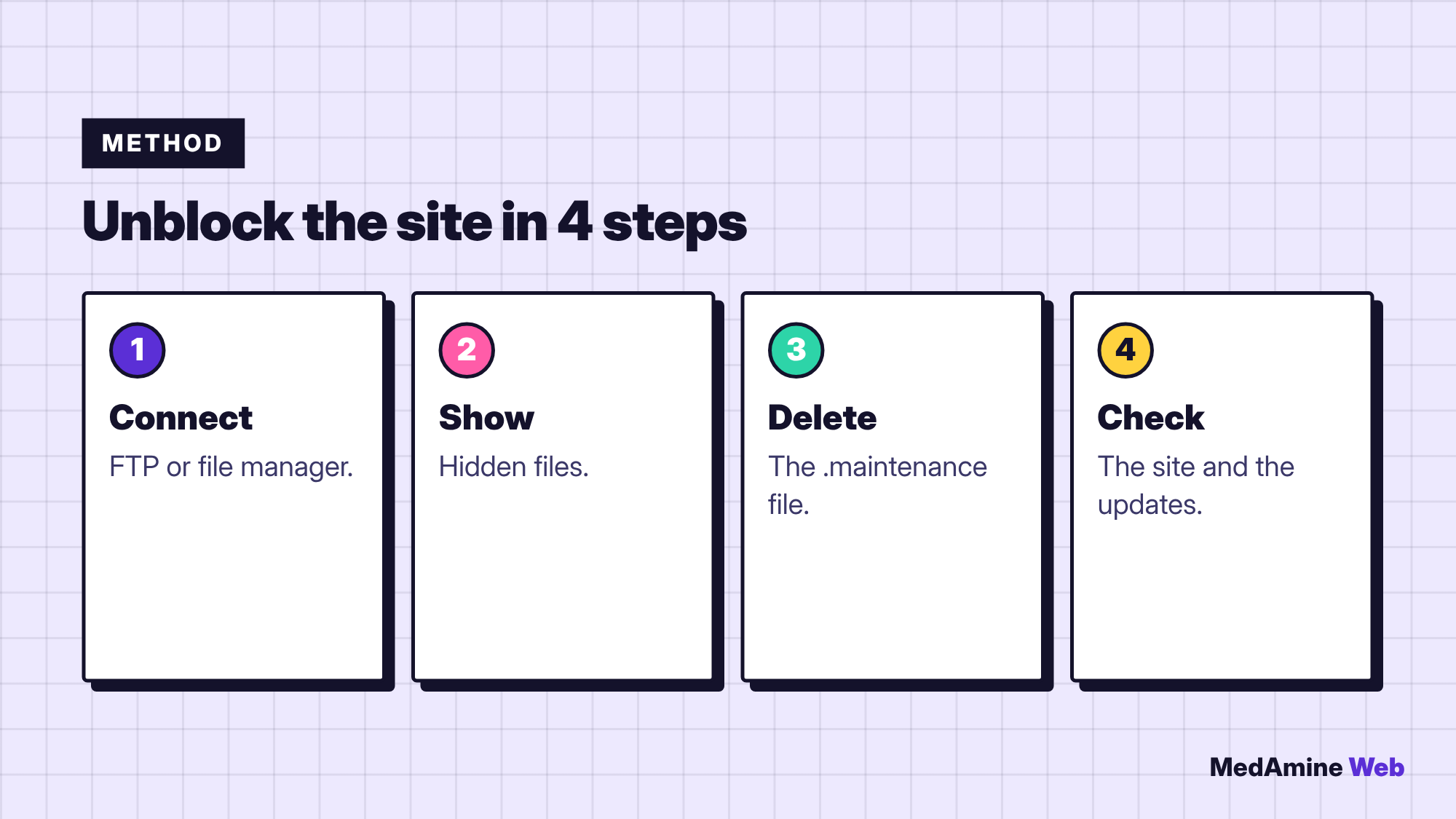
- Connect over FTP, or open your host’s file manager.
- Show hidden files if you cannot see
.maintenance. - Delete that file at the root.
- Reload the site, then rerun the interrupted update.
What if the message comes back?
Rename the plugins folder inside wp-content to disable all plugins, then reactivate them one by one to find the one that blocks. If nothing works, restore an earlier backup.
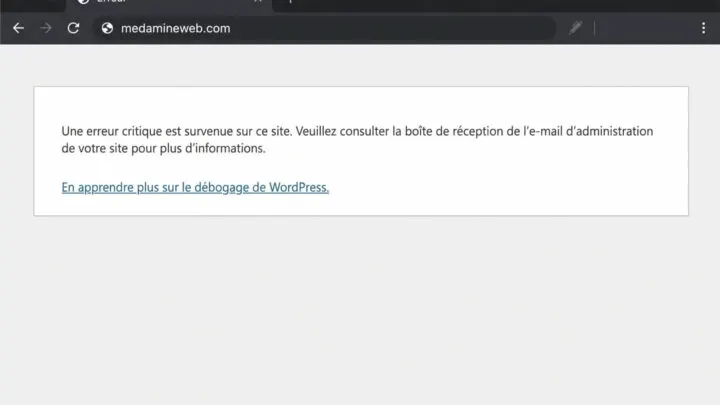
A blank page or a critical error may follow; see the WordPress critical error.
What are the most common causes?
| Cause | How to spot it | Fix |
|---|---|---|
| Tab closed mid-update | Message stays | Delete .maintenance |
| Server timeout | Incomplete update | Rerun one update at a time |
| Several updates at once | Message after a batch | Update one by one |
| Faulty plugin | Message returns | Disable the plugin |
In every case, keep a recent copy: see how to back up a WordPress site.
How do you stop it from happening again?
- Update one plugin at a time and wait for it to finish.
- Keep the tab open until all updates are done.
- Test on a copy of the site first.
- Use hosting whose resources avoid timeouts.
When should you ask for help?
If the file is deleted and the site stays unreachable, or if you cannot access the hosting, get help. A maintenance plan covers exactly this kind of incident, with a backup before each update.
What should you check once the site is unblocked?
Open the home page, an inner page and the admin. Then rerun the interrupted update and check that the site completes it. Also check the contact form and, on a shop, place a test order.
Write down in a notebook what happened: the plugin updated, the time and the fix. If the incident happens again, this record guides the diagnosis much faster.
On a site that earns money, schedule updates for a quiet time rather than during peak hours, so a failed update costs as little as possible.
If the blockage hits a shop, tell your customers with a message on your social networks or by email while you restore the site. A short explanation beats an unexplained error page.
Finally, check that your automatic updates are configured the way you want. Some sites update plugins on their own at night, and a failed update at 3 a.m. can leave the maintenance message up until the morning if nobody is watching.
What now?
What you can do today:
- Check that you have a recent backup before your next update
- Note your FTP access or your host’s file manager
- Schedule updates one by one, with the tab open
Dig deeper: WordPress Repair