

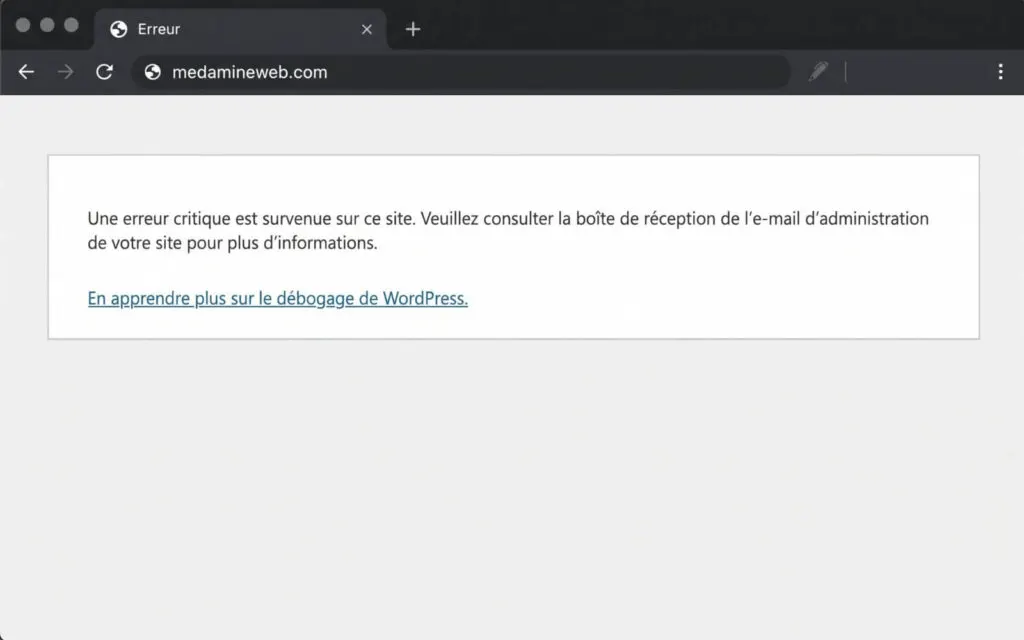
Since WordPress 5.2, a fatal PHP error no longer shows a white screen. You get the message “There has been a critical error on this website” instead. It looks tidier but tells you just as little. Here is how to find the cause in a few minutes.
What does “There has been a critical error on this website” mean?
The site’s PHP code stopped on a fatal error. In most cases it comes from an updated plugin, a theme, or a PHP version that is too new (or too old) for part of the code. WordPress then emails the admin address a link to recovery mode, which lets you log in and deactivate whatever is at fault.
How do I turn on WP_DEBUG to see the error?
If the email doesn’t arrive, turn on the debug log in wp-config.php, above the line “That’s all, stop editing!”:
define( 'WP_DEBUG', true );
define( 'WP_DEBUG_LOG', true );
define( 'WP_DEBUG_DISPLAY', false );
Reload the page with the error, then open wp-content/debug.log. The last “PHP Fatal error” line gives the file and line number. A path like wp-content/plugins/plugin-name/ points straight at the culprit.
How do I deactivate a plugin without admin access?
- Using SFTP or your host’s file manager, rename the plugin’s folder (for example
woocommercetowoocommerce-off). - With WP-CLI:
wp plugin deactivate plugin-name. - If it’s the theme, rename its folder and WordPress will fall back to a default theme if one is installed.
Is the PHP version to blame?
If the error appeared right after your host changed the PHP version, probably. Switch back to the previous version for now, then update or replace the incompatible plugin before upgrading again.
How do I restore a backup?
If you can’t find the cause or the site has to be back online right away, restore the last clean backup (files and database). Then redo the updates one at a time on a staging site to find the one that breaks it.
The most common causes
| Cause | Clue in debug.log | Fix |
|---|---|---|
| Plugin incompatible after an update | Path wp-content/plugins/… | Deactivate it, then roll back to the previous version or wait for a fix |
| Theme or child theme | Path wp-content/themes/… | Switch to a default theme, fix the code |
| PHP version | “Call to undefined function” or a deprecated function | Go back to the previous version while the code gets updated |
| Not enough memory | “Allowed memory size exhausted” | Raise the memory limit, find the plugin using too much |
| Corrupted file after an interrupted update | Error in wp-includes or wp-admin | Reinstall the core files |
What if the error only affects the admin area?
If the public site works but the admin shows the error, the cause is often a plugin that only loads in the admin (a page builder, an SEO tool, a backup plugin). The method is the same: read debug.log, then deactivate the plugin it names.
How do I stop it happening again?
- Test major updates on a staging site.
- Update one plugin at a time and check the site after each one.
- Keep a recent backup before any update.
- Keep an eye on the PHP version your host offers and on plugins that are no longer maintained.
What now?
What you can do today:
- Check that the admin email address actually receives the site’s messages.
- Keep your SFTP access or your host’s file manager login at hand.
- Write down the PHP version your site runs on.
Dig deeper: WordPress Maintenance