
Editing a live site directly is nerve-racking, and rightly so: one coding mistake and visitors see it. A WordPress site installed on your computer lets you experiment with no consequences.
Here is how local WordPress works, which free tool to choose and how to install it step by step.
What is a local WordPress install?
It’s a working copy of WordPress that runs on your own computer, with its own web server and database. Nobody but you can visit it.
The official documentation recommends this kind of environment for updating, developing or changing a site without disrupting the live version.
What is a local WordPress site for?
- Testing a WordPress, theme or plugin update before applying it.
- Developing a theme or plugin without an internet connection.
- Learning WordPress without paying for hosting.
- Preparing a redesign before putting it live.
For a custom project, the local environment is where everything starts. I give the background in my article on custom development or a plugin.
Do you need hosting or a domain name?
No. A local site needs neither hosting nor a domain name, only your computer. You only need them when you go live.
So you can build, break and start again as many times as you like, for free. It’s the best way to practise before touching a real site.
Which free tool should you choose?
The WordPress documentation lists about ten. This table compares the ones beginners use most.
| Tool | Price | Worth knowing |
|---|---|---|
| Local | Free | Desktop app with a site creation wizard |
| WordPress Studio | Free | Open source, made by Automattic, handles several sites |
| XAMPP or MAMP | Free | Local server you configure yourself |
| wp-env | Free | Command line, built for development |
To get started, Local or Studio is enough. XAMPP, MAMP and wp-env need more manual setup.
How do you install WordPress with Local?
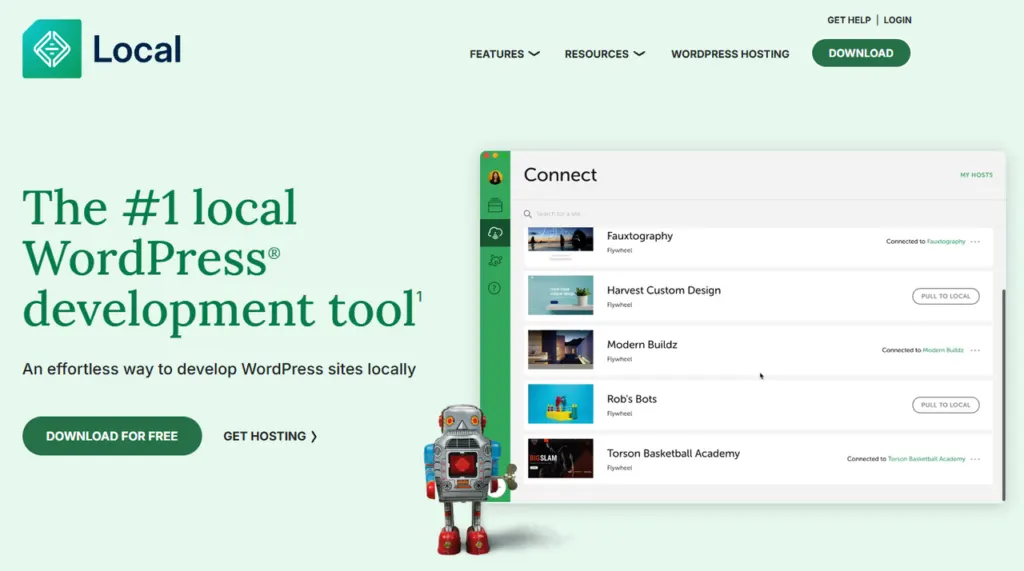
Local is free and available for Mac, Windows and Linux. It needs at least 4 GB of memory and 1.5 GB of disk space.
- Download Local from the official site, choosing your operating system.
- Install it: on a Mac, move the app to the Applications folder. On Windows, follow the installer.
- Allow access if Windows Defender shows prompts when you create your first site.
- Open the app and create your site with the wizard.
- Open the admin of the new site and log in with the credentials you chose.
And with WordPress Studio?
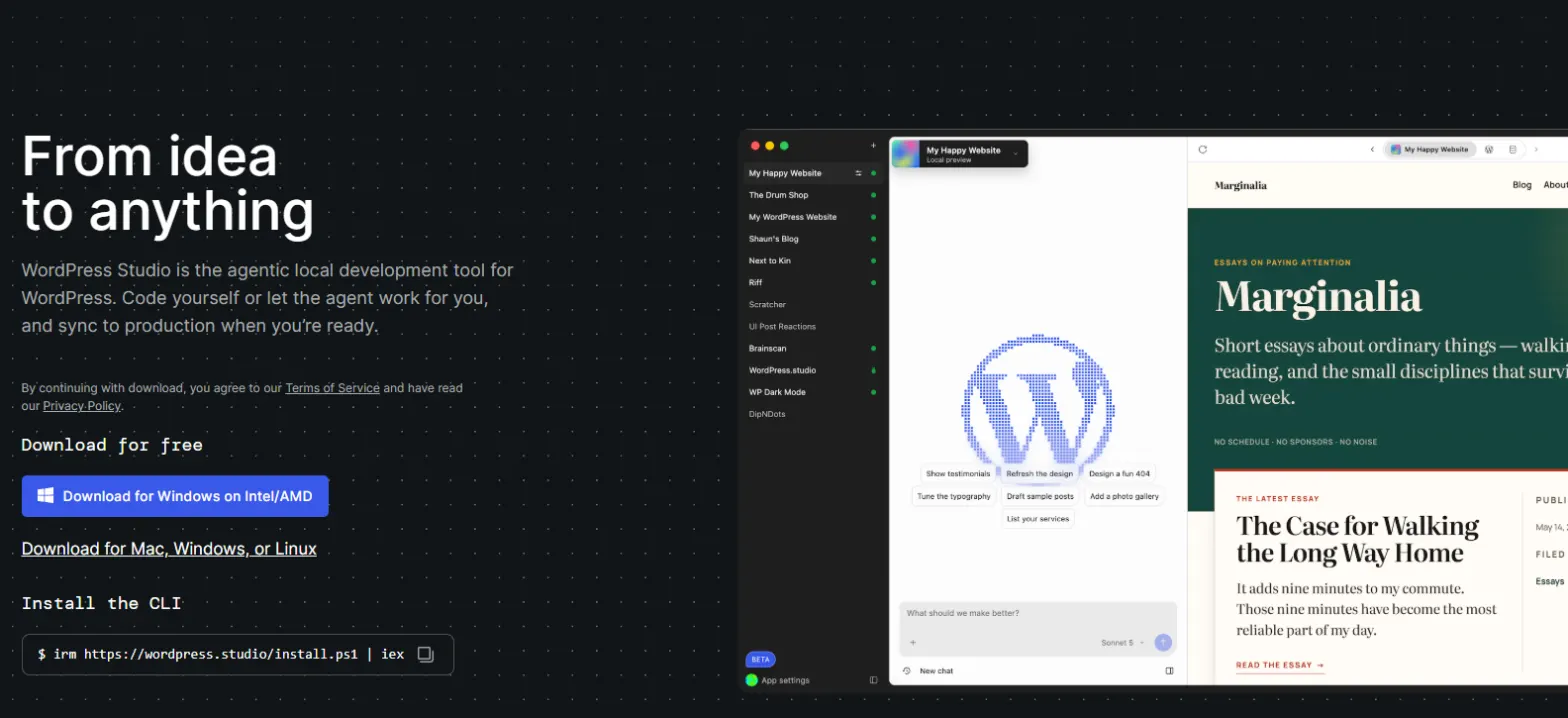
Studio is a free, open-source tool from WordPress.com for creating local sites. It runs on macOS 13 or later, 64-bit Windows and Debian Linux.
On first launch, the “Add a site” screen offers to create a site, connect a WordPress.com or Pressable site, import a backup or start from a template. A WordPress.com account is only needed for preview sites.
How do you copy your live site locally?
Start with a full backup of the site, files and database. My guide to backing up a WordPress site explains how to do it for free.
Then import that backup into the tool. Studio offers an import on the add-site screen, and Local has a help page dedicated to importing. The official documentation advises against sharing one database between the local and live sites.
How is it different from a live site?
- The address: a local site is only visible on your computer.
- The server: its PHP version may differ from your host’s, so compare the two.
- Performance: a local speed test doesn’t reflect what real visitors experience.
- The data: test orders and form submissions never leave your machine.
How do you push your changes live?
Don’t copy the whole local site over the live one. If the site takes orders or comments, you would overwrite the new data.
Carry your changes over instead: the modified theme or plugin, then the settings one by one. Studio offers selective sync for some WordPress.com and Pressable sites. For other hosts, an SFTP transfer is still the simplest.
When should you call in a professional?
Installing Local or Studio takes a few minutes on your own. Get help to copy an active store, match the environment to your host or push major changes live. Also read my guide to moving WordPress without losing SEO.
I set up test environments and controlled deployments as part of custom WordPress development.
What now?
What you can do today:
- Check that your computer has at least 4 GB of memory and 1.5 GB of free space.
- Download Local or WordPress Studio from its official site.
- Create a first empty site and open its admin.
Dig deeper: Custom WordPress Development