
Knowing which version of WordPress your site runs is useful for a lot more than filling in a support form. It’s the first thing to check when something breaks or a plugin refuses to install.
Here is where to find it in thirty seconds, what to do when the admin is out of reach, and how to tell whether it’s recent enough.
Why should you know your WordPress version?
An old version may contain security holes that were fixed long ago. A plugin or theme may also need a minimum version to work.
It’s also the first thing a host or developer asks for when looking into a bug. Give it upfront and the diagnosis starts sooner.
Where do you see the version in the admin?
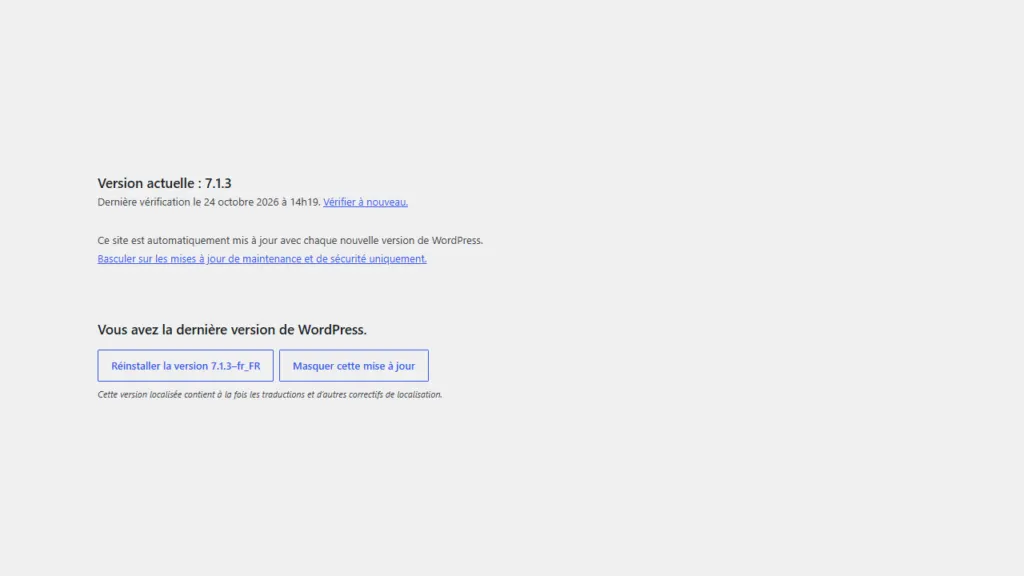
The quickest route is the updates page, as in the screenshot at the top of this article.
- Log in to your site’s admin.
- Open Dashboard > Updates in the left-hand menu.
- Read the “Current version” line at the top of the page. On my site it says 7.1.3.
- Look at the message below it: “You have the latest version of WordPress” or a prompt to update.
If an update is available, this page also has the button to install it. Read the section on updating safely further down first.
What does the Site Health screen show?
The Info tab in Site Health lists the site’s technical configuration. Its WordPress section shows the version, the language, the time zone and the site address.
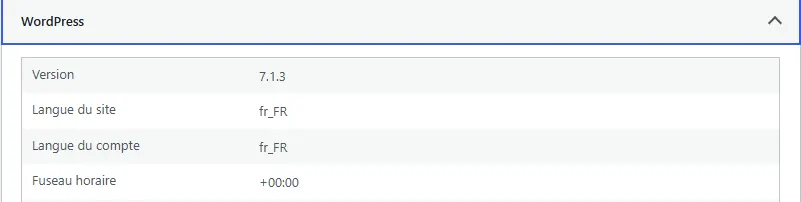
To open it, go to Tools > Site Health, then click the Info tab. The copy button at the top gathers all the data on your clipboard, which is handy for sending to support.
How do you find it without admin access?
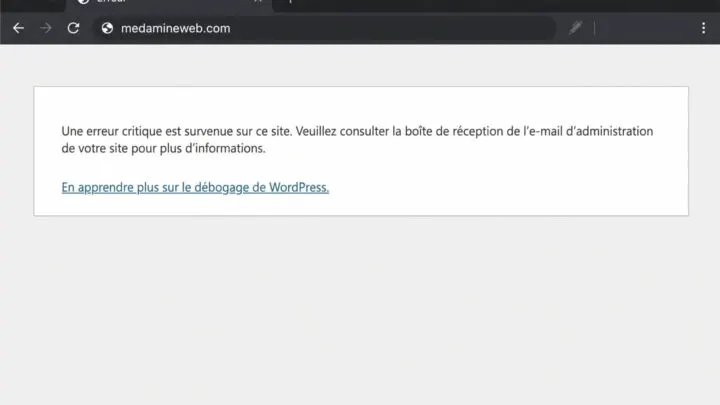
If the site shows a critical error or you can’t log in, go through the files or the command line. This table compares the methods.
| Method | Where to look | When to use it |
|---|---|---|
| Updates | Dashboard > Updates | You can log in to the admin |
| Site Health | Tools > Site Health > Info | You need other technical details |
| version.php file | wp-includes/version.php, the $wp_version variable | SFTP access, admin broken |
| WP-CLI | The wp core version command | SSH access with WP-CLI installed |
You can read the file in a text editor after downloading it over SFTP. Never edit it: that doesn’t update WordPress and can break the site.
What is the latest version of WordPress?
According to the WordPress.org releases page, checked on 24 October 2026, the latest is 7.1.3, released on 6 October 2026. The page states that only the latest release in the 7.1 series is safe and actively maintained.
Is my version too old?
If it’s the latest release in its series, it’s maintained. If it’s one or more maintenance releases behind, update it, because older versions no longer receive security fixes.
A site left without updates for a long time also falls behind on its plugins and PHP. The bigger the gap, the riskier the update becomes. To limit the damage, read my guide to securing a WordPress site.
Which PHP and database versions do you need?
The WordPress.org requirements page recommends PHP 8.3 or higher, and MariaDB 10.11 or higher or MySQL 8.0 or higher. It also recommends a host that supports HTTPS.
- PHP 7.4 and MySQL 5.5.5 still work, but they’re end of life.
- A PHP version that’s too old blocks WordPress and plugin updates.
- You can often change the PHP version from your host’s control panel.
How do you update WordPress safely?
- Back up the site: files and database, as described in my guide to backing up a WordPress site.
- Update the plugins and theme if the WordPress update requires it.
- Open Dashboard > Updates and click “Update now”.
- Wait until it finishes without closing the page.
- Test the key pages: home, contact form, login and, if relevant, checkout.
The official documentation points out that an update replaces the core files. Any change made by hand in those files will be lost, but your wp-config.php file isn’t overwritten.
Are automatic updates turned on?
Since WordPress 3.7, minor and security releases can install themselves in the background. On my site, the updates page says WordPress updates automatically with every new release.
A link on that page lets you switch to maintenance and security updates only. A site that changes often or sells online is better off controlling major releases itself.
When should you call in a professional?
You can check the version and run an update yourself on a simple site. Get help if the site is in production with lots of visitors, if an update has already broken something, or if the admin no longer responds. In that last case, start with the WordPress critical error.
I handle tested updates, backups and monitoring as part of WordPress maintenance.
What now?
What you can do today:
- Open Dashboard > Updates and write down your current version.
- Compare it with the latest one on the WordPress.org releases page.
- Check the PHP version in your host’s control panel.
Dig deeper: WordPress Maintenance