
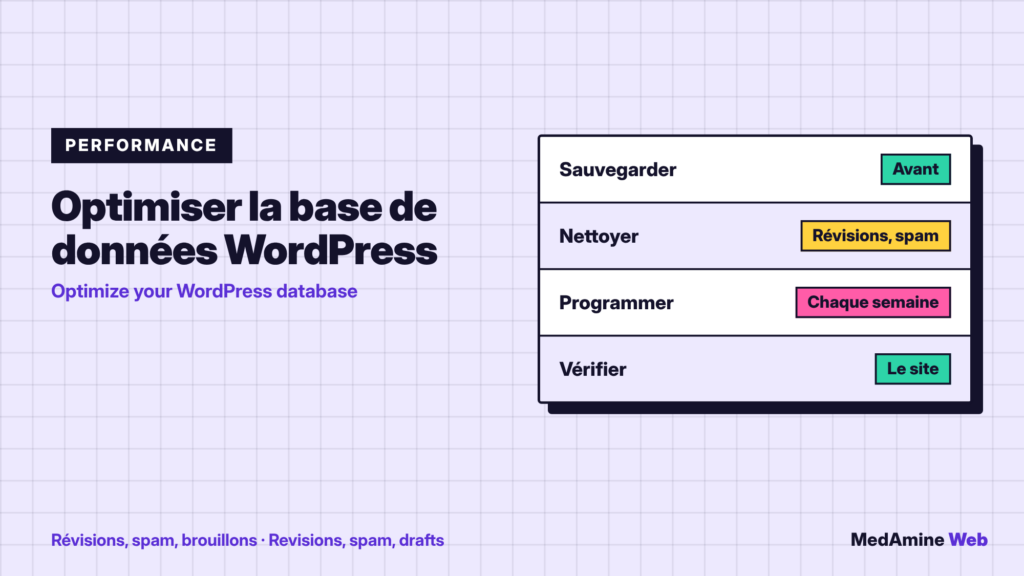
Over months, a WordPress site’s database accumulates revisions, auto-drafts and spam. A clean-up can lighten the site, but it deletes data.
Here is what can be cleaned safely, how to do it with WP-Optimize and the precautions that avoid losing content.
What does a WordPress database contain?
All the site’s content: posts, pages, comments, settings and users. It also keeps items that pile up, such as post revisions and auto-drafts.
These items stay useful for a while, then weigh down the database without serving any purpose.
What can you clean?
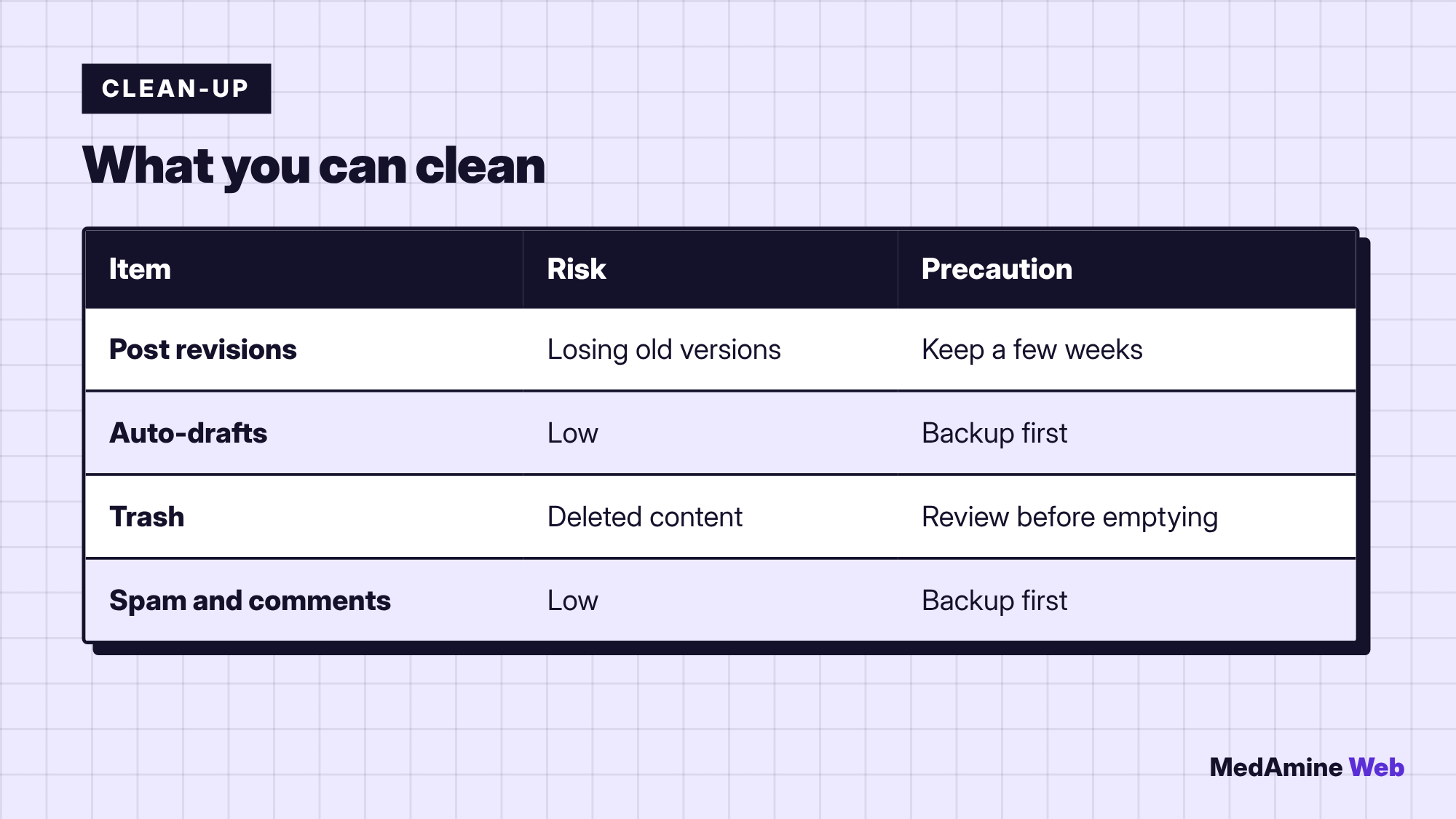
According to the WP-Optimize page, the plugin removes post revisions, auto-drafts, trashed posts, spam and trashed comments, then optimizes the tables.
Why back up first?
Because a deletion is final. The page states that you should back up the database before first use and before major upgrades, since the plugin cannot restore data without a backup.
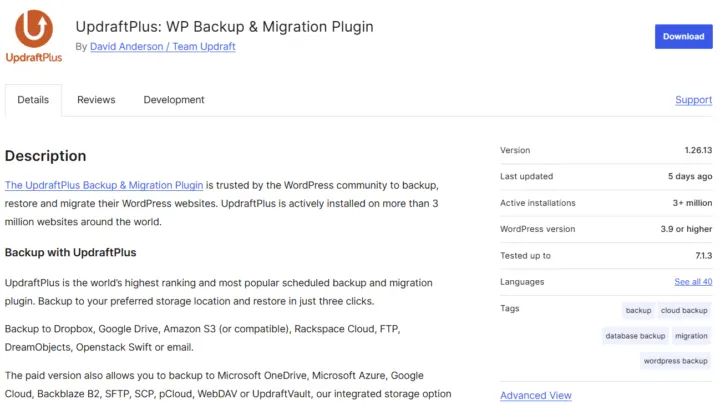
The developers recommend UpdraftPlus, which can run a backup before a clean-up. See also how to back up a WordPress site.
How do you do the clean-up step by step?
- Back up the database and the files.
- Install and activate the plugin.
- Tick the items to clean one by one.
- Run the clean-up and check the site.
How do you keep a safety margin?
The page says clean-ups can retain a number of weeks of data. Keep, for example, four weeks of revisions: you can go back to a recent version without accumulating the old ones.
Can you schedule the clean-up?
Yes, the free version offers scheduled clean-ups. A regular pass, for example weekly, avoids a risky big clean-up once a year. Check the result after the first runs.
Which other features does the plugin offer?
The page also lists page caching, image compression and file minification. Avoid stacking these on another cache: choose a single cache tool, by reading the WP Rocket settings or choosing a cache plugin.
What gain should you expect?
A clean-up lightens the database, but it does not fix a slow site on its own. Measure before and after, and look for the main causes first in why WordPress is slow.
What if the site breaks after the clean-up?
Restore the backup made just before, then run the clean-up again ticking fewer items. Most often a problem comes from a plugin that read data you deleted, such as auto-drafts or temporary data.
Always note what you ticked: it lets you isolate the item responsible and leave it out of the next clean-up.
Which good habits should you keep?
- Limit the revisions kept in the WordPress configuration.
- Empty the trash and the spam regularly.
- Uninstall plugins you no longer use.
- Check the database size once a quarter.
Keep a short log of each clean-up: the date, the items ticked and the database size before and after. After a few months, this record shows what really piles up on your site and tells you how often a pass is worth running, instead of cleaning out of habit.
What now?
What you can do today:
- Back up your site’s database
- Check how many revisions and auto-drafts your site contains
- Decide how many weeks of revisions you want to keep
Dig deeper: WordPress Speed Optimisation