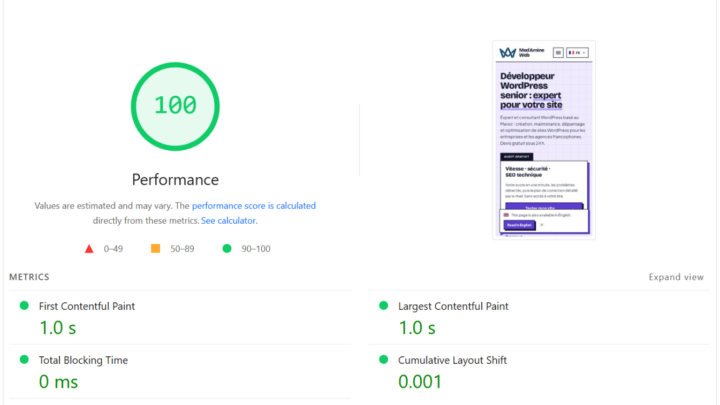


Caching is one of the quickest speed gains on WordPress. Badly chosen or badly set, it still breaks pages or changes nothing at all.
Here is how I choose a cache plugin, what the three most common ones do and how to check that the result is real.
What is a cache plugin for?
Without a cache, WordPress rebuilds every page on every visit: database queries, PHP execution, HTML assembly. The cache keeps the page already built and serves it as is.
Server response time drops, which helps display and the ability to absorb traffic. It does not replace good hosting or light images.
Does your host already provide a cache?
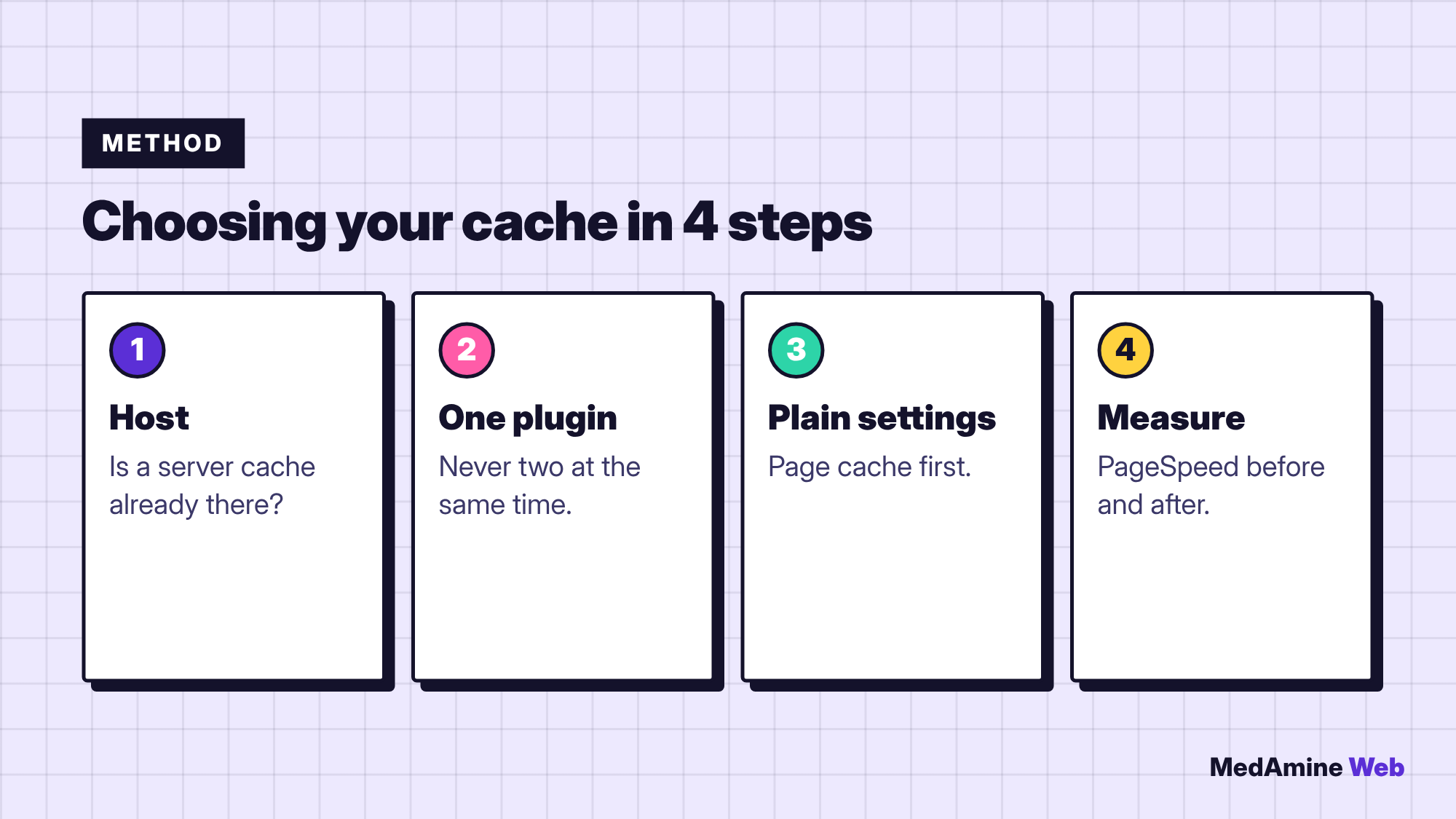
That is the first question to ask. Many hosts set up a server-side cache. Adding a plugin on top can double the work or create conflicts.
Read the documentation of your plan or ask support which plugin is recommended. That answer can save you a day of tests.
What does WP Super Cache do?
According to its official page, WP Super Cache generates static HTML files from your dynamic pages, so most visitors receive a prebuilt file. It has over a million active installations.
It offers three modes: Expert (fastest, with .htaccess changes), Simple (nearly as fast, easier, the recommended mode) and WP-Cache (more flexible, a bit slower). It can also preload pages and rewrite addresses to a CDN.
What does LiteSpeed Cache do?
It is a complete acceleration plugin: page cache, image, CSS and JavaScript optimisation, object cache. Its official page states that server-level caching needs a LiteSpeed server, or the QUIC.cloud CDN.
On another server, the optimisation features remain usable, but not the server cache. If your host runs LiteSpeed, it is often the most coherent choice.
Is WP Rocket worth its price?
WP Rocket is a paid plugin that bundles caching and optimisations in a simple interface. It saves setup time and suits sites where you want a result without configuring everything.
I detail its setup in WP Rocket settings. Compare its price with your time, not only with free solutions.
Which plugin for which situation?
| Situation | Recommended choice | Reason |
|---|---|---|
| LiteSpeed hosting | LiteSpeed Cache | Server cache supported |
| Simple site, any host | WP Super Cache | Free and plain |
| Little time for settings | WP Rocket | Guided interface |
| Cache provided by the host | The host’s own | Avoid duplicates |
Whatever you choose, enable page caching first. CSS and JavaScript optimisations come next, one at a time, with a test after each.
Which cache mistakes should you avoid?
- Do not enable two cache plugins at the same time.
- Exclude the cart, checkout and account pages of a shop.
- Clear the cache after a content or design update.
- Do not stack every optimisation at once.
How do you measure the gain?
Test the same page before and after with PageSpeed Insights, noting server response time and loading indicators. To read the report properly, see how to read PageSpeed Insights.
What now?
What you can do today:
- Ask your host whether it already provides a server cache
- Check that only one cache plugin is active on your site
- Note the PageSpeed result of one page before any change
Dig deeper: WordPress Speed Optimisation