


WP Rocket is one of the most popular caching plugins, but installing it is only the start. Some of its settings, switched on all at once, can break a menu, a slider or a form.
Here is the order I turn the settings on in, and how I check the site still works at each step.
What is WP Rocket and how much does it cost?
WP Rocket is a paid caching and optimisation plugin. It combines page caching, lazy loading (LazyLoad), preloading, delayed JavaScript and removal of unused CSS.
On its pricing page, the vendor lists $59.95 a year for one site, $119.95 for three sites and $299.95 for the multi-site plan. It offers a 14-day trial and refunds on request. Check the current prices and terms before buying.
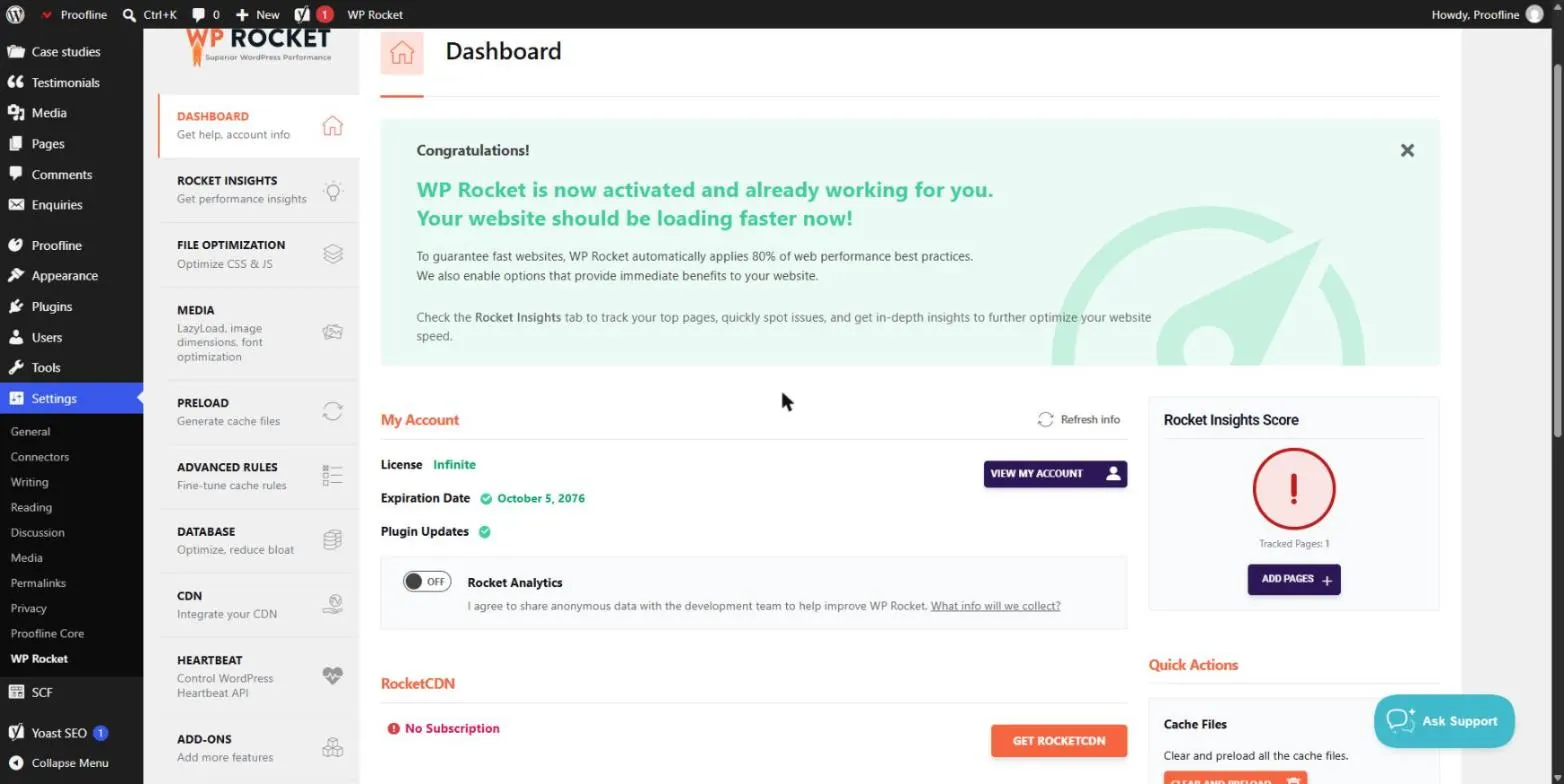
Where to start before touching the settings
- Take a full backup of the site.
- Measure the starting point on three typical pages (home, a post, the contact page) with the same tools.
- Deactivate other caching plugins: two caches at once cause conflicts.
- Write down what works: mobile menu, form, slider, and the cart if you run a store.
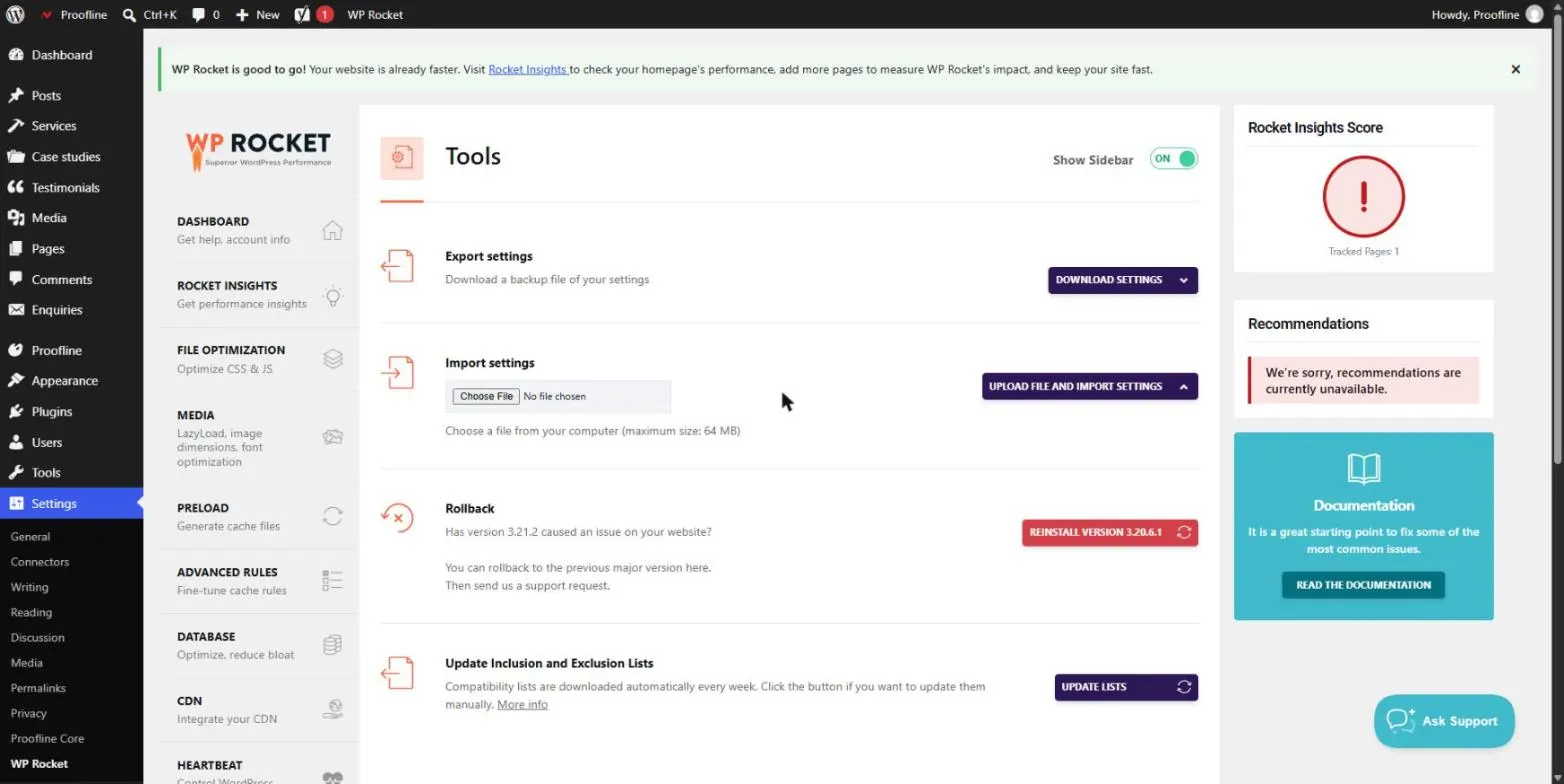
Which WP Rocket settings should you turn on first?
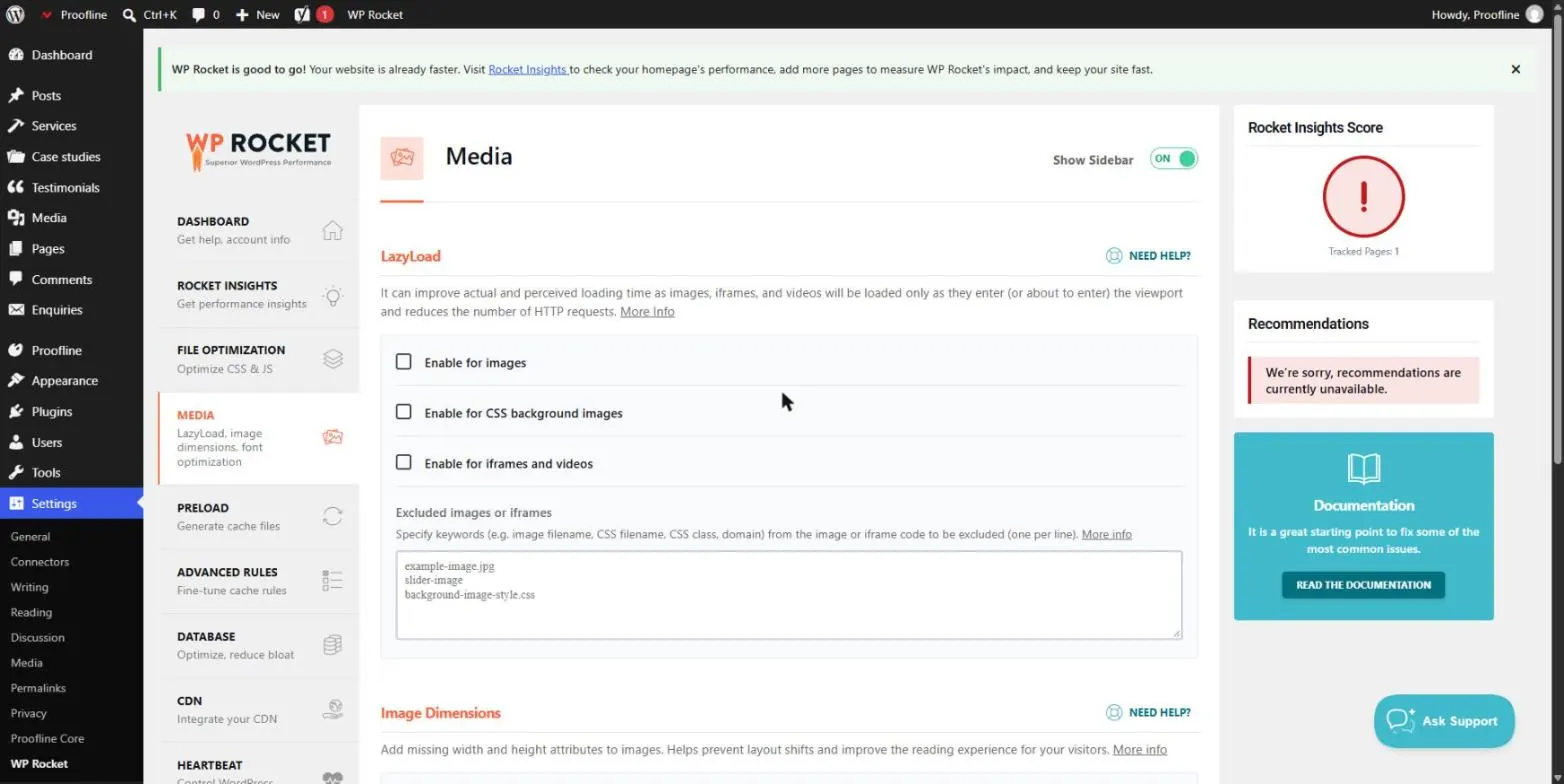
Page caching is on from installation, and it brings the clearest gain. Next, turn on lazy loading for images and iframes, which holds back images below the fold until the visitor scrolls.
These two settings carry little risk. Just check that the important images at the top of the page show up straight away.
What does Remove Unused CSS do, and what are the risks?
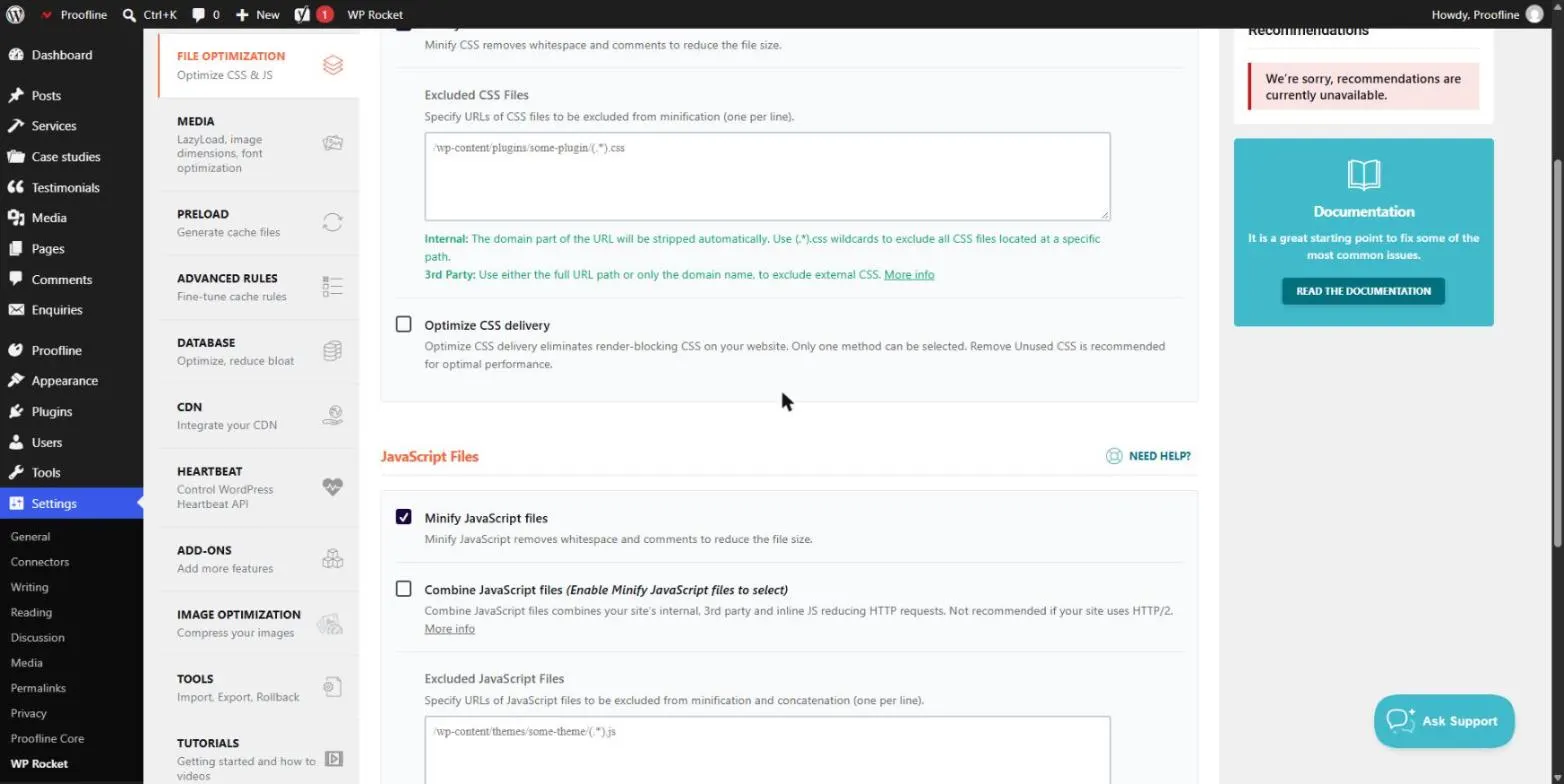
According to the WP Rocket documentation, this option strips the unused CSS from each page, keeps what the page needs and inlines it. It cuts page weight and the CSS that blocks rendering.
The documentation also warns that it can break layouts. The CSS is generated asynchronously after a visit or a preload, and it has to be regenerated manually whenever you change the stylesheets.
How do you use Delay JavaScript Execution without breaking anything?
This option holds scripts back until the visitor’s first interaction (mouse movement, scroll, key press). According to the documentation, it helps with the PageSpeed metrics for unused JavaScript and blocking time.
It’s also the option that breaks the most things: a menu, a carousel or a chat button can stop responding. The method is to test, then add the faulty script as an exclusion.
- Turn the option on and test every feature of the site.
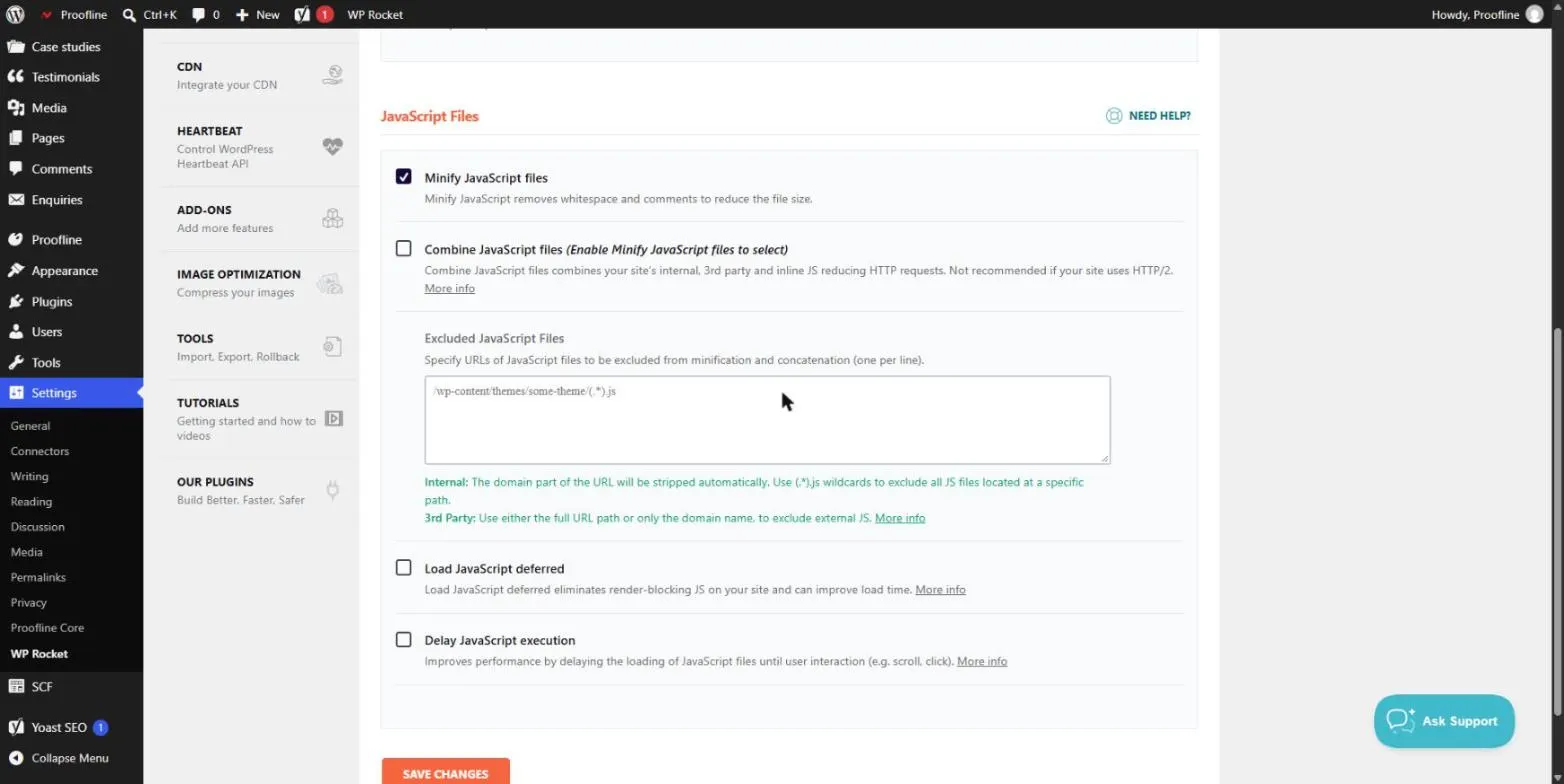
- If something breaks, try the one-click exclusions offered for common plugins first.
- Otherwise, add the file or a keyword to the exclusion list.
- Only keep “safe mode” on while you track down the faulty script.
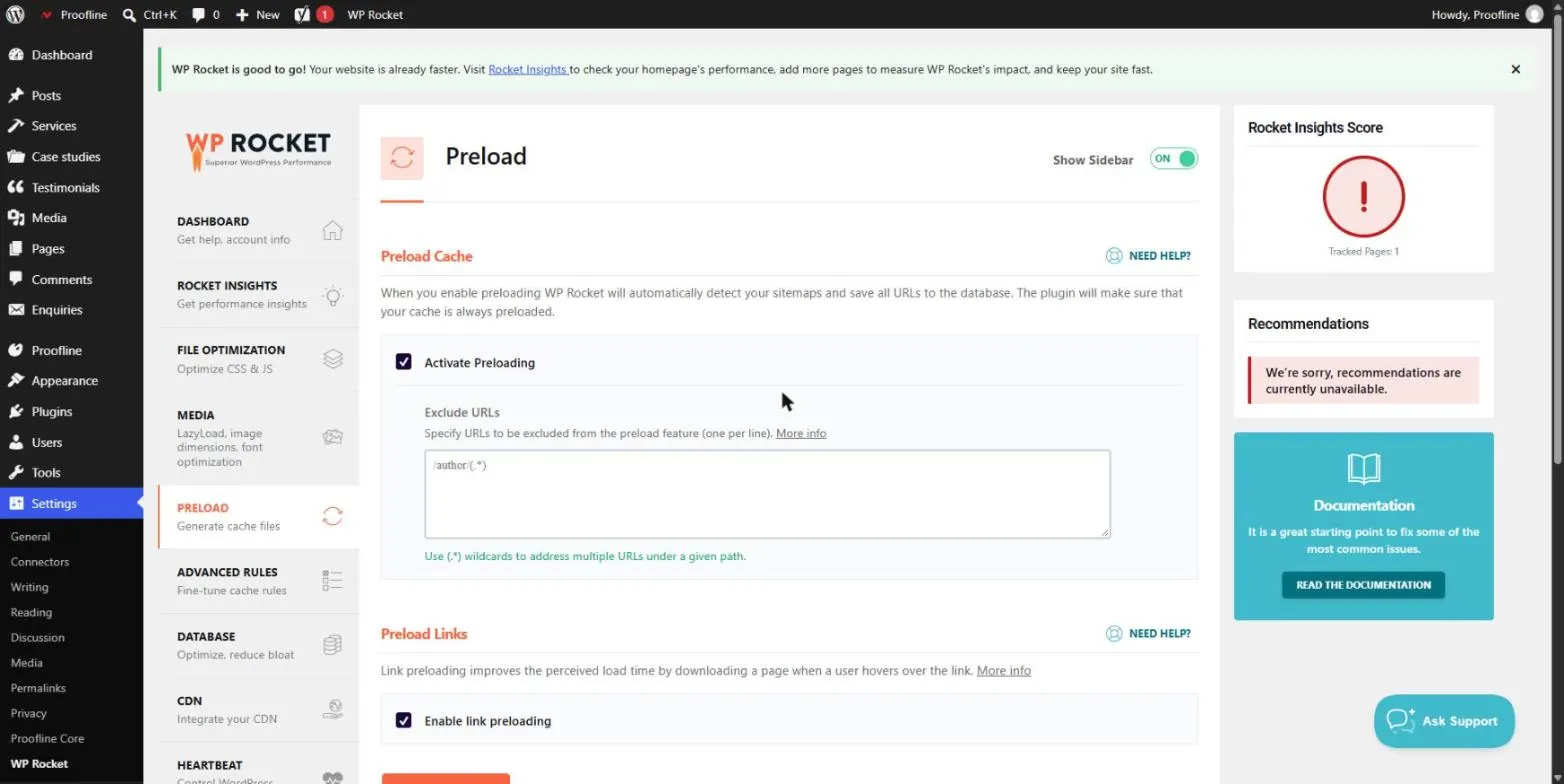
Should you turn on preloading?
Yes. Preloading builds the cache in advance instead of waiting for a visitor to land on a page. The WP Rocket documentation also recommends it to speed up generating the used CSS.
What if the site breaks after a setting?
- Turn off the last setting you enabled, then clear the cache.
- Test in a private window to rule out your browser’s cache.
- Turn the options back on one at a time to find the exact cause.
- Restore the backup if the problem persists.
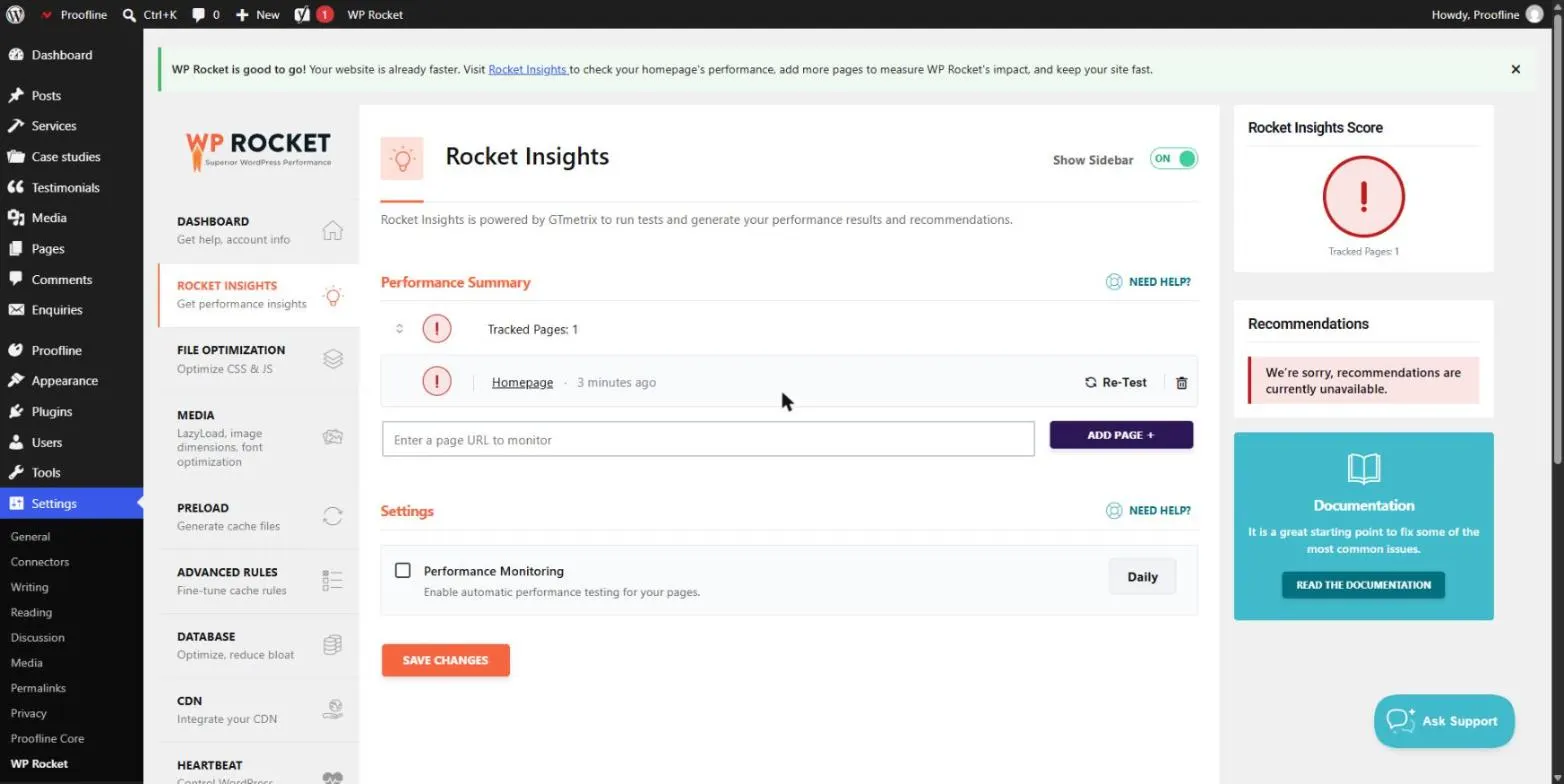
How do you measure the effect of the settings?
Compare the same pages, with the same tool, under the same conditions. Look at the Core Web Vitals (LCP, INP, CLS) described on web.dev, because they reflect the visitor’s experience better than the overall score.
When WP Rocket isn’t enough
A caching plugin won’t fix a site that’s slow because of huge images, overloaded hosting or a bloated theme. Start with the diagnosis in Slow WordPress site: 12 causes and fixes.
For an online store, the cart and checkout pages need cache exclusions. See also Slow WooCommerce store.
When should you call in a professional?
You can set up caching and lazy loading yourself. Get help with unused CSS, delayed JavaScript and online stores, where a mistake costs orders.
I handle these settings as part of WordPress speed optimisation.
What now?
What you can do today:
- Measure three pages before you change anything.
- Turn on caching and lazy loading, then test again.
- Test delayed JavaScript on a copy of the site before production.
Dig deeper: WordPress Speed Optimisation