
Changing a theme looks simple: one click on “Activate”. Yet it is one of the operations that most often breaks a site’s appearance.
Here is the method I apply, with the checks that avoid bad surprises.
What happens when you change theme?
According to the official documentation, only one theme is active at a time and the change takes effect immediately. Your posts and pages stay in the database.
However, menu locations, widgets and features specific to the old theme can disappear or need to be set again.
What should you do before starting?
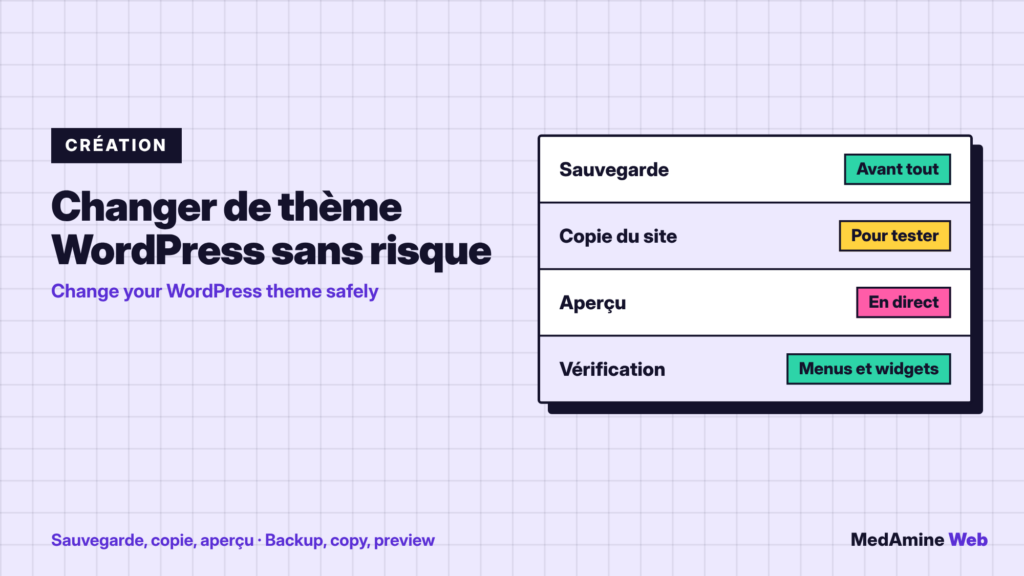
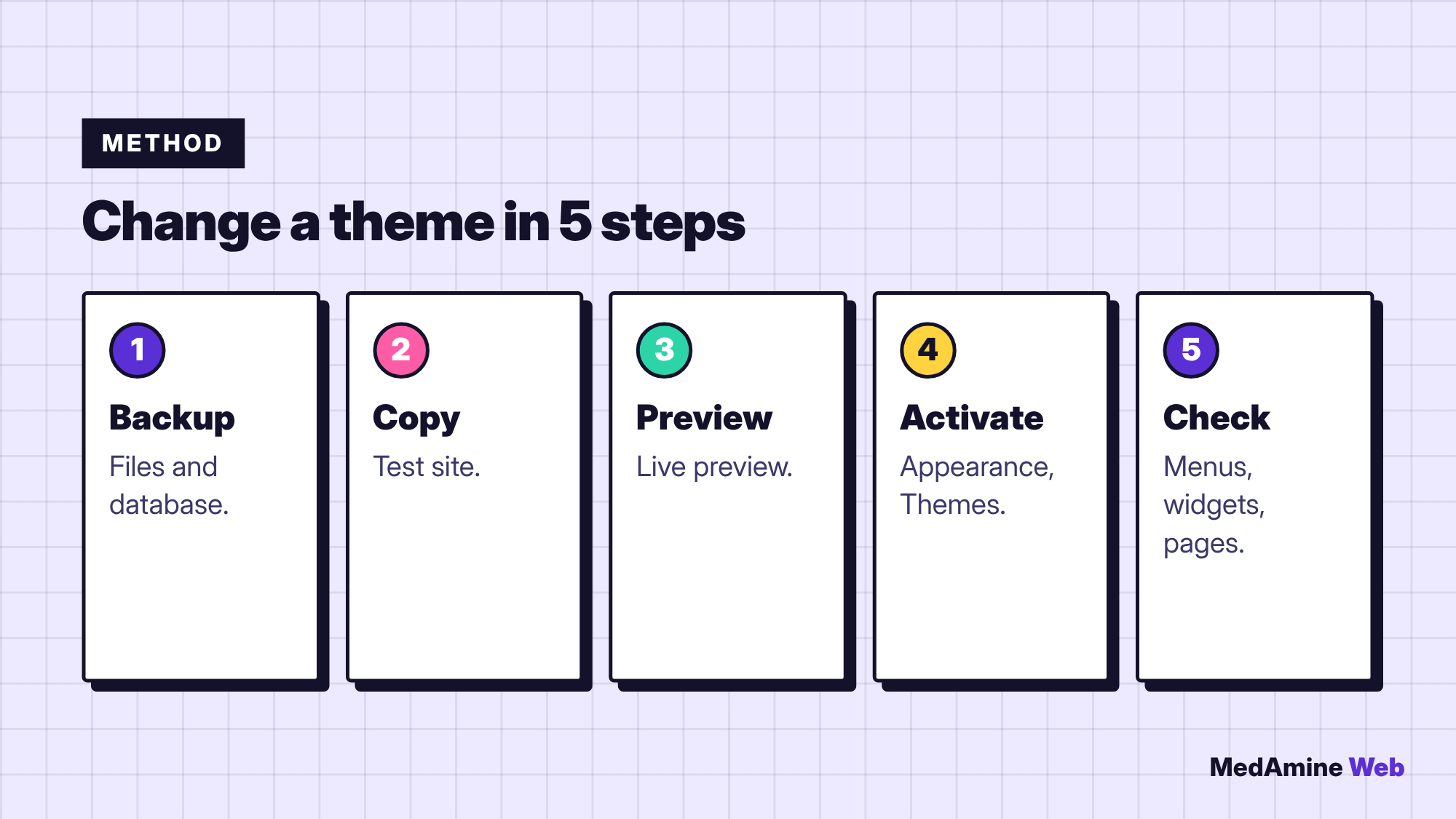
- Back up the files and the database.
- Note the settings of the old theme: colours, menus, widgets.
- Create a copy of the site to test on, if your host allows it.
- Pick a quiet moment to go live.
How do you preview the new theme?
Live preview shows your site with your own content before activation. The documentation says it works for installed themes. In the official directory, the preview only shows demo content.
If the preview is blank, do not activate the theme before you have looked for the cause.
How do you activate the theme?
Go to Appearance, then Themes, hover over the thumbnail and click Activate. If the theme is new, first use Add or Upload Theme with a zip file.
What should you check after activation?
- Menus show in their place.
- Widgets are attached to the right locations.
- The main pages, the form and the shop work.
- The display on mobile is still correct.
What do block themes change?
A block theme does not use the Customizer like a classic theme: it is edited in the Site Editor. The documentation states that it needs WordPress 5.9 or later. I describe them in full site editing.
How do you go back?
Reactivate the old theme from Appearance, Themes. If the site stops responding, rename the new theme’s folder over FTP, and WordPress will fall back to a default theme. A backup remains the last resort.
Should you use a child theme?
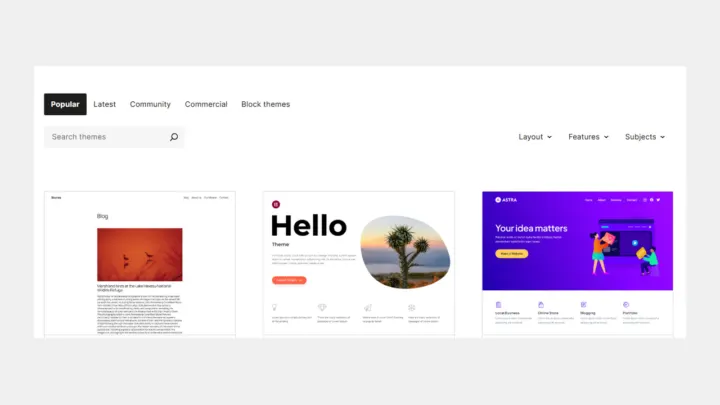
If you edit the code of a theme you did not write, yes: a child theme keeps your changes during updates. To pick a new theme, see free WordPress themes.
Think about search visibility: a new theme can change the heading structure, the speed and the tags. Compare the main pages before and after, and check speed with PageSpeed Insights.
Also warn your team or your clients about the day of the change, and keep the old theme installed for a few days so you can go back easily. Delete it only once the site is stable.
Finally, keep a screenshot of the key pages before the change. It serves as a reference to spot what moved.
If you use shortcodes or blocks specific to the old theme, they may show up as raw code. Spot them before the change and plan to replace them with standard blocks.
When the site is stable, measure its speed and compare with the earlier figures. A prettier but slower theme is not always progress.
What now?
What you can do today:
- Note your current menus, widgets and theme settings
- Take a full backup of your site
- Test the new theme with the live preview before activating it
Dig deeper: WordPress Website Development