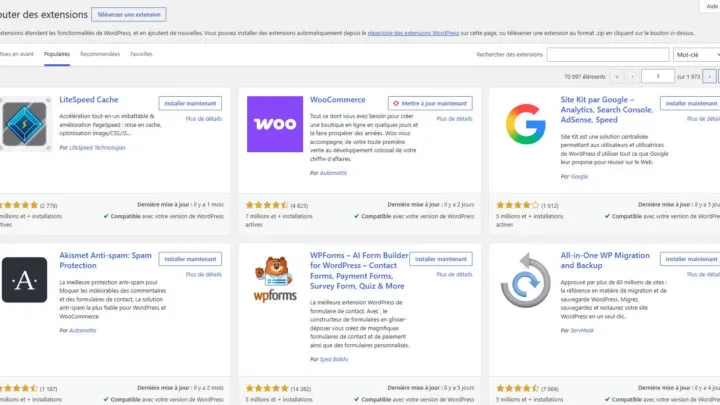

A free theme always looks like a good deal, until the day it stops getting updates or asks for a paid version to unlock the simplest option. The choice comes down to a few minutes of checking.
Here is where to look, which details to check and how to test a theme before applying it to your site.
What is a WordPress theme?
A theme controls how your site looks: colors, fonts and layout. The official documentation sums it up: themes control presentation, while plugins control features.
If you switch themes, your content stays in WordPress but the appearance changes. Important features, such as a form or SEO, should therefore live in plugins.
Where can you find reliable free themes?
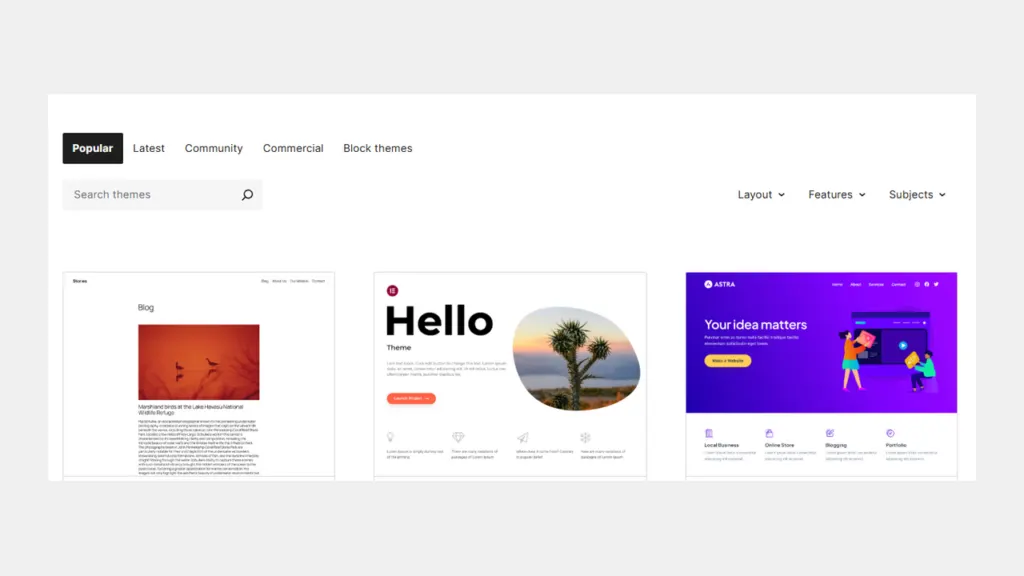
The official WordPress.org directory advertises more than 15,000 free themes, as on the screenshot at the top of this article. You browse it by tab: Popular, Latest, Community, Commercial and Block themes.
The same directory is available from your admin, under Appearance > Themes > Add New. Every theme goes through a review before it is published, which is not the case for a file picked up from a random website.
Classic theme or block theme?
A block theme is built with blocks and HTML templates that you edit in the Site Editor. A classic theme relies on PHP templates and is mostly adjusted with the Customizer.
| Criterion | Block theme | Classic theme |
|---|---|---|
| Editing | Site Editor | Customizer |
| Templates | HTML with blocks | PHP files |
| Styles | theme.json file | Stylesheet and theme options |
| Project direction | Where WordPress is heading | Supported since WordPress 1.5 |
For a new site, a block theme fits the direction WordPress is taking. Keep a classic theme if you depend on a tool built for it.
How do you filter the directory?
The directory offers three filters: Layout, Features and Subjects. Features groups useful criteria such as accessibility, block patterns or block themes.
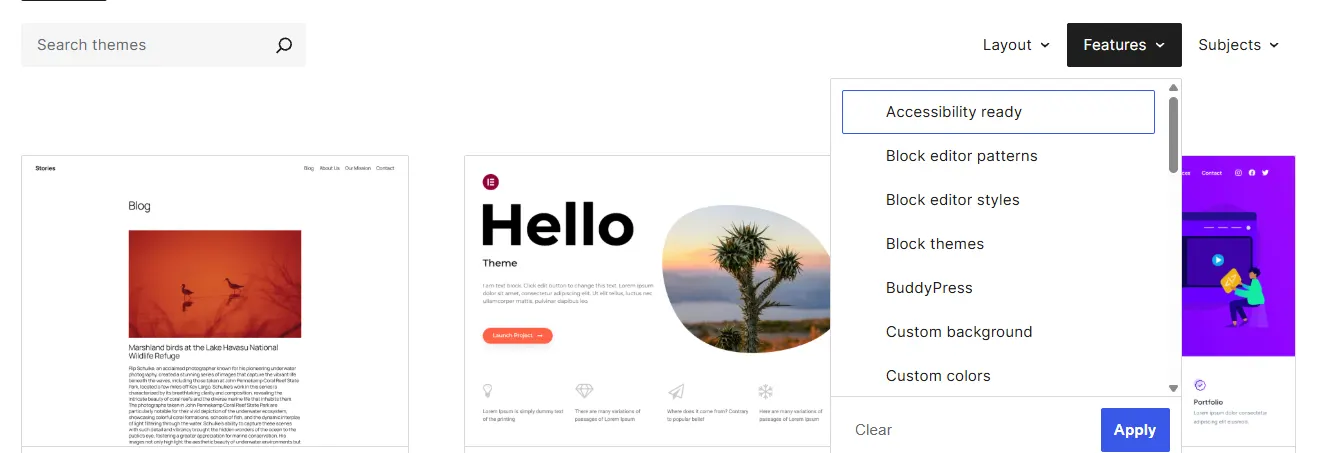
Tick “Block themes” first if you want a modern theme, then “Accessibility ready” to rule out themes that ignore accessibility. Subjects then lets you aim at your field, such as blog, portfolio or e-commerce.
Which details should you check on a theme page?
Open the theme page before downloading it. It shows the essentials, as here for Twenty Twenty-Five.
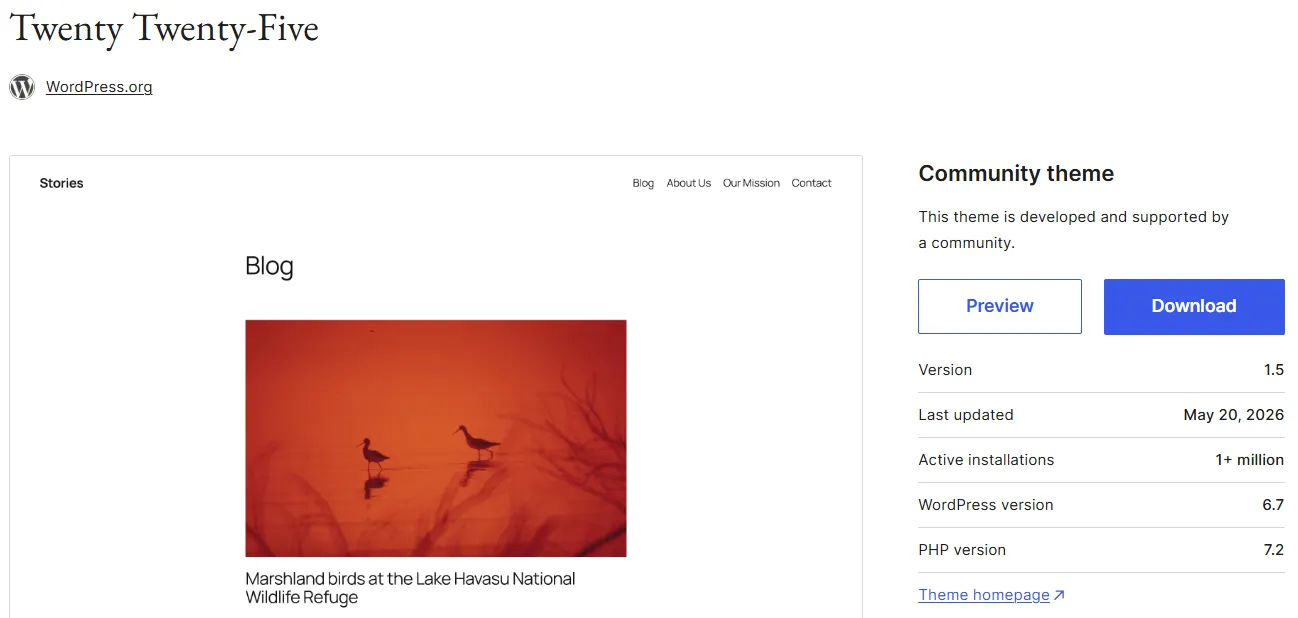
- The last update: a theme abandoned for a long time is a security risk.
- Active installs: the more there are, the more likely bugs have been reported.
- The required WordPress version: it must match yours.
- The required PHP version: your host must support it.
- The theme type: community or commercial, which changes how support works.
What does the official directory review guarantee?
Themes in the directory must meet a list of requirements before they are published. According to the reviewers’ guide, these include the following.
- All the code, images and fonts provided are GPL or GPL-compatible.
- Untrusted data is validated and escaped before it is displayed.
- Only one credit link is allowed, with no intrusive upselling on the front end.
- The theme does not add features that belong in plugins, such as SEO or forms.
- Accessibility rules apply, for example a skip link and a visible focus.
This review lowers the risk without promising the perfect theme for your project. It does not replace your own test.
What are the limits of a free theme?
A free theme works well for a simple blog or brochure site. It shows its limits when the design needs very precise layouts or advanced features.
To estimate the real cost of a project, read how much a WordPress website costs. If you hesitate between a theme and a page builder, see my Elementor guide too.
How do you install and test a theme?
- Open Appearance > Themes > Add New in your admin.
- Search for the theme or filter by features.
- Click Preview to see the theme before installing it, then Install.
- Use the live preview with your own content before activating.
- Click Activate when you are happy with the result.
You can also upload a downloaded theme with the “Upload Theme” button. If the preview looks blank, the documentation advises against activating it until you have found the cause.
Can you switch themes safely?
Yes, if you prepare the change. Back up the site first with my guide to backing up a WordPress site, then test the new theme on a copy.
It is wise to test the new theme on a copy before changing the theme of a live site. A local install is enough, as in my article on installing WordPress locally.
When should you call in a professional?
You can choose and install a free theme on your own for a simple site. Get help if your design has to match a precise mockup, if the site already gets traffic or if switching themes breaks features.
I build sites with a theme suited to your project through WordPress website development, and I take over poorly built sites.
What now?
What you can do today:
- Open Appearance > Themes in your admin and note your current theme.
- Search the official directory with the Block themes filter.
- Read the last update date and the required version on the theme page.
Dig deeper: WordPress Website Development