
Elementor is one of the most widely used page builders on WordPress. The official directory shows more than 10 million active installs, and your clients or colleagues have probably mentioned it already.
Here’s what you need to know to get started, what I check before installing it on a client’s site, and the limits nobody talks about.
What is Elementor and what is it for?
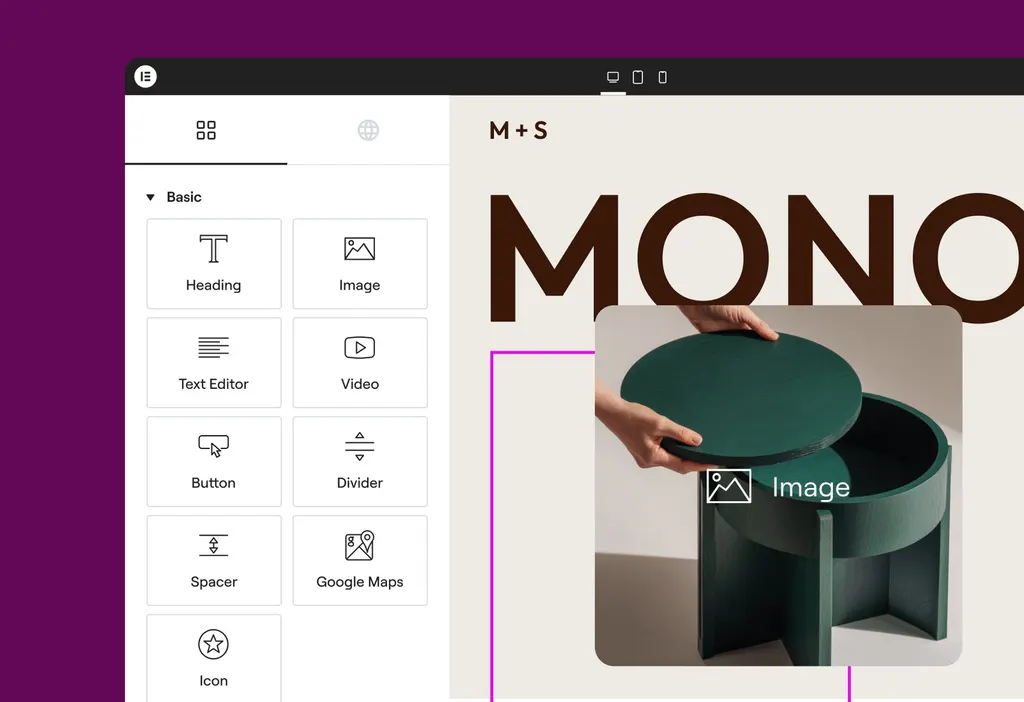
Elementor is a plugin that adds a visual editor to WordPress. You drag elements (heading, image, button, gallery) onto the page and see the result straight away, without touching code.
It replaces the WordPress block editor on the pages you build with it. That’s handy for a home page or a very visual sales page.
What’s in the free version of Elementor?
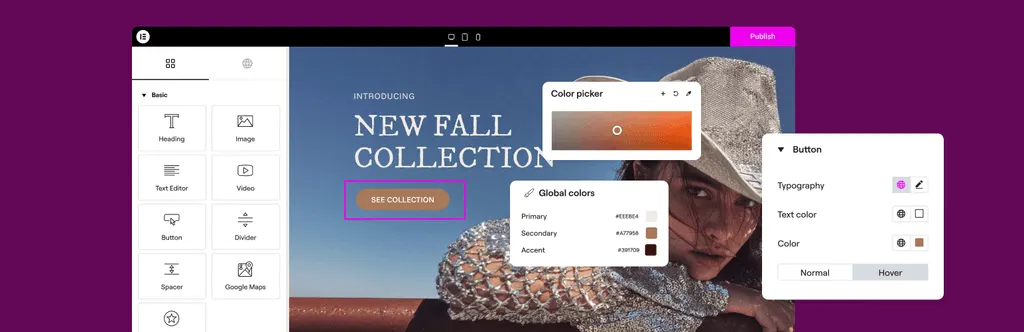
According to its official WordPress.org page, the free version offers a drag-and-drop editor, more than 40 free widgets, a template library, responsive editing with custom breakpoints and revision history.
- Headings, images, videos, buttons, galleries
- Tabs, accordions and carousels
- Page and section templates
- Editing for mobile and tablet
What does Elementor Pro add?
According to the same page, Pro adds the theme builder (header, footer, post templates), the popup builder, forms, the WooCommerce builder, dynamic content, custom CSS and custom fonts.
| Need | Free | Pro |
|---|---|---|
| Build visual pages | Yes | Yes |
| Create a custom header and footer | No | Yes (Theme Builder) |
| Forms and popups | No | Yes |
| Custom WooCommerce product pages | No | Yes |
Always check the current list on the official page before buying, because the free and paid features change from one version to the next.
What do you need to install Elementor?
The official page lists these minimums: WordPress 6.8 or higher, PHP 7.4 or higher, MySQL 5.6 or MariaDB 10.5, and 256 MB of PHP memory. It recommends WordPress 7.0, PHP 8.3, MySQL 8.0 or MariaDB 10.6, and 512 MB of memory.
How do you get started with Elementor?
- Choose a lightweight theme: a theme designed to work with page builders lets Elementor handle the layout.
- Install the plugin from Plugins > Add New, then create a test page.
- Build in sections: one section per message (hook, services, proof, contact).
- Set your global styles: colours, fonts and spacing, so the whole site stays consistent.
- Check the mobile view before publishing.
Does Elementor slow down a WordPress site?
It can if you use it without a plan: too many nested sections, animations everywhere, unoptimised images. The editor loads extra code, and every effect adds weight to the page.
Elementor says it includes performance features such as lazy loading and CSS and JavaScript reduction. They help, but a restrained build still matters more. To diagnose a slow page, read Slow WordPress site: 12 causes and fixes.
Elementor or the WordPress block editor: which should you choose?
The block editor built into WordPress is enough for a blog, content pages and simple layouts. It’s lighter, because it doesn’t add another software layer.
Elementor becomes worth it when you want a very visual layout without a developer, or when several people need to edit pages without knowing code. If you’re unsure, start with the native editor and use Elementor for the pages that really need it.
How do you protect a site built with Elementor?
- Take a full backup before every update of Elementor, Pro or the theme.
- Test updates on a copy of the site before applying them to production.
- Update Elementor and Elementor Pro together, never one without the other.
Which Elementor traps should you avoid?
- Building the whole site in Elementor, including content that should stay in the standard WordPress editor.
- Stacking add-on widget plugins, which weigh down every page.
- Deactivating Elementor later: the content often stays tied to its blocks and has to be rebuilt.
When should you call in a professional?
Elementor is manageable on your own for a business page. Call me if the site has become slow, if an update broke the layout, or if you want a cleaner result with a custom-built site.
What now?
What you can do today:
- Check your hosting’s PHP version and memory.
- Try free Elementor on a draft page.
- Write down the Pro features you really need before buying.
Dig deeper: WordPress Website Development