
A badly set up contact form warns nobody: the visitor thinks they wrote, and you receive nothing. It is one of the costliest failures on a brochure site.
Here is how to add one properly, with the checks that stop you from losing enquiries.
Which plugin should you choose?
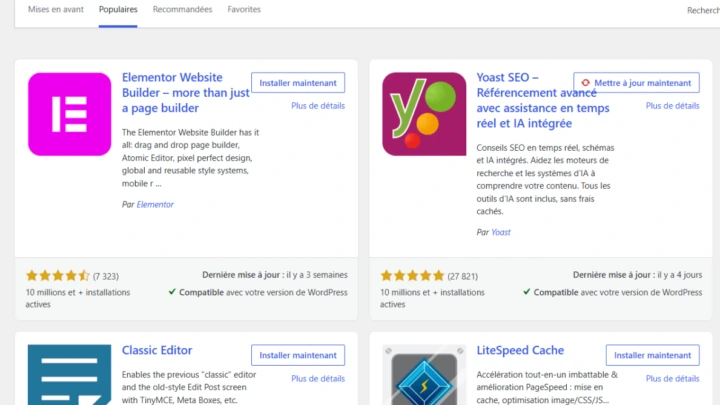
Contact Form 7 is free and open source, and counts more than ten million active installations according to its official page. It provides a block to insert a form you have created.
Recent reviews however mention a PHP 8.3 requirement and an interface change. Check compatibility with your hosting.
How do you create the form step by step?
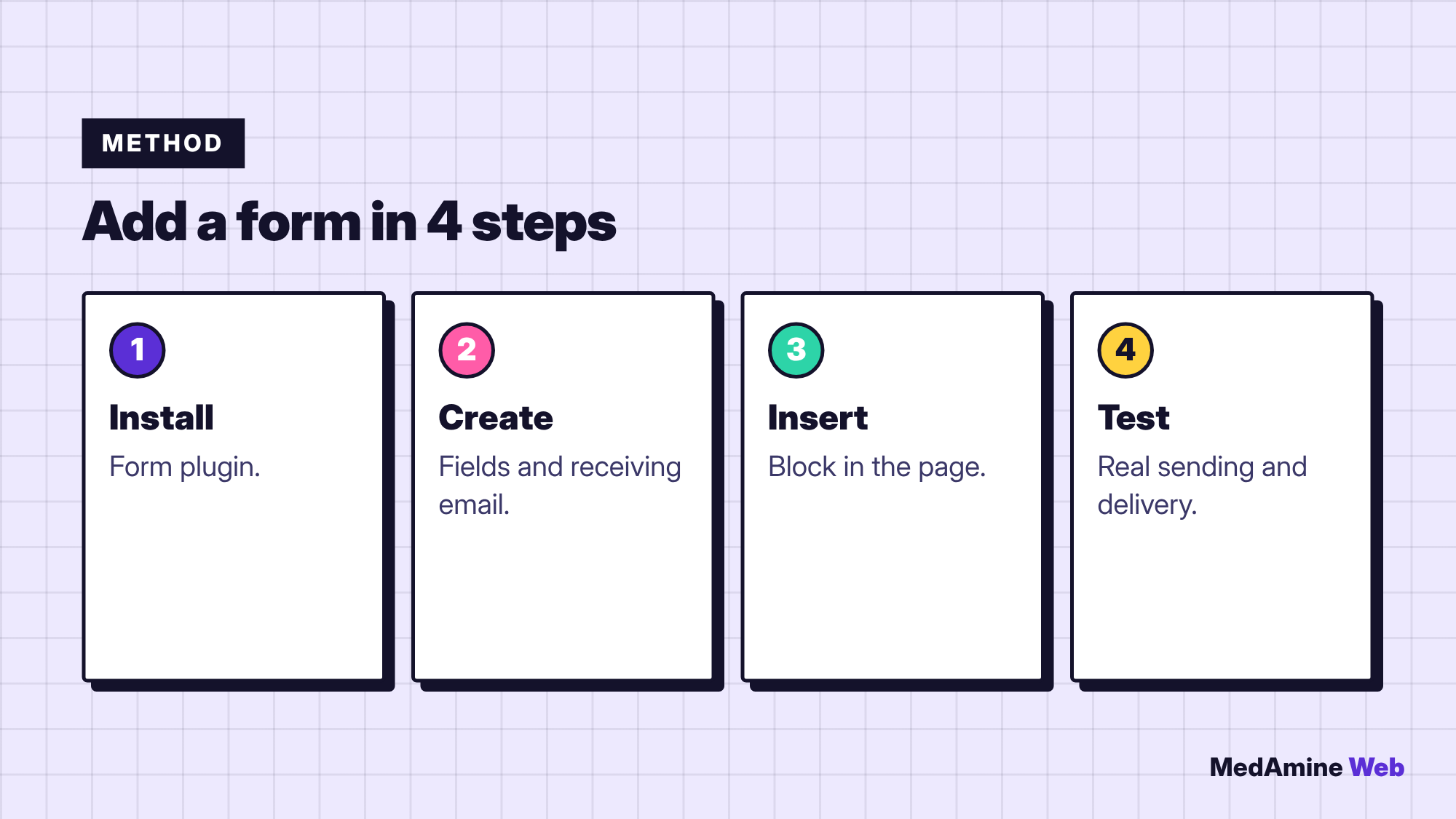
- Install and activate the plugin.
- Create a form with name, email and message.
- Set the address that receives the messages.
- Insert the form into the page with its block.
- Publish, then send a test message.
Which fields should you include?
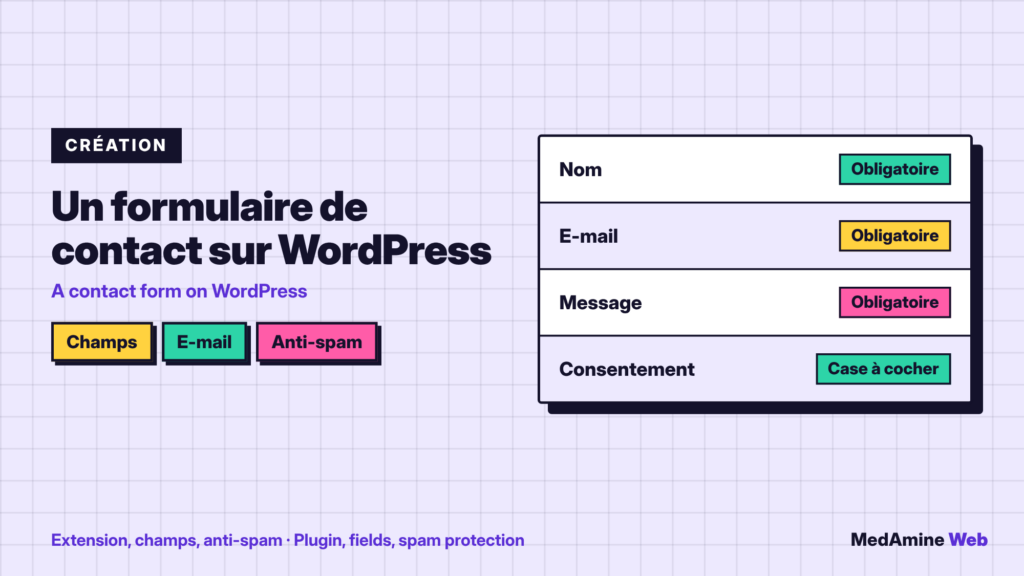
As few as possible: name, email, message, and a consent box if you keep the data. Every extra field lowers the response rate.
If your business needs more information, ask short, useful questions, such as the type of project or the approximate budget.
How do you avoid losing messages?
- Send a real test message from another address.
- Also look in the spam folder.
- Use an SMTP sending plugin if the host filters emails.
- Show a clear confirmation message after sending.
What can you do about spam?
Add a protection: an anti-bot test, a honeypot field or the check of an anti-spam plugin. Keep just one at the start and watch incoming messages to adjust.
Site security also depends on up-to-date plugins; see how to secure WordPress.
Should you use a plugin or custom code?
| Need | Option | Why |
|---|---|---|
| Simple contact | Free plugin | Quick to set up |
| Several steps or payment | Advanced plugin | Built-in features |
| Link to a CRM | Automation | Avoid manual entry |
| Precise business logic | Custom development | Fits the process |
To choose without piling up tools, read how to install and choose plugins.
Where should the form go on the site?
On a Contact page, but also at the bottom of service pages, where the visitor decides to write. The form is one of the elements to plan when you create a WordPress site.
How do you write the confirmation message?
Say what happens next: “Thank you, your message has been received. I reply within one working day.” A visitor who knows when they will be contacted does not send the form three times.
Also add an alternative way to reach you, such as an email address or a phone number, in case sending fails.
How do you follow the requests you receive?
Record each request in a table or a tracking tool, with the date and the source. If you receive many messages, an automation to a CRM avoids manual copying and omissions. Check the number of messages received regularly: a sudden drop often signals a broken form.
If your form is the main way customers reach you, check it monthly. A quick test takes two minutes and protects you from silent failures that can last for weeks after a hosting or plugin change.
What now?
What you can do today:
- Send a test message from the form on your site
- Check delivery and the spam folder
- Count the fields and remove those that are not needed
Dig deeper: WordPress Website Development