
Plugins are the strength of WordPress, and also the source of most of its problems. A site with twenty badly chosen plugins crashes, slows down or gets hacked more often than a site that keeps six.
Here is how to install a plugin, how to choose it and how to keep the list under control. My admin is in French, so the screenshots show French labels. The English names are given in the text.
What is a WordPress plugin?
A plugin is a set of PHP scripts that adds or changes WordPress features. The official documentation says plugins are often built by volunteers and are usually free.
Each plugin lives in its own folder under wp-content/plugins. It stays inactive until you activate it.
There are also must-use plugins, kept in a separate folder. They activate themselves, do not appear in the list and can only be removed by deleting the file.
How do you install a WordPress plugin?
The documentation describes three methods. The first is the simplest and is enough in most cases.
- Automatic search: Plugins > Add New, search, Install Now, then Activate.
- Zip upload: Plugins > Add New > Upload Plugin, useful for a paid plugin.
- SFTP upload: you copy the folder into
wp-content/plugins, only as a last resort.
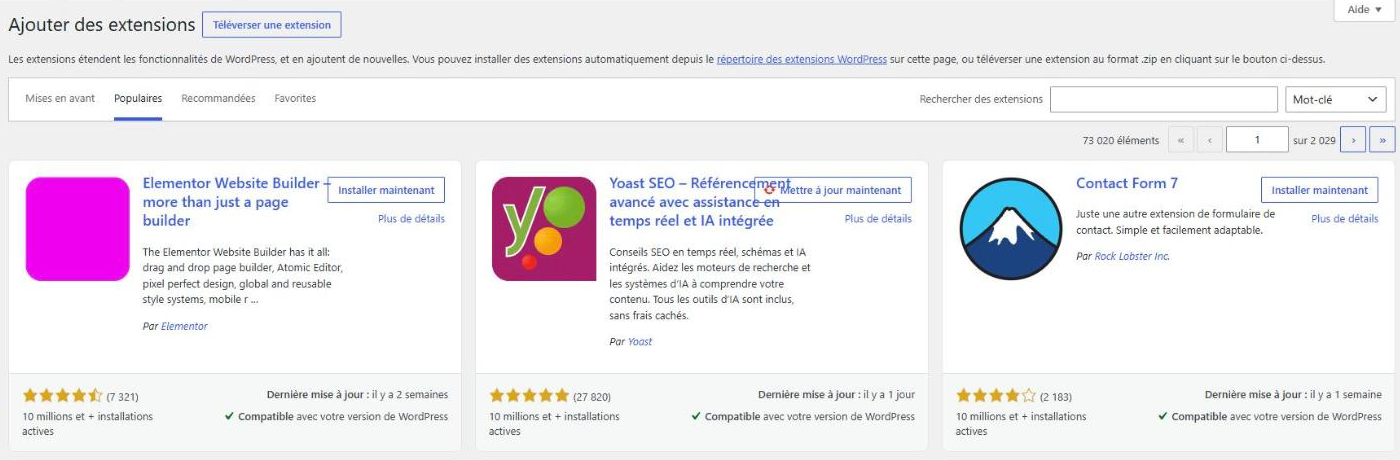
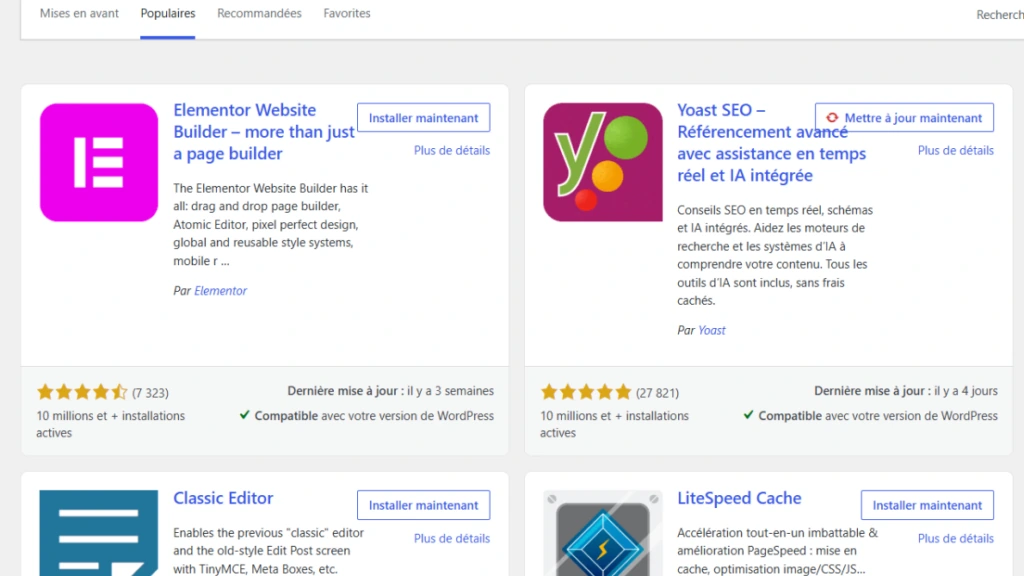
The screenshot shows the Popular tab. Elementor, Yoast SEO and Contact Form 7 display more than ten million active installations, WooCommerce and LiteSpeed Cache more than seven million.
How do you choose a good plugin?
The documentation says plugins of the directory vary in quality. So look at a few indicators before installing.
| Criterion | Where to find it | Good sign |
|---|---|---|
| Last update | Plugin page | Recent update |
| Compatibility | Mention under the listing | Compatible with your WordPress version |
| Active installs | Plugin page | High and stable number |
| Reviews and support | Reviews and Support tabs | The author answers questions |
| Testing | Plugin page | Tested with the latest version |
A plugin not tested with your version may still work, but it deserves a trial on a copy of the site before going to production.
Also read a few recent reviews and the support threads. The way an author answers problems tells you how the plugin will be looked after in a year.
Be wary of plugins that promise to do everything. One that handles SEO, security and speed at once is hard to maintain and to deactivate cleanly.
How many plugins can you install?
There is no magic number. One light, well-written plugin weighs less than three heavy ones that overlap.
Ask yourself three questions for each plugin: what is it for, who maintains it and what happens if I remove it? If you cannot answer, deactivate it and watch the site.
Do this review twice a year. Ageing sites collect trial plugins nobody uses anymore, and each one remains a potential entry point.
Keep a note with the name of each plugin, its role and the date it was installed. This simple list saves time on the day of an audit or a repair.
Which plugins are useful on almost every site?
- SEO: a plugin like Yoast SEO handles titles, descriptions and the sitemap.
- Backup: a plugin or your host’s service, with copies stored off the site.
- Security: a firewall and a login protection.
- Contact form: a simple and up-to-date solution.
The rest depends on the project. Before adding a feature, check whether your theme already has it, and read my comparison of custom development or a plugin.
How do you update and delete a plugin?
Updates appear on the dashboard and on the plugins screen. Since WordPress 5.5, you can also turn on automatic updates plugin by plugin.
To delete a plugin, deactivate it first, then click Delete. The documentation insists on this order to avoid leftovers or broken behaviour.
What if a plugin breaks the site?
Deactivate the plugins one by one until you find the culprit, as the documentation recommends. If the administration is unreachable, rename the plugin folder through SFTP.
My guide to the WordPress critical error details the method, and my article on securing WordPress explains why abandoned plugins are a risk.
When should you call a professional?
Get help if a feature requires combining several plugins or if the site slows down for no clear reason. Targeted development sometimes replaces three plugins with a few lines of clean code, which is easier to maintain.
I build these features with the custom WordPress development service.
What now?
What you can do today:
- Open Plugins > Installed Plugins and note the role of each active plugin.
- Spot the plugins without an update for a long time and look for a maintained alternative.
- Delete the deactivated plugins you no longer use, after making a backup.
Dig deeper: Custom WordPress Development