
To download WordPress, a single address is enough: the official project page. Yet other sites offer the same file, with no way for you to know whether it was modified.
Here is where to download WordPress, which file to choose, how to check it and what to plan before installing.
Where do you download WordPress?
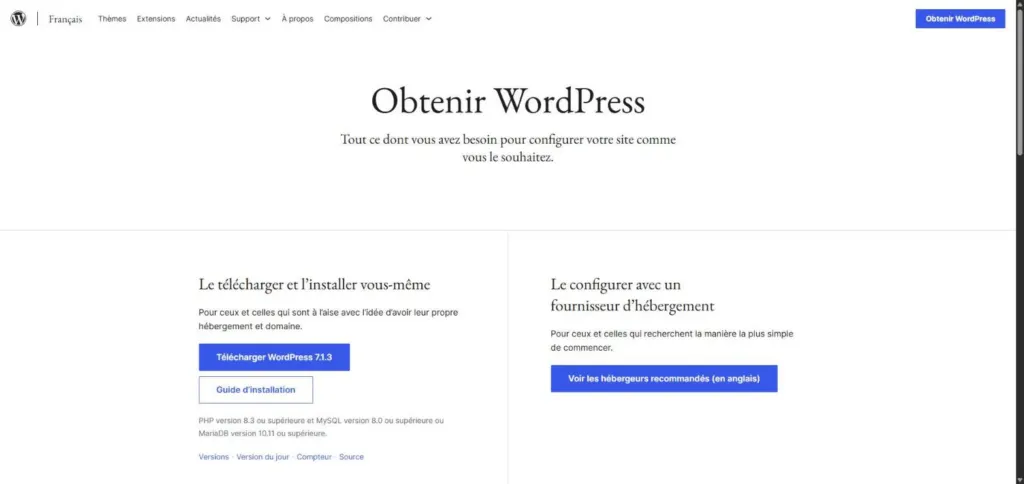
Use the official download page. It offers a “Download WordPress” button followed by the latest version number, as in the screenshot at the top of this article.
The same page shows the recommended versions, a link to the installation guide and links to releases, nightly builds, the counter and the source code. The French site, fr.wordpress.org/download, offers a French package.
Which WordPress version should you download?
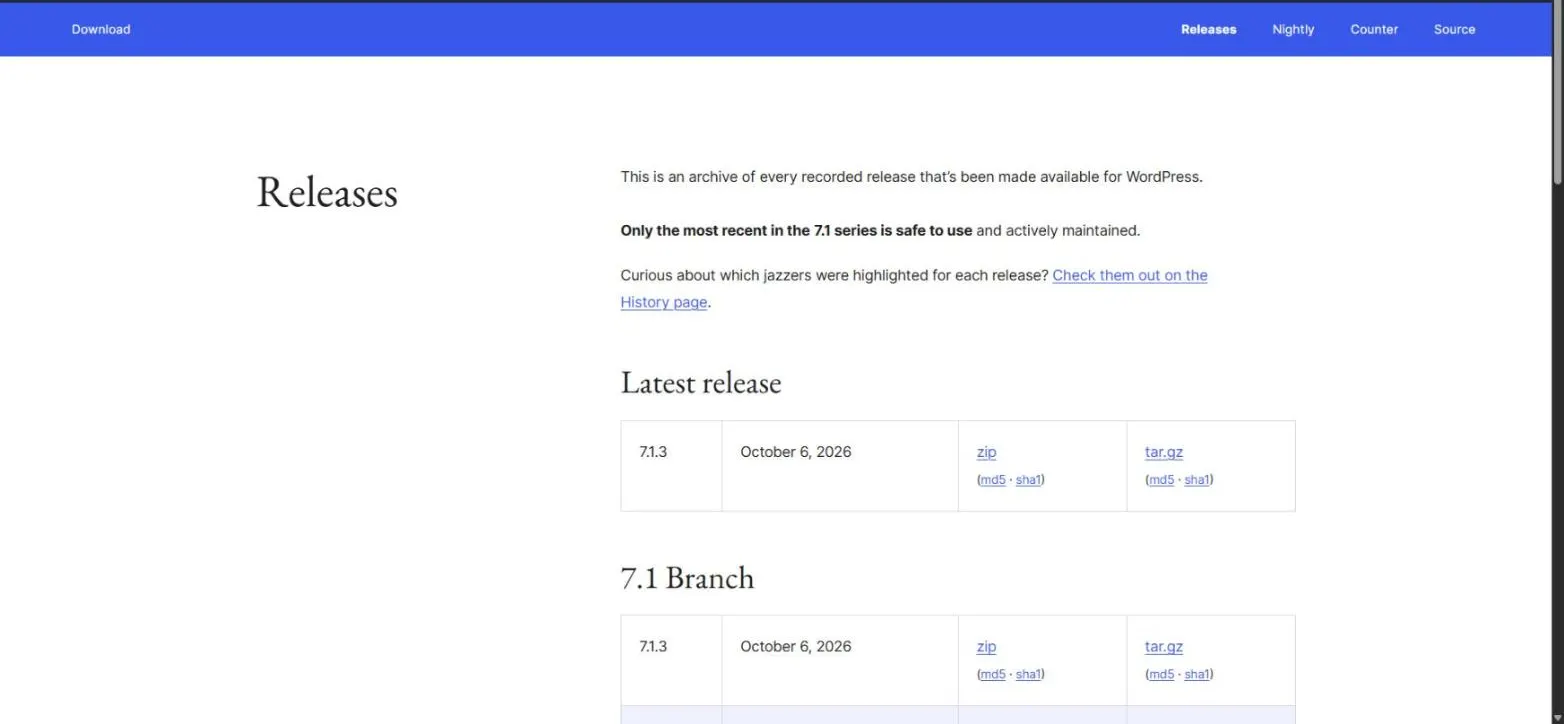
The latest one. At the time of writing, that is 7.1.3, released on October 6, 2026. The releases page states that only the most recent in the 7.1 series is safe to use and actively maintained. The latest release is listed first, with its date and the download links for both formats.
The archive keeps older versions, but download them only for a specific constraint, such as testing compatibility. The nightly build is a pre-release: keep it for a test site.
Which format should you choose, zip or tar.gz?
The releases page offers each version as zip and tar.gz, with their checksums. The zip opens without any special tool on Windows and macOS.
The tar.gz is mostly used on the command line of a server. The official guide gives wget https://wordpress.org/latest.tar.gz then tar -xzvf latest.tar.gz to download and extract the archive.
How do you check the downloaded file?
Each version of the official archive lists an MD5 and a SHA1 checksum. They let you check that your file is identical to the original.
- Open the releases page and find your version.
- Open the “sha1” link next to your format to read the expected value.
- Compute the checksum of your file with
sha1sum file.zipon Linux,shasum file.zipon macOS orcertutil -hashfile file.zip SHA1on Windows. - Compare the two values: they must be identical.
If the values differ, delete the file and download it again from the official page.
What should you plan before installing WordPress?
The download pages recommend PHP 8.3 or higher, and MySQL 8.0 or higher or MariaDB 10.11 or higher. Check these versions in your host’s control panel. If you cannot find them there, ask your host’s support before you upload any file.
- A database and a user with all privileges on it.
- FTP or shell access to upload the files to the server.
- A backup if you replace an existing site, as in my guide to backing up a WordPress site.
How do you install WordPress after downloading it?
The official guide announces an installation in under five minutes. Here are the main steps.
- Unzip the archive: the files land in a folder named
wordpress. - Create the database and its user from your host’s control panel.
- Upload the contents of the
wordpressfolder, not the folder itself, to the root of your site. - Open
/wp-admin/install.phpat your site address. - Enter the title, username, password (twice) and email the installer asks for.
To try the installation without any risk, follow my article on WordPress locally first.
Should you download WordPress or use a host?
The official page offers two paths. Downloading is for people comfortable with having their own hosting and domain. The other option is to set the site up with a hosting provider.
Many hosts offer a one-click install, according to the official guide. In that case you do not need to download the file. I compare offers in my article on cheap WordPress hosting.
Can you reinstall WordPress without downloading the file again?
Yes, from the administration. On my site, Dashboard > Updates shows a button to reinstall the current version when WordPress is up to date.
Make a backup before this kind of operation. To find out which version your site runs, read my guide on how to check your WordPress version.
When should you call in a professional?
You can download and install WordPress on your own for a simple site. Get help if the server refuses the installation, if you take over an existing site or if you want a ready-to-use site.
I set up WordPress, its theme and its basic settings with WordPress website development.
What now?
What you can do today:
- Open wordpress.org/download and note the number of the latest version.
- Compare it with the version shown in Dashboard > Updates on your site.
- Write down the PHP and MySQL or MariaDB versions listed by your host.
Dig deeper: WordPress Website Development