
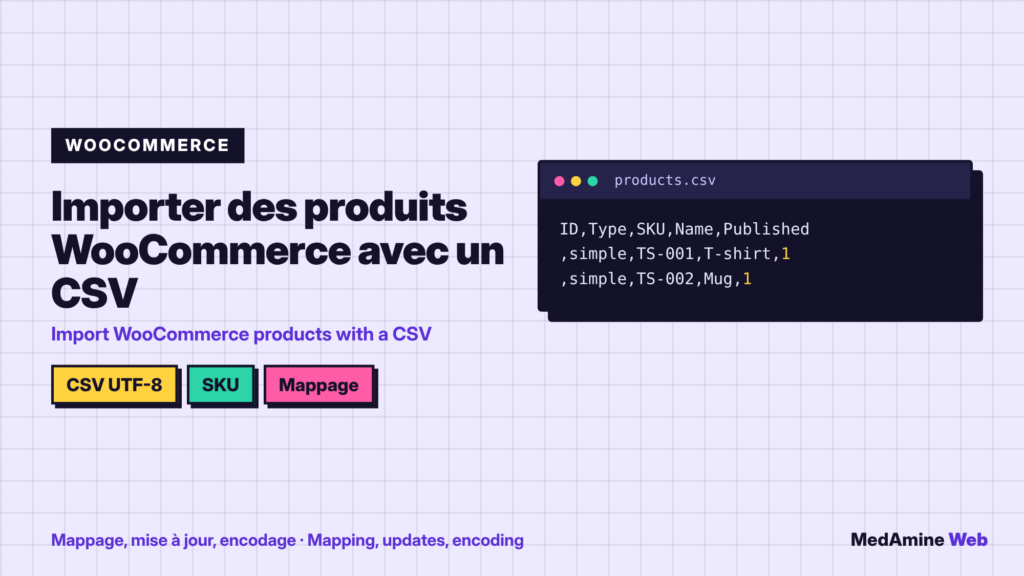
Typing two hundred products by hand takes days. A well-prepared CSV file does it in minutes, as long as you respect a few format rules.
Here is the full method, from preparing the file to checking the result.
Where is the WooCommerce importer?
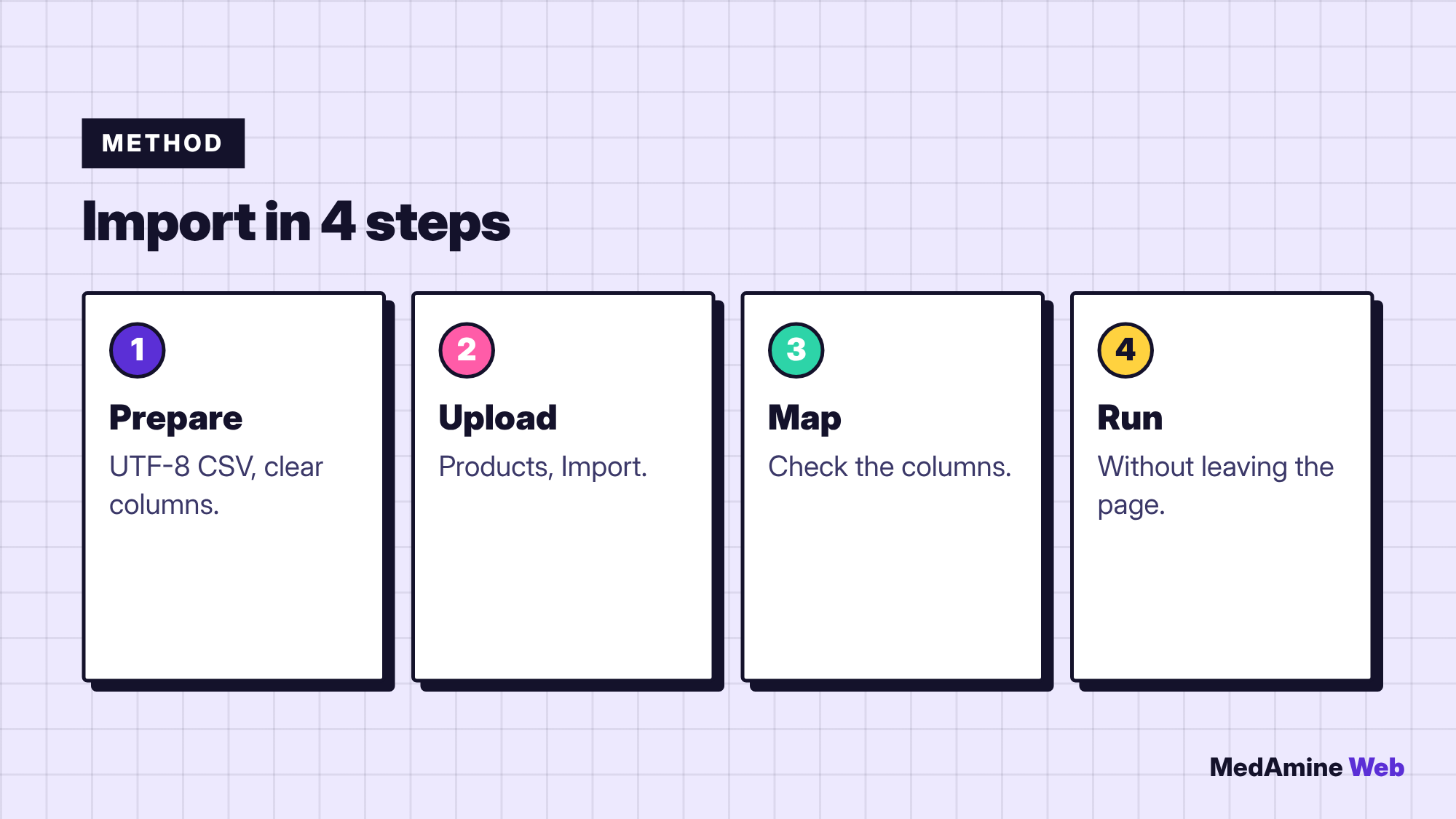
In the admin, go to Products, then All Products, and click Import. According to the official documentation, the tool accepts a CSV or TXT file.
There is also an export option, useful to get a template already in the right format.
How do you prepare the file?
Save it as CSV encoded in UTF-8, then review it: spreadsheets can change the format or the encoding when saving. The simplest approach is to start from a WooCommerce export or the sample in the WooCommerce GitHub repository, keeping the column names.
Which format rules should you follow?
- Use 1 for true and 0 for false.
- Separate multiple values with commas.
- Use the greater-than sign for a category hierarchy.
- Prefix an identifier with
id:(SKUs take no prefix). - Use your store’s time zone for dates.
How does column mapping work?
After the upload, WooCommerce automatically recognises known columns. You can fix each match with the dropdowns, or choose not to import a column.
Unknown columns are not imported by default, and metadata needs the meta: prefix.
How do you update existing products?
Tick the update option on the upload screen. Rows are matched to products by ID or SKU, and an ID with no match is skipped.
What if the file is too big?
The upload limit depends on the server. The maximum size appears on the upload screen, and only the host can change it. Split a large file into several batches instead.
| Problem | Likely cause | Fix |
|---|---|---|
| Skipped products | Existing SKU or ID without update | Tick the update option |
| Garbled characters | Wrong encoding | Save again as UTF-8 |
| File rejected | File type blocked | Check the CSV, upload over SFTP |
| Import interrupted | Server memory or timeout | Split the file |
If items are missing, read the import log before starting over.
How do you check the result?
Open a few imported products: price, stock, categories, images and status. Place a test order. Before any import, back up the store and try on a copy first.
To understand the strengths and limits of a WordPress shop, read WooCommerce pros and cons. To launch the shop, see creating an online store.
How do you import variations and images?
A variable product is described over several rows: one row for the parent product and one per variation, linked by the parent’s SKU. Run a trial with a single variable product before importing a hundred.
For images, give publicly reachable addresses: WooCommerce downloads them during the import. If an image fails, the product is created without it, and you fix it by hand.
Finally, keep the original file: if something goes wrong, it lets you rerun the operation cleanly with the right values.
On a live shop, run big imports at a quiet hour, and avoid editing products by hand at the same time, so the two operations do not overwrite each other.
What now?
What you can do today:
- Export three existing products to get a CSV template
- Save your test file as UTF-8 and review it
- Back up the store before the first import
Dig deeper: WooCommerce Development and Optimisation