
WooCommerce WordPress is the most common pairing for selling online without leaving your site. The plugin adds products, a cart, checkout and orders to the administration you already know.
Here is how to install it, set it up in the right order and avoid the mistakes that cost sales on day one. My admin is in French, so the screenshots show French labels. The English names are given in the text.
What is WooCommerce?
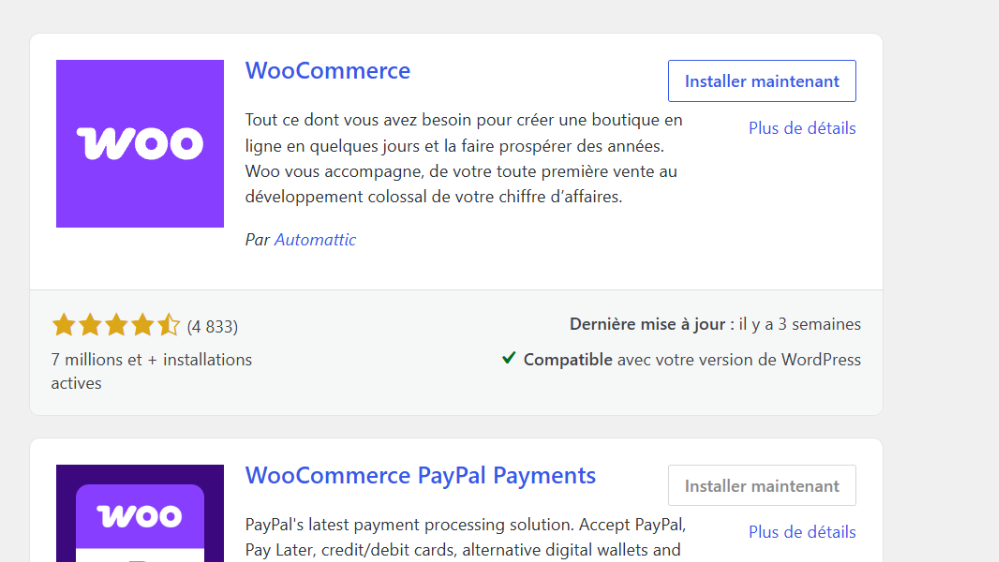
WooCommerce is a free plugin that turns a WordPress site into an online store. The listing in the official directory shows more than seven million active installations in the screenshot below.
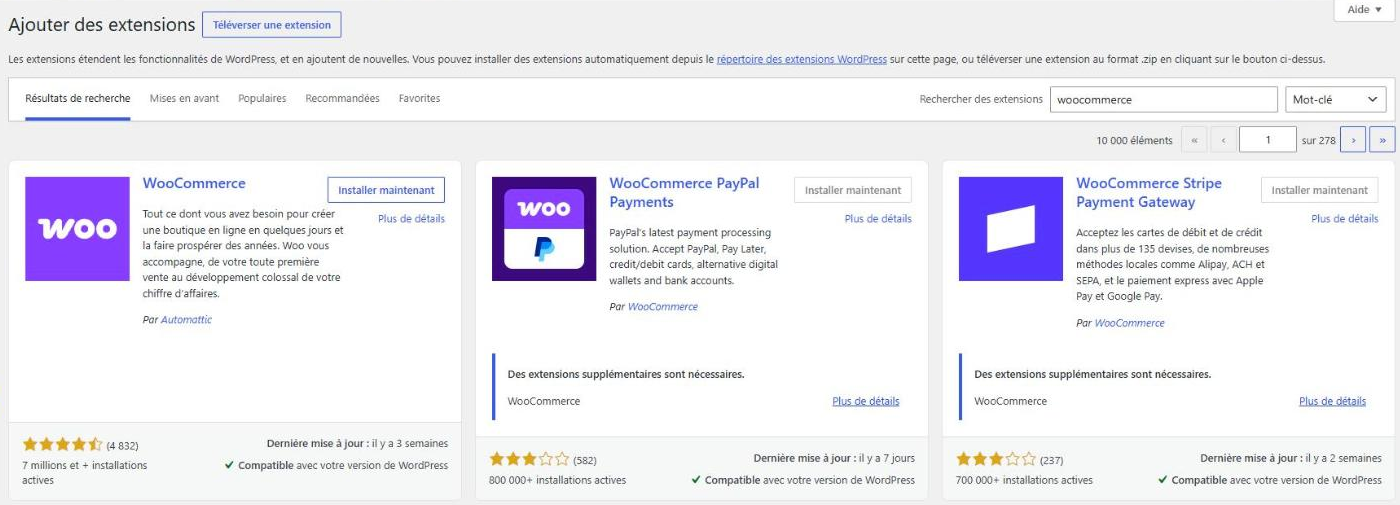
Payments, some shipping modules and many add-ons are offered separately. The base plugin is enough to sell, but the real cost of a store depends on those additions.
A WooCommerce store is still a WordPress site. You keep your pages, your blog and your SEO in the same place, with a single administration to maintain.
Is WooCommerce right for every project?
Yes, for most small and medium stores that want to keep control of their site. Physical products, digital products and subscriptions are possible with the right plugins.
No, if you only want to sell three items from time to time: a simple payment button may be enough. And if you expect very heavy traffic, you need hosting sized for it.
How do you install WooCommerce?
- Open Plugins > Add New and search for WooCommerce.
- Click Install Now, then Activate.
- Choose Set up my store to launch the wizard, or skip it and come back later.
- Answer the questions about the store name, the type of products, the country and the email.
According to the official documentation, the wizard may recommend free features, some of which need a WordPress.com connection through Jetpack. You can decline them.
Which steps should you follow to set up the store?
WooCommerce shows a task list that follows a logical order. Stick to it, it keeps you from forgetting a step.
| Step | Where to set it | Watch out for |
|---|---|---|
| Products | Products > Add New | Sharp photos, price and full description |
| Payments | WooCommerce > Settings > Payments | Pick a provider available in your country |
| Taxes | WooCommerce > Settings > Tax | Check the rules that apply to your business |
| Shipping | WooCommerce > Settings > Shipping | Define the zones and the rates |
| Launch | Preview and test order | Turn off the Coming soon mode |
How do you add your first products?
Open Products > Add New. Fill in a precise title, a description that answers a buyer’s questions, the price, the stock and a sharp image.
Start with five to ten well-described products. A complete product page sells better than fifty empty ones, and it is easier to test.
File the products in clear categories from the start. Visitors find what they want faster, and you avoid reclassifying everything when the catalogue grows.
Which payment methods should you offer?
The Payments step opens WooCommerce > Settings > Payments. You can install a provider or enable offline methods such as a bank transfer. The list you see depends on the country you entered.
Offer at least one card payment. The more steps before payment, the more buyers you lose, so choose a provider your customers know.
Also look at each provider’s fees and payout delay. These details weigh more on your margin than the number of methods you offer.
How do you handle shipping and taxes?
For shipping, enter your address, the zones you serve and the methods with their rates. For taxes, the documentation offers an automated partner, rates entered by hand or the no-tax option.
How do you test the store before opening?
The documentation recommends previewing the store, placing a test order, checking the confirmation emails and turning off the Coming soon mode once everything works.
Test on a phone as well, since a large share of purchases happen there. Open the cart, fill in the payment form and check that every error message is readable.
Finally, read the emails your customers and you receive. A missing or badly written confirmation message quickly creates support requests.
How do you protect a WooCommerce store?
A store handles customer data, so it demands more rigour than a showcase site: frequent backups, regular updates and a limited number of administrator accounts. Follow my guide to securing WordPress and schedule WordPress backups before each update.
To estimate the overall budget of a project, also read how much a WordPress website costs. I set up and maintain stores with the WooCommerce service.
What now?
What you can do today:
- List your first ten products with their price, stock and at least one photo.
- Compare two payment providers available in your country before choosing one.
- Check the PHP version of your host, since a store is more sensitive to it.
Dig deeper: WooCommerce Development and Optimisation