
Updating WordPress does not close every door. Most compromises go through a weak password, an account that is too powerful or a forgotten setting.
Here are the settings I check first, in the order I apply them, with what the official documentation says.
Why harden WordPress beyond updates?
Updates fix known flaws. Hardening reduces what an attacker can try, even when an unknown flaw exists.
The official hardening page is clear: old versions of WordPress no longer receive security fixes. So turn on automatic updates, then add the settings below.
Which password should you choose for a WordPress account?
A strong and unique one. The documentation advises against your name, your username, the company or site name, dictionary words, short passwords and those made only of digits or only of letters.
Use a password manager. It generates a long phrase for each account and stops you from reusing the same one across services. Change any password that has already appeared in a data leak, and never share one account between several people.
How do you turn on two-factor authentication?
The documentation recommends enabling two-step authentication. In practice, a dedicated plugin asks for a second code, generated by an app on your phone, after the password.
- Choose a plugin for two-factor authentication that is maintained and well rated.
- Turn it on for every administrator and editor account.
- Save the backup codes in your password manager.
- Test the login in a private browsing window.
Should you rename the administrator account?
Yes, if the username is admin or webmaster. The documentation advises against both names and suggests renaming an existing admin account.
Create a new account with a less obvious username, give it the administrator role, then delete the old one and reassign its content. Make a backup first.
How do you block the file editor?
The dashboard editor lets you change the code of themes and plugins. If an account is compromised, it gives direct access to the code. The documentation says to disable it with a constant.
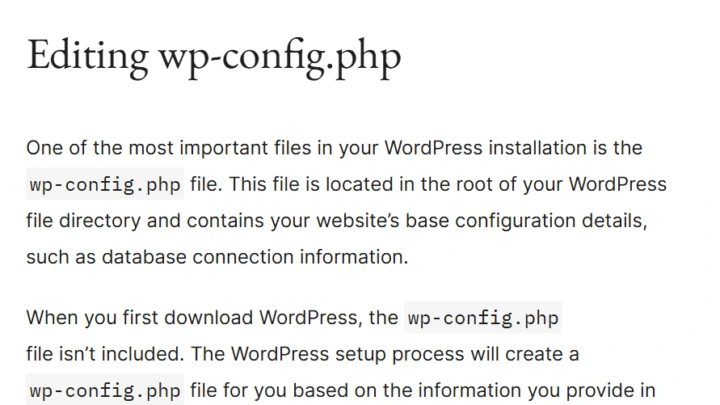
Add the DISALLOW_FILE_EDIT constant with the value true in wp-config.php. It does not stop malicious uploads, but it removes an easy door. My guide to the wp-config.php file shows where to put it.
Which file permissions should you apply?
The documentation gives reference values: 755 for folders and 644 for files. Core folders should only be writable by your hosting account.
| Item | Recommended permission | Note |
|---|---|---|
| Folders | 755 | Read and traverse for the server |
| Files | 644 | Write access for the owner only |
| wp-config.php | 400 or 440 | Read only for the owner |
| wp-content | Write limited to uploads | Needed for media |
Why use SFTP and HTTPS?
Plain FTP sends your username and password in clear text. The documentation recommends SFTP, which encrypts the exchange.
The same logic applies to the administration: serve it over HTTPS. If that is not done yet, follow my guide to switching to HTTPS before going further.
Is a firewall necessary?
The documentation lists it as an option to consider: a plugin, a server level application firewall or a reverse proxy service. It filters suspicious traffic before it reaches WordPress.
A service such as Cloudflare plays that role, as I explain in setting up Cloudflare with WordPress. It complements updates and does not replace them.
How do you monitor and back up?
Keep several backups, stored away from the server, and test a restore. The documentation insists on the last point, because a backup that has never been restored remains a hypothesis.
- Several copies so you can go back to before the compromise.
- External storage, separate from the site’s hosting.
- A restore test on a copy of the site.
- A look at the logs to spot repeated login attempts.
As for order, start with what costs little and protects a lot: passwords, two-factor authentication, the administrator account. That takes under an hour and closes the most common attacks.
Then move on to the technical settings: file editor, permissions, SFTP. Finish with the firewall, monitoring and the test restore. Write down each change so you can undo it.
Keep that list in a shared document, not in your head. A dated record of the applied settings also shows you take security seriously if a client or an insurer asks, and it helps whoever takes over the site after you.
When should you call a professional?
Get help if you run a shop, customer accounts or if the site has already been hacked. My WordPress maintenance service includes these checks.
What now?
What you can do today:
- Open the users list and spot unnecessary administrator accounts.
- Check that your account username is neither admin nor webmaster.
- Search for DISALLOW_FILE_EDIT in your wp-config.php file.
Dig deeper: WordPress Maintenance