
wp-admin is the front door of the WordPress administration: it is where you write posts, install plugins and adjust your site. When the address stops responding or the password is gone, your whole site becomes unreachable.
Here is how to reach wp-admin, what to do when the login fails and how to protect this sensitive page. My admin is in French, so the screenshots show French labels. The English names are given in the text.
What is wp-admin?
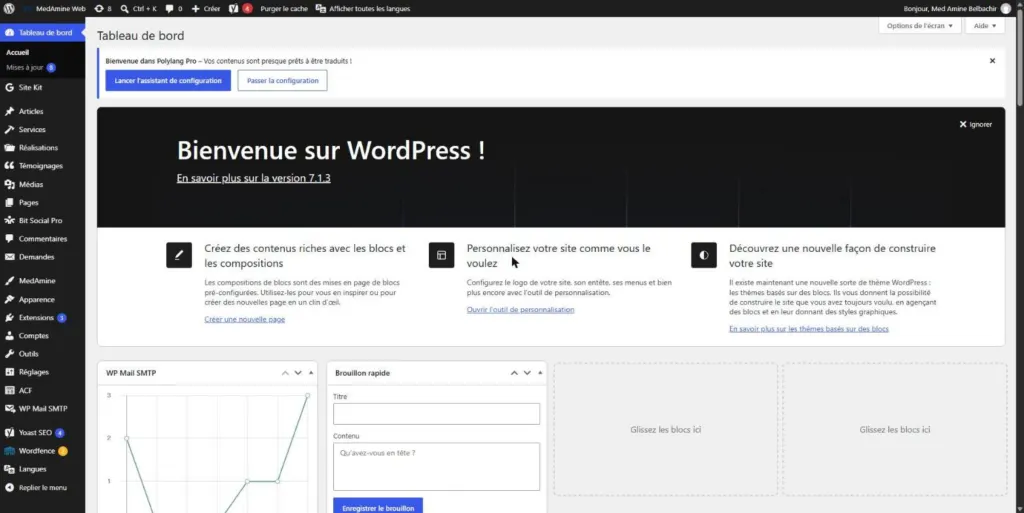
wp-admin is the WordPress folder that holds the administration of your site, also called the dashboard. Adding /wp-admin/ after your domain name opens this area once you are logged in.
According to the official documentation on administration screens, each screen has a toolbar, a main menu, a work area and a footer. The menu groups posts, media, pages, comments, appearance, plugins, users, tools and settings.
How do you access wp-admin?
- Type your site address followed by
/wp-admin/, for examplehttps://example.com/wp-admin/. - Wait for the redirect to the login form if no session is open.
- Enter your username or email and your password.
- Click Log In to submit the form.
- Land on the dashboard, like the screenshot at the top of this article.
A cookie keeps your session open in the browser. On a shared computer, always log out when you leave the administration.
What is the difference between wp-admin and wp-login.php?
wp-login.php is the file that displays the login form. wp-admin is the administration folder, protected by that login: opening /wp-admin/ without a session sends you to the form.
You can type either address to log in. The second one opens the form directly, without a redirect.
What is the wp-admin address locally or in a subfolder?
The principle stays the same. If WordPress is installed in a subfolder, the address becomes https://example.com/blog/wp-admin/.
Locally, with WordPress placed in a wordpress folder on your server, the address becomes http://localhost/wordpress/wp-admin/. Your tool shows the exact address of each site, as in my guide to installing WordPress locally.
What can you do if you lost your password?
Click “Lost your password?” under the form, enter your username or the email address of the account, then wait for the reset message. This method assumes your site can send emails.
If you can still log in, open Users > Profile. The “Account Management” section has the “Set New Password” button.

The “Log Out Everywhere Else” button right below closes your other sessions. It helps if you left your account open on a public computer.
When the message never arrives, the official documentation on resetting your password describes other methods.
- phpMyAdmin: you edit the password in the users table of the database.
- WP-CLI: the
wp user updatecommand changes the password of an account. - Emergency script: a PHP file you upload to the site, then delete right after use.
What should you do when the login fails?
Start by checking the username and password: the documentation reminds you that passwords are case sensitive. The table below summarizes the other common cases.
| Symptom | Common cause | What to try |
|---|---|---|
| 404 error on wp-admin | Login address changed | Find the address or disable the plugin |
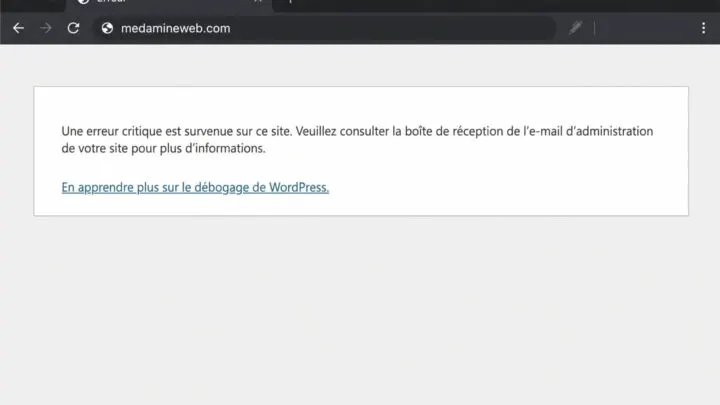
| Blank page or error message | Plugin or theme conflict | Follow the critical error guide |
| Back to the form every time | Blocked cookies or wrong site address | Try another browser, clear cookies |
| Incorrect username or password | Typo or capital letter | Retype it, then reset the password |
If the screen shows a serious error after you log in, read my article on the WordPress critical error.
Why does wp-admin return a 404 error?
A plugin that changes the login address makes wp-admin and wp-login.php unreachable, according to the WPS Hide Login plugin page. That plugin shows more than two million active installs.
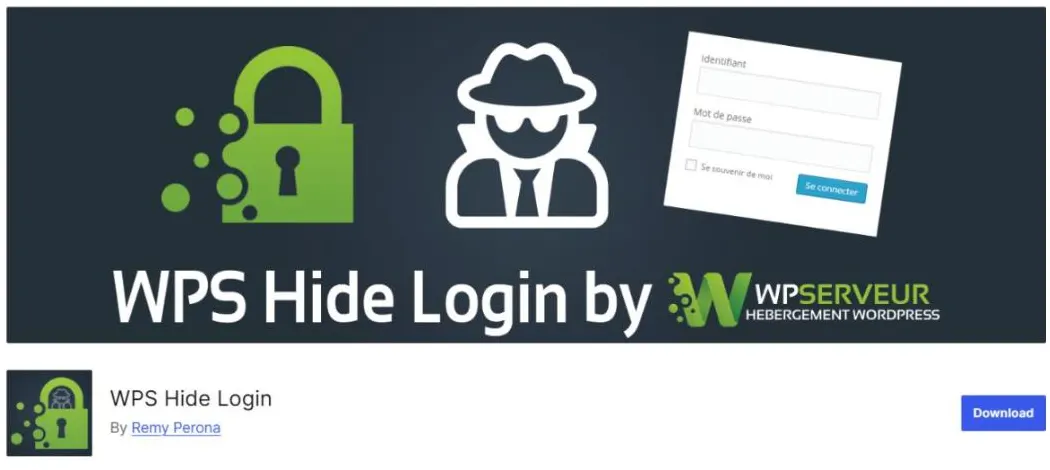
If you forgot the new address, the plugin FAQ suggests finding the whl_page value in the options table. It also suggests removing the plugin folder, logging in through wp-login.php, then reinstalling it.
How do you protect wp-admin?
Changing the login address cuts unnecessary visits, but some reviews on the plugin page say it hides the address without blocking every attack. Add other protections.
- A long, unique password for every administrator account.
- Two-factor authentication, which security plugins such as Wordfence offer.
- Few administrator accounts: give each user only the role they need.
- Regular updates of WordPress, your theme and your plugins.
I cover these protections in my guide to securing WordPress. If you fear an access was already stolen, read the article on a hacked WordPress site too.
When should you call in a professional?
You can fix a forgotten password or a lost login address on your own. Get help if the site shows an error after you log in, if no email arrives or if you no longer recognize the administrator accounts.
I restore access to your site and look for the cause of the lockout with my WordPress repair service.
What now?
What you can do today:
- Save the exact address of your login page in your password manager.
- Open Users > Profile and check that your account email address is the right one.
- Look at your administrators in Users > All Users and check that none is unknown to you.
Dig deeper: WordPress Repair and Hacked Site Cleanup