
The wp-config.php file is one of the most important files in WordPress, and one of the most fragile. A single syntax error can show a white page on the whole site.
Here is what it contains, how to edit it safely and which settings are really worth touching.
What is the wp-config.php file for?
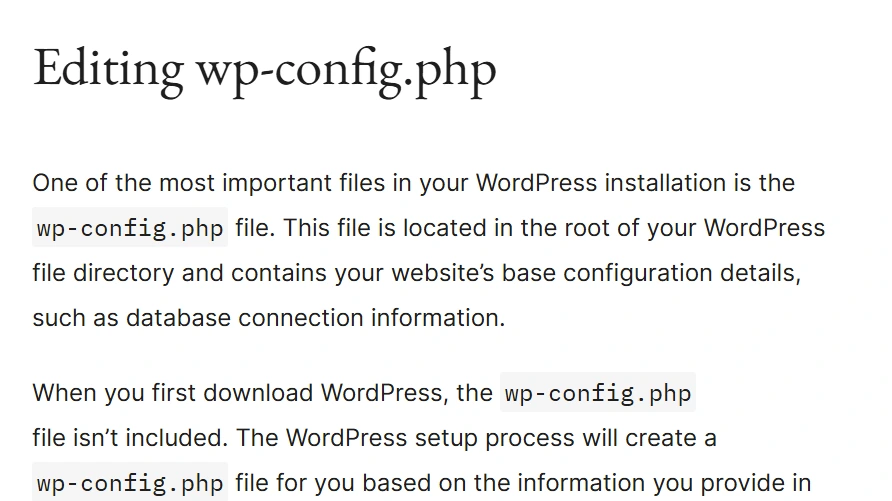
According to the official documentation, this file sits in the root of your WordPress installation. It holds the base details of the site, such as the database connection.
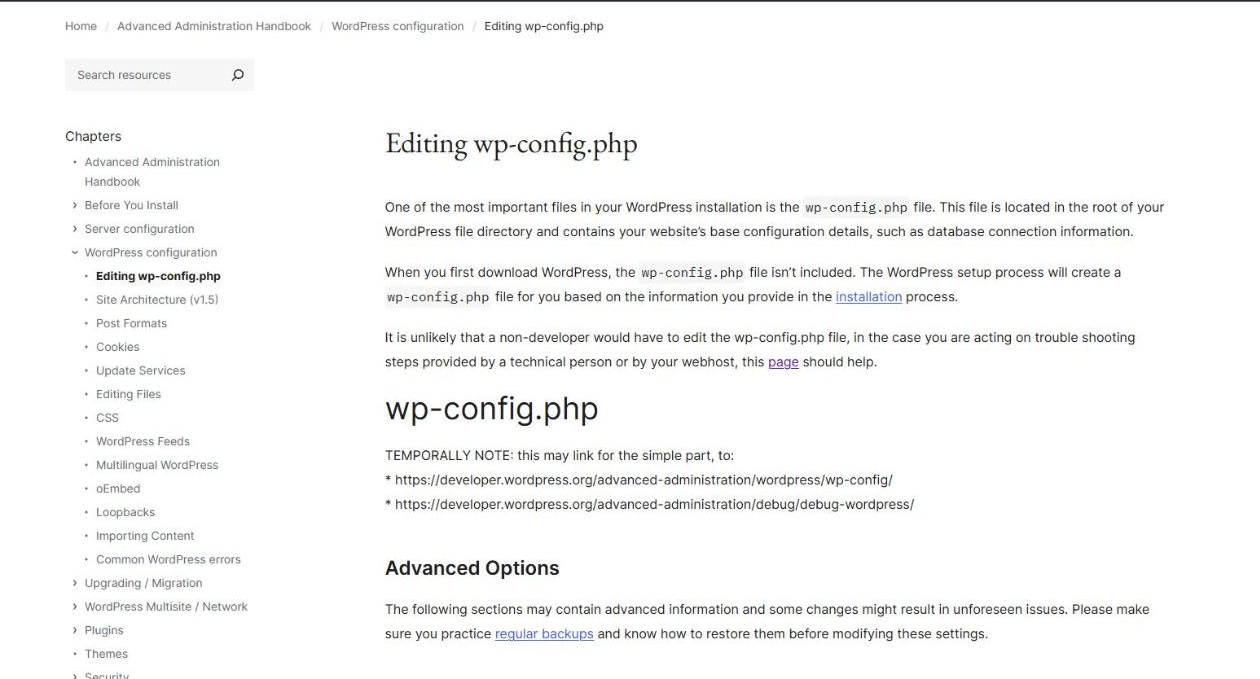
The file is not included in the archive you download. The installation process creates it from the information you enter.
Without it, WordPress does not know where its database is. If it is missing or unreadable, the site shows a connection error or restarts the installation.
Where is the wp-config.php file?
It is in the main folder of the site, at the same level as the wp-admin, wp-content and wp-includes folders. You reach it through your host’s file manager or through SFTP.
A non-developer rarely needs to edit it. The documentation says you mostly touch it when following the instructions of a technician or a host.
Some hosts place the file one folder above the public root, which protects it further. WordPress can find it there as well.
What does wp-config.php contain?
| Item | Role | Precaution |
|---|---|---|
| DB_NAME, DB_USER, DB_PASSWORD, DB_HOST | Database connection | Never share them |
| Keys and salts | Secure the login cookies | Regenerate after a hack |
| Table prefix | Start of the table names, wp_ by default | Do not change it on a live site |
| WP_ constants | Enable or tune features | Respect the exact syntax |
The table prefix may only contain letters, numbers and underscores. Changing it without migrating the database breaks the site.
The database credentials give access to all your data. Never send them by email or in a public screenshot, and change them if you exposed them.
Keys and salts are random strings that protect login cookies. WordPress provides an official generator, and it is wise to renew them after a hack to sign out every account.
How do you edit wp-config.php safely?
- Copy the file to your computer before touching it.
- Make a full backup of the site, as in my guide to backing up WordPress.
- Open the file with a plain text editor, never with a word processor.
- Add your lines before the line that announces the end of the edits.
- Save and reload the site right away to check that it responds.
The documentation reminds you to keep the single quotes around values and to leave no space or content after the closing PHP tag.
How do you turn on debug mode?
Debugging helps you understand an error. According to the official debugging guide, you turn on WP_DEBUG, send errors to a log with WP_DEBUG_LOG and hide the display with WP_DEBUG_DISPLAY.
Errors are then written to the file wp-content/debug.log. The guide says these tools are not recommended on a production site, and that true or false values are written without quotes.
How do you raise the WordPress memory limit?
The WP_MEMORY_LIMIT constant sets the maximum PHP memory WordPress may use. The default is 40 MB for a single site and 64 MB for a multisite network, according to the documentation.
Raising this value can fix a memory error, but it sometimes hides a greedy plugin. My article on the WordPress critical error helps you find the real cause.
If the error persists after a reasonable increase, ask your host for the real limit of your plan. It may be lower than the value you try to set.
Which settings strengthen security?
- DISALLOW_FILE_EDIT: disables the theme and plugin editor of the administration.
- DISALLOW_FILE_MODS: also blocks installs and updates from the administration.
- FORCE_SSL_ADMIN: forces encryption for login and the administration.
The second setting also stops updates from the administration. Use it only if you manage updates another way. More good practices are in my guide to securing WordPress.
What if the site crashes after an edit?
Put the original copy of the file back: the site should recover immediately. Then compare both versions to spot the faulty line, often a forgotten quote, semicolon or parenthesis.
Keep a dated copy of the file each time you change it. A short history of working versions makes the next repair a matter of minutes.
If you have no copy or the site stays broken, I can step in with the WordPress repair service.
What now?
What you can do today:
- Download a copy of your wp-config.php file and store it with your backups.
- Check that debugging is off and that no debug.log file sits in wp-content.
- Ask your host where the file manager is and test that you can open it.
Dig deeper: WordPress Repair and Hacked Site Cleanup