
A site without HTTPS shows a warning in most browsers and exposes login passwords. Switching WordPress to HTTPS is a short operation, as long as you do it in the right order.
Here are the steps I follow, from installing the certificate to the final checks. My admin is in French, so the screenshots show French labels. The English names are given in the text.
What is HTTPS?
HTTPS is the encrypted version of the http protocol. A certificate installed on the server lets the visitor’s browser and your site exchange data in encrypted form.
The official requirements page asks that your host supports HTTPS. The WordPress documentation strongly recommends it.
How do you turn on the HTTPS certificate?
The certificate is activated at your host, in its control panel, often in one click. According to the official documentation, the certificate must be installed and available on the server before any other setting.
Check that the https address opens your site in the browser, without any warning. If it does not, do not touch WordPress yet.
Some free certificates renew by themselves, others need an action. Note the expiry date, because an expired certificate shows a worse warning than having no HTTPS at all.
What should you do before changing the site addresses?
Make a full backup of the files and the database. A wrong address setting can lock you out of the administration.
My guide to backing up a WordPress site details the method. Also note the current value of the two fields, so you can put them back if needed.
How do you change the addresses in WordPress?
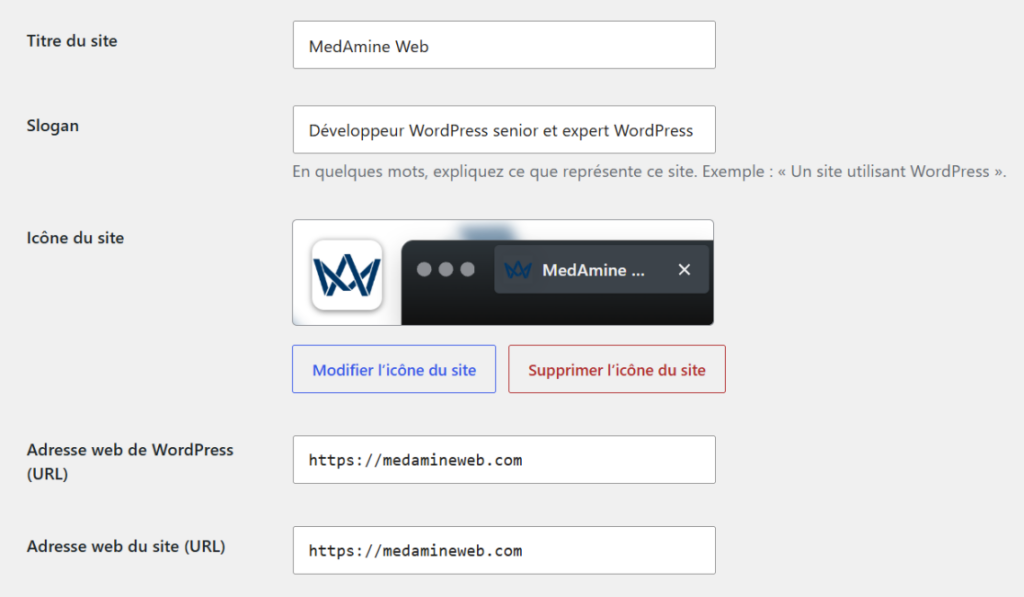
- Open Settings > General in the administration.
- Replace http with https in “WordPress Address (URL)”.
- Do the same in “Site Address (URL)”.
- Save, then log in again if WordPress asks you to.
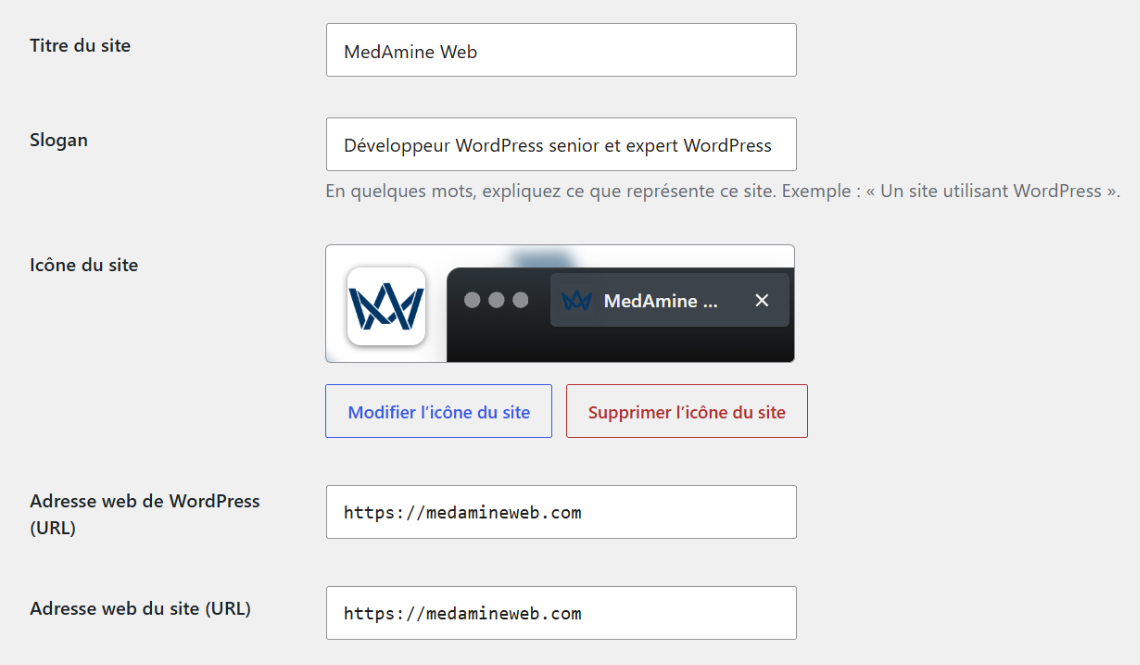
The screenshot shows these two fields on a site already running on https. In a simple setup, the two addresses stay identical.
How do you redirect the old http to https?
A permanent redirect automatically sends visitors and Google from the old address to the new one. Without it, you keep two versions of the site, which splits your visibility.
The redirect is set at your host or in the server configuration file. Some hosts and security plugins offer a dedicated option, simpler than a hand-written rule.
Then test by typing the old address in the browser: you should land on the https version, on the same page. Also check a deep address, not only the home page.
How do you fix mixed content?
Mixed content appears when a page served over https still loads an image, a script or a stylesheet over http. The browser then shows a crossed-out padlock or blocks the element.
| Symptom | Common cause | Fix |
|---|---|---|
| Crossed-out padlock | Image over http in a post | Replace the address with the https version |
| Broken layout | Stylesheet loaded over http | Fix the address in the theme or plugin |
| Blocked form | Script over http | Update the plugin concerned |
| Old logo over http | Address stored in the database | Replace the addresses in the database |
Open your browser console: it lists every blocked resource. A search-and-replace plugin for the database can help, used with a backup.
How do you encrypt the connection to the administration?
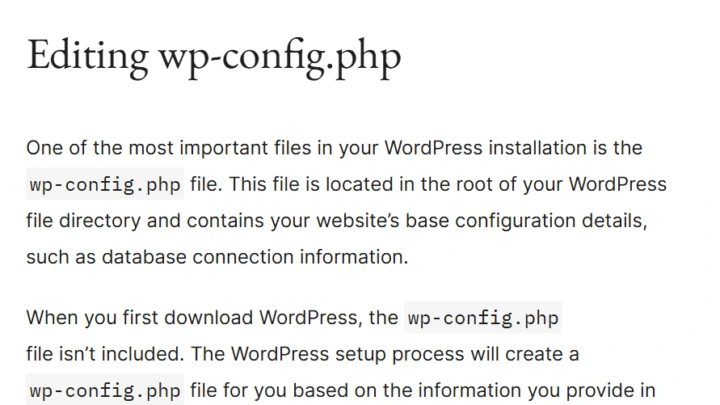
The documentation says to add the FORCE_SSL_ADMIN constant with a true value in the wp-config.php file. It forces encryption for logins and the administration.
The old FORCE_SSL_LOGIN setting has been deprecated since version 4.0. The page also states that this setting does not protect against every risk, so keep a strong password.
What should you check after switching to HTTPS?
- The padlock shows on the home page, a post page and the cart if you sell.
- The redirect works from the old http address.
- The sitemap uses https addresses, as in my guide to the WordPress sitemap.
- The Search Console has a property for the https version of the site.
If a proxy or a CDN encrypts traffic in front of your host, the documentation warns of a possible redirect loop. WordPress must then be told that the original connection is secure.
When should you call a professional?
Get help if the site loops on redirects, if the administration became unreachable or if dozens of pages show mixed content. I handle these cases with the WordPress maintenance service.
What now?
What you can do today:
- Open your site in the browser and check whether the padlock shows on the home page.
- Write the two current addresses of Settings > General in a file before any change.
- Ask your host whether the certificate is active and how to force the redirect to https.
Dig deeper: WordPress Maintenance