

A sitemap is the list of pages you want Google to crawl. WordPress creates one on its own, but it isn’t always the one you think, and sometimes it gets switched off without anyone noticing.
Here is how to find your site’s sitemap, check what’s in it and submit it to Google without errors.
What is a sitemap and what is it for?
A sitemap is a file, usually XML, that lists the addresses on a site you want crawled. It helps search engines find your pages, especially new ones or pages with few internal links.
It guarantees nothing. Google says submitting a sitemap is a hint, with no promise that the pages will be crawled. Good internal linking still does most of the work, and the sitemap adds to it.
Does WordPress create a sitemap by itself?
Yes, since WordPress 5.5. WordPress core publishes an index at /wp-sitemap.xml. It covers public content types, taxonomies, author pages and the home page.
Each sitemap page holds at most 2,000 addresses by default, and robots.txt mentions the index so crawlers can find it. This version is enough for a small site, but it offers few settings without code.
How do you create a sitemap with Yoast SEO?
When Yoast SEO is active, it takes over from the WordPress sitemap. On my site, /wp-sitemap.xml actually redirects to the Yoast one.
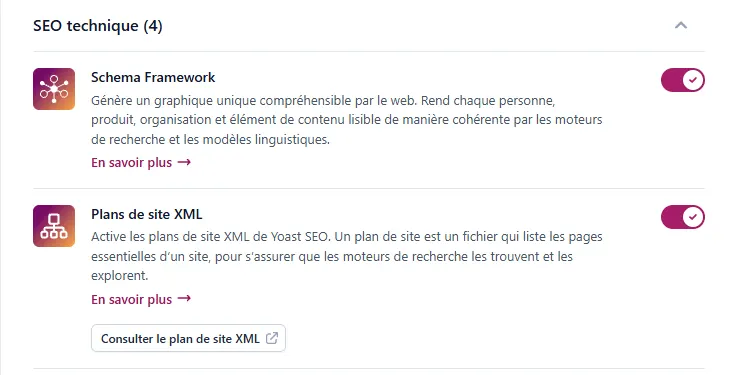
- Open the settings: in the admin, go to Yoast SEO > Settings > Site features.
- Scroll down to the Technical SEO section and find the “XML sitemaps” option.
- Turn the toggle on if it isn’t already.
- Click “View the XML sitemap” to open the result in a new tab.
Yoast updates the file when you publish or delete content, and leaves out anything set to noindex. Before turning it on, it recommends deactivating other sitemap tools and deleting any sitemap files created by hand.
Where do you find your sitemap’s address?
It depends on the tool that generates it. This table sums up the two most common cases.
| Criterion | WordPress sitemap | Yoast SEO sitemap |
|---|---|---|
| Address | /wp-sitemap.xml | /sitemap_index.xml |
| Activation | Automatic since WordPress 5.5 | Turned on in Site features |
| Content included | Public content types, taxonomies, authors | Indexable content, excluding noindex |
| Settings | Filters in code | Settings in the admin |
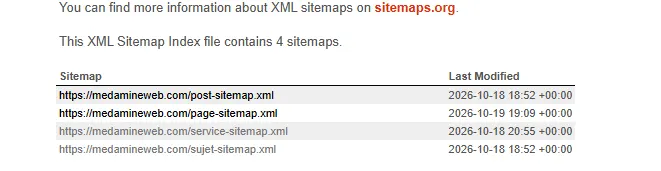
With Yoast, my site’s index lists four sitemaps: posts, pages, services and topics.
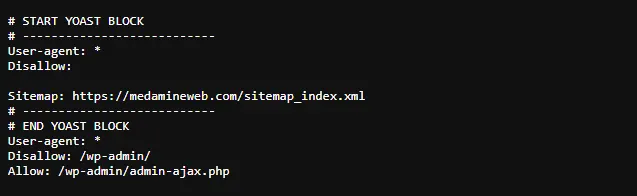
robots.txt also gives the sitemap address through a dedicated line. Yoast adds it for you.
What should a good sitemap contain?
A useful sitemap only lists what you want to see in search results.
- Public, indexable pages that respond without errors.
- Absolute addresses, with the full domain name.
- No pages that are noindexed, redirected or missing.
- An honest last-modified date, because Google only uses it when it’s consistent and verifiable.
Google ignores the priority and changefreq values, so don’t waste time on them.
How do you check your sitemap?
- Open the sitemap address in your browser. You should see a list of addresses, not an error.
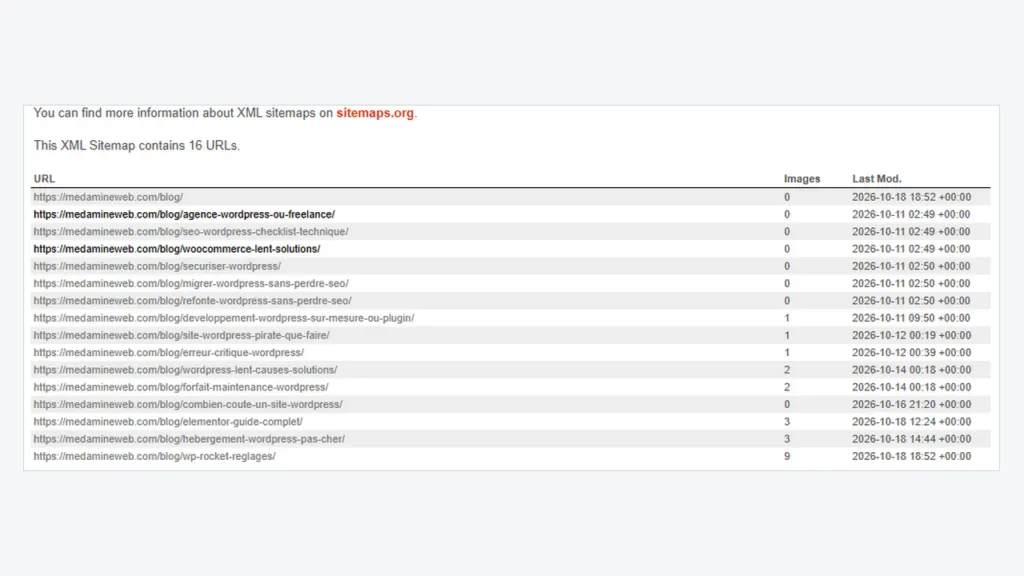
- Count the addresses and compare them with your published content. In the screenshot at the top of this article, the post sitemap shows 16 addresses: 15 posts and the blog page.
- Test a few addresses at random to check they open without a redirect.
- Look for noindexed content: none of it should appear in the list.
- Watch Search Console after submitting. It shows the status and the number of discovered pages.
How do you submit your sitemap to Google?
- Open Search Console and choose your property.
- Click “Sitemaps” in the left-hand menu.
- Enter the sitemap address, for example
sitemap_index.xmlwith Yoast, then submit it. - Check the status: it should say “Success”.
You can also declare the sitemap in robots.txt, as in the screenshot above. Google accepts both methods, and you can list several sitemaps.
Which errors and limits should you know about?
According to Google, a sitemap can’t be larger than 50 MB uncompressed or contain more than 50,000 addresses. Beyond that, you split it into several files linked by an index, which WordPress and Yoast already do.
- Two sitemaps at once: an SEO plugin and another tool each publish their own, at different addresses.
- Useless content: internal search results, empty archives or noindexed pages.
- Made-up dates: Google only uses the modified date if it stays consistent.
- A site hidden from search engines: see the box below.
When should you call in a professional?
On a simple site, an SEO plugin, a check and a submission in Search Console are enough. Get help if the site has several thousand pages, if important pages stay out of the index, or if you’ve just migrated. In that last case, start with Move WordPress without losing SEO.
I then look at the sitemap, indexing and site structure together as part of a technical WordPress SEO audit. The other checkpoints are in my technical SEO checklist.
What now?
What you can do today:
- Open
/sitemap_index.xmlor/wp-sitemap.xmlon your site and note the number of addresses. - Read your robots.txt to check the Sitemap line.
- Check in Search Console that your sitemap was submitted with a “Success” status.
Dig deeper: WordPress SEO Consultant