
You open your site and all that is left is a blank page, with no message. It is stressful, but the cause is almost always found within minutes.
Here is the method I follow, from reading the error log to restoring a backup, keeping the risk low at every step.
What is the white screen of death?
It is an empty page that replaces your site or its dashboard. PHP hit a fatal error and, because error display is off on a live site, you see nothing.
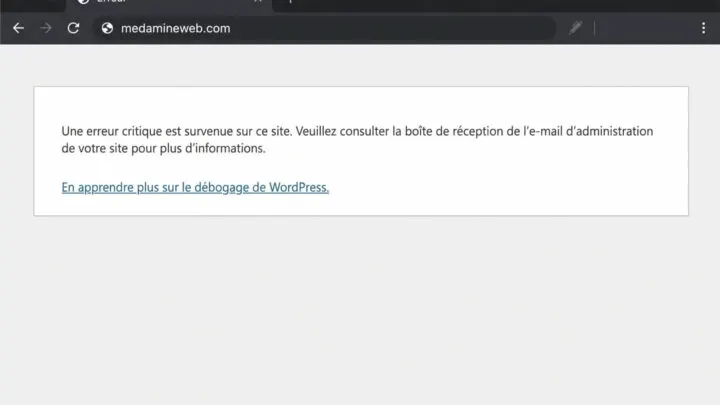
Since WordPress 5.2, recovery mode often shows a critical error message and emails the administrator. Look in your inbox first.
What are the most common causes?
| Cause | How to spot it | First move |
|---|---|---|
| Incompatible plugin | The blank page follows an update | Deactivate the plugin |
| Faulty theme | Only the public site is affected | Activate a default theme |
| Not enough PHP memory | “memory size exhausted” in the log | Raise the limit |
| PHP version too recent | Error after a host change | Go back to the previous version |
| Hand-edited file | Blank right after a code tweak | Undo the change |
In every case, the error log names the file involved. That is why we start with it, before deactivating anything at random.
A partial white screen, where only one area of the page disappears, usually points to a JavaScript error or a broken block. The diagnosis below still applies, but the browser console then gives you one more clue.
How do you turn on the error log?
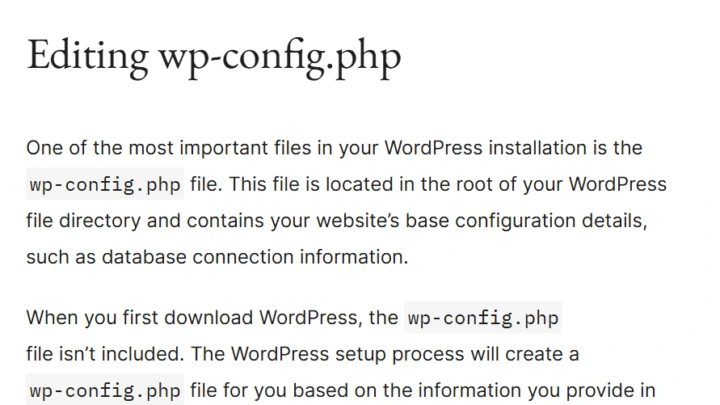
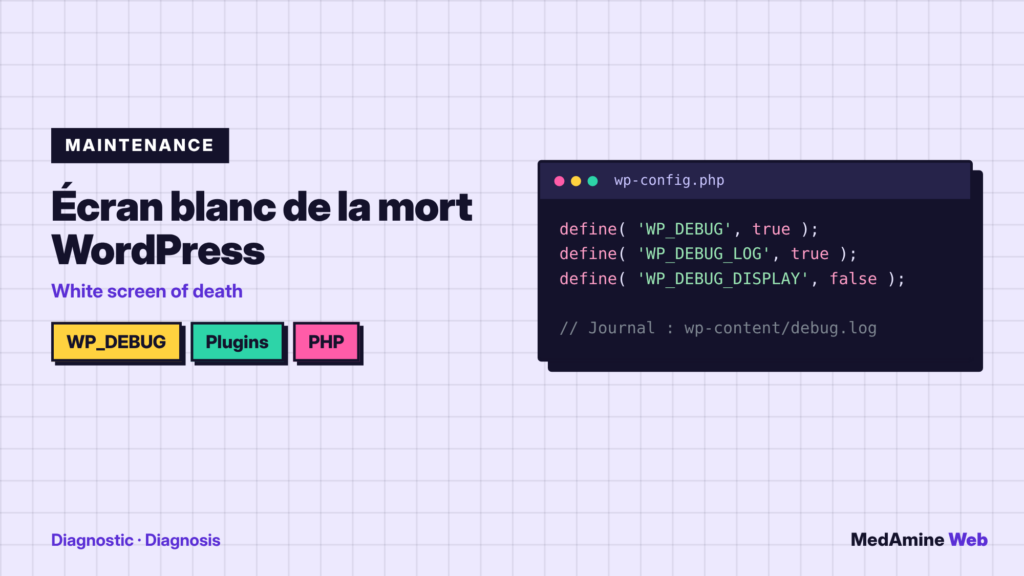
Connect over FTP or through your host’s file manager, then open wp-config.php at the root of the site. The debug constants are described in the official documentation.
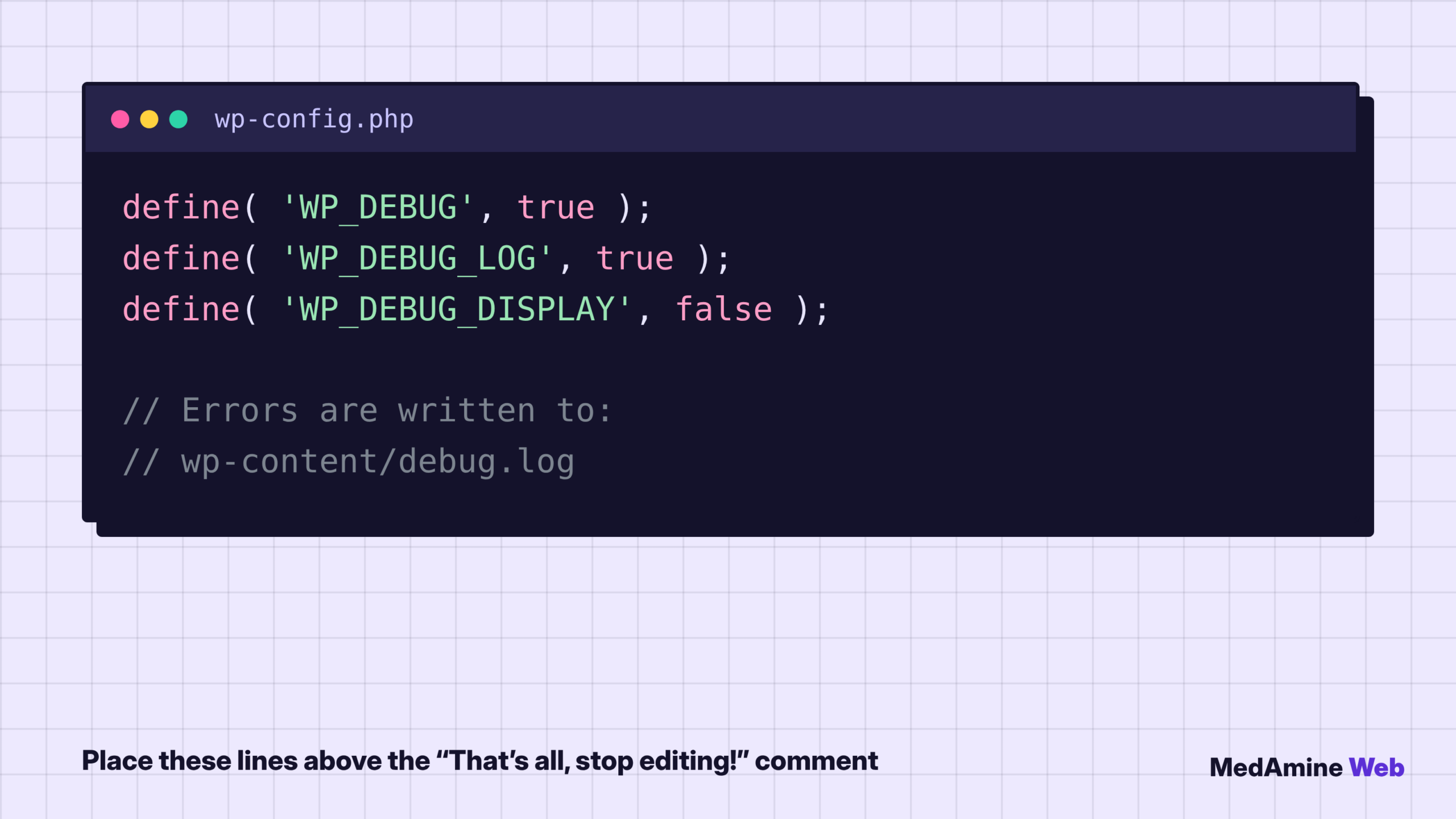
WP_DEBUG_LOG writes errors to wp-content/debug.log. Setting WP_DEBUG_DISPLAY to false keeps messages away from visitors. Add these lines above the comment that tells you to stop editing.
How do you read the debug.log file?
Reload the blank page to trigger the error, then open wp-content/debug.log. The last lines are the most useful.
Look for “Fatal error” and the path that follows. A path containing /plugins/plugin-name/ points to that plugin. A path containing /themes/ points to the active theme.
How do you deactivate plugins without dashboard access?
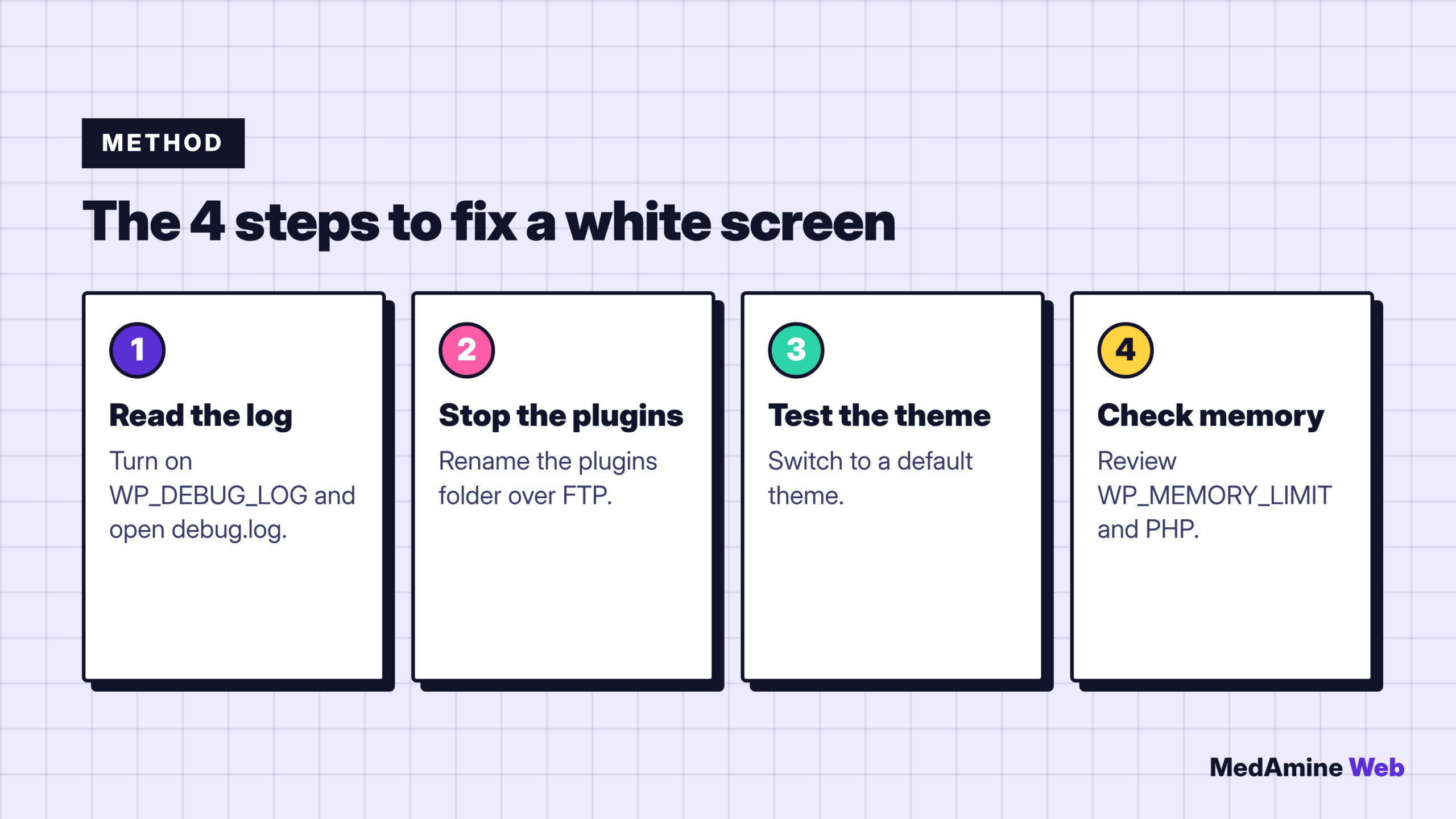
Rename the plugin folder inside wp-content/plugins, for example by adding -off. WordPress can no longer find it and deactivates it.
- Identify the plugin named in the log, or rename the whole
pluginsfolder if you do not know. - Reload the site to see whether the white screen disappears.
- Restore the original name, then reactivate plugins one by one from the dashboard.
- Note the faulty plugin and look for an update or an alternative.
How do you test the theme?
If plugins change nothing, rename the active theme folder inside wp-content/themes. WordPress then falls back to a default theme, if one is installed.
If the site appears, the problem comes from the theme or its child theme. I fix it on a copy, never directly in production. When a theme is customised, a child theme keeps your changes safe.
How do you raise the PHP memory limit?
If the log mentions exhausted memory, set the WP_MEMORY_LIMIT constant to 256M in wp-config.php. That value is a request from WordPress, and it cannot exceed what your host allows.
A higher limit sometimes hides a greedy plugin without fixing it. If the need returns after a few weeks, look for what consumes memory instead of raising the value again.
If the value is ignored, ask your host to raise PHP’s memory_limit. It is also a good time to check that your PHP version is supported by your extensions.
When should you restore a backup?
When the log is empty, the site has been unusable for more than an hour or you suspect a compromise. Restore on a copy first if your host allows it.
That is why I recommend a tested automatic backup. I explain the method in backing up a WordPress site.
How do you stop it from happening again?
- Run updates on a test copy before production.
- Avoid editing code in the dashboard file editor.
- Keep a recent backup off the server.
- Monitor the site with an uptime check.
When should you call a professional?
Get help if the log shows an error in WordPress core, if the database is involved or if the site sells online, since every hour offline then costs you orders. An hour of downtime quickly costs more than a repair.
What now?
What you can do today:
- Check your inbox: WordPress sends a recovery message when a critical error happens
- Write down your FTP address and password somewhere safe
- Check the date of your last backup and test restoring it
Dig deeper: WordPress Repair and Hacked Site Cleanup